Adding a bank account
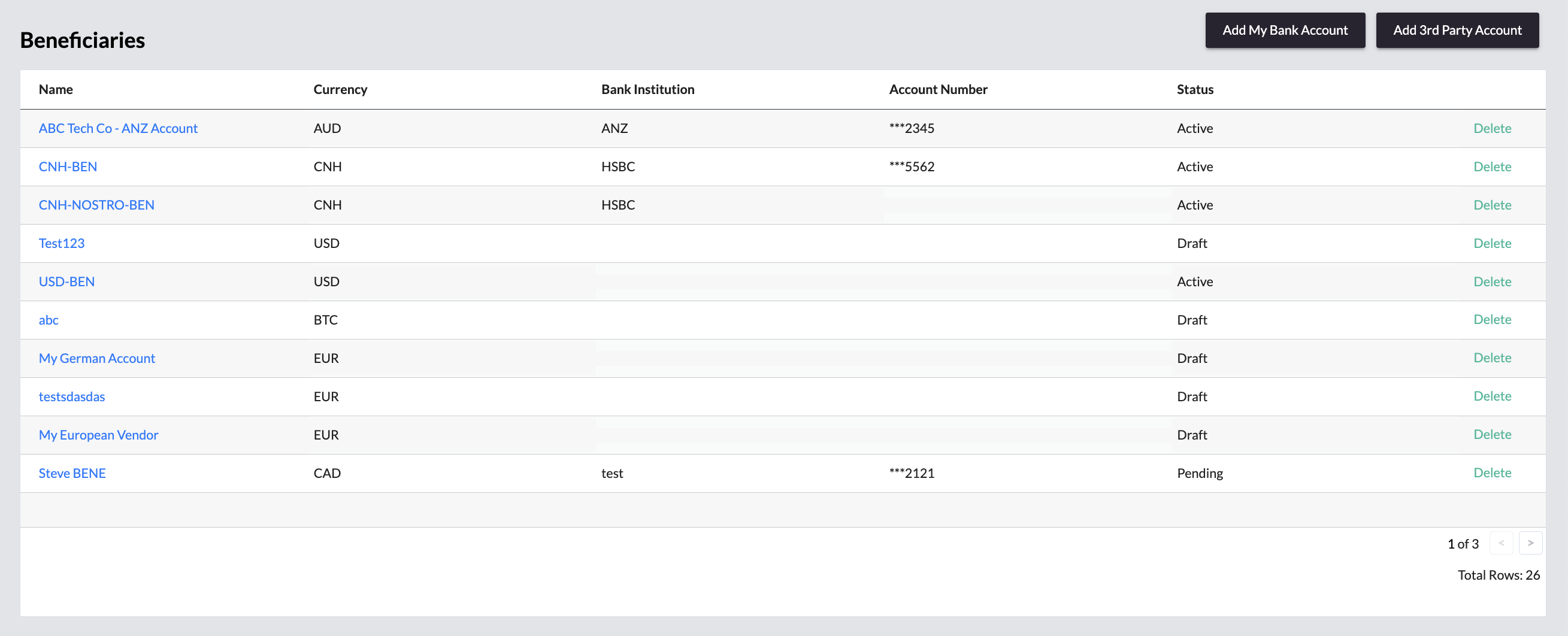
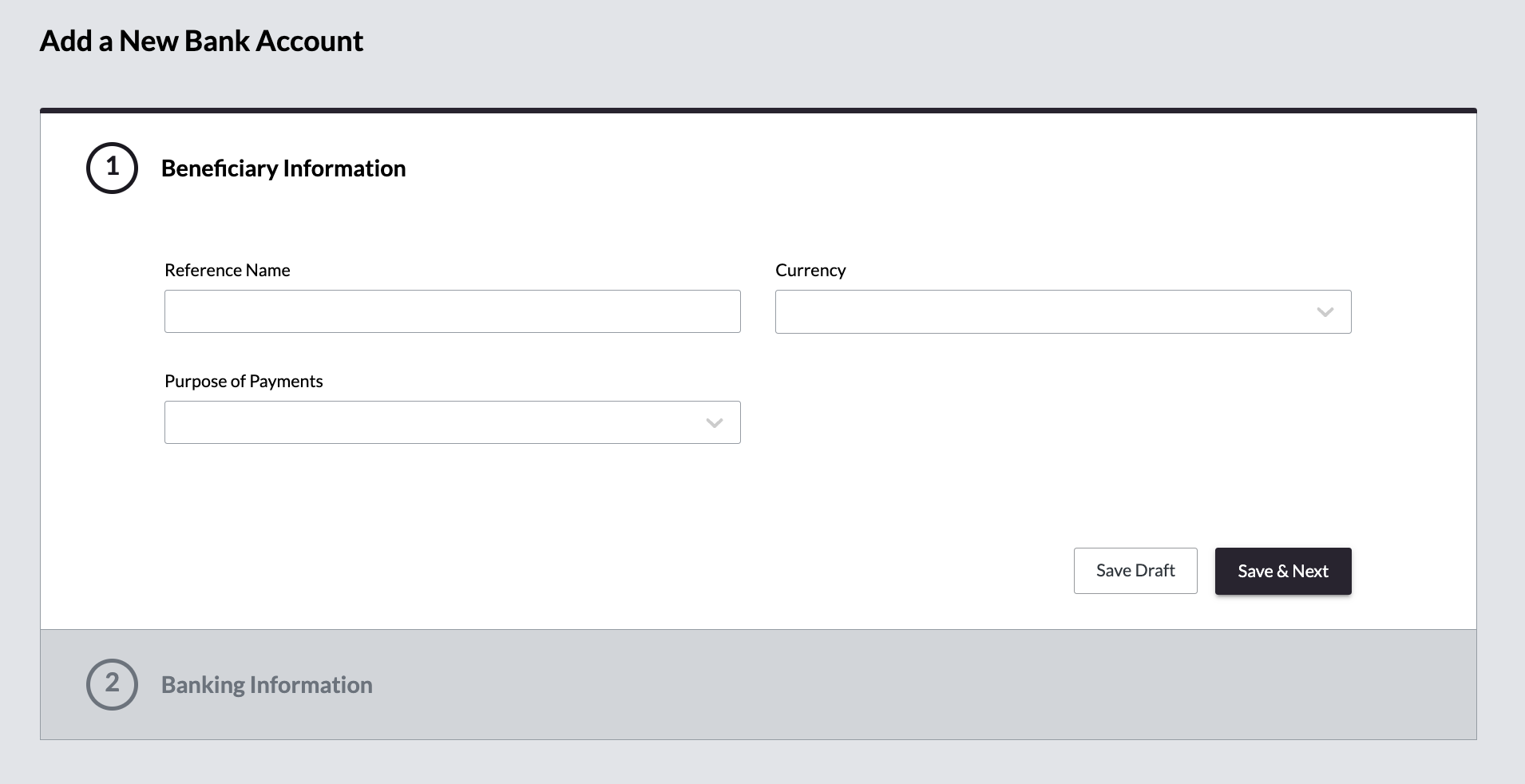
To add a bank account, users should click the Add My Bank Account button at the top right of the Beneficiaries page. They will first enter general information about the beneficiary, including a reference name, the account currency, and the payment purpose.
Next, users will be prompted to provide essential bank details, such as
- Bank name
- Country
- Address
- City
- State
They will also need to enter specific account information, including:
- Settlement methods (Wire, ACH, PAD, Note)
- Account number
- Transit number
- Institution number
- SWIFT code
- IBAN
- Cnaps Code
After completing all details, users have the option to either save the account as a draft to submit later or submit it immediately for compliance review.
Adding a Third Party Account
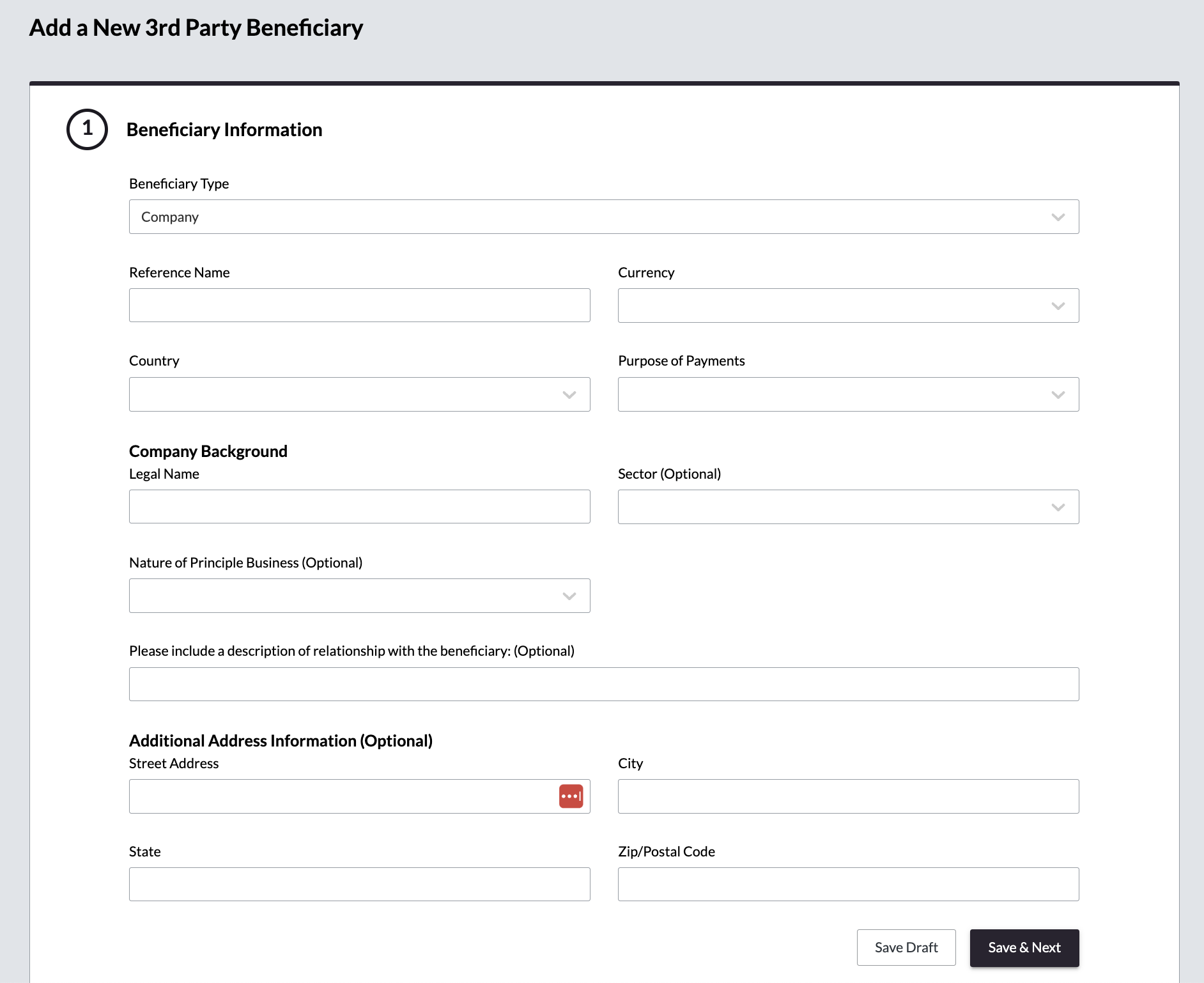
To add a third-party account as a beneficiary, users should select the Add 3rd Party Account button at the top of the Beneficiaries page.
Here, they will enter:
- Beneficiary type (individual or company)
- Reference name
- Account currency
- Country of residence
- Purpose of payment
users also need to provide specific details about the company or individual, such as:
- Legal Name
- Sector (Optional)
- Nature of Principle Business (Optional)
- Description of relationship with the beneficiary (Optional)
Bank details are also required at this step. Once entered, users can choose to either save the account as a draft to complete and submit later or submit it immediately for compliance review.
Amending a Beneficiary
To amend an existing beneficiary, users can navigate to the Beneficiaries page, click the beneficiary’s name, and update the necessary information. Once the changes are made, they can submit them for compliance review and approval.
Deleting a Beneficiary
If users need to delete a beneficiary, they can do so by clicking the Delete button next to the beneficiary’s name on the Beneficiaries page. This action won’t fully remove the beneficiary from the system; instead, it will change the beneficiary’s status to inactive. An inactive beneficiary will appear greyed out and will not be accessible for future transactions.