Creating Trades
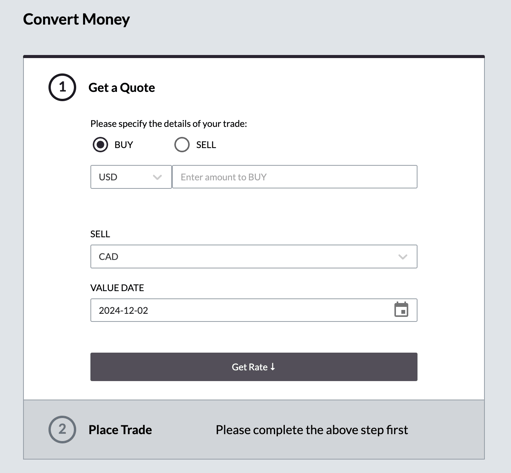
The Payments Portal allows your clients to execute and settle trades. To begin, they'll navigate to the Convert Money section in the left-hand sidebar. This is where users can initiate cross-currency payments.
On the trade execution screen, users must first specify the following:
- The currency they wish to buy or sell.
- The desired amount.
- The counter currency for conversion.
- The date on which the conversion should occur. If a future value date is chosen, the user may be entering into a forward contract.
Before the trade request is processed, the system will perform several checks depending on the user’s configuration:
- That a valid, non-expired Legal Entity Identifier (LEI) is on file.
- The request complies with pre-configured limits such as Total Exposure (NOP), Margin Requirements, and Daily Trade Limits.
- Verify trade routing rules. If no routing rules are in place, the system may route the request to a dealer to request a price manually. If a dealer is unavailable, the user will be notified to contact their account representative.
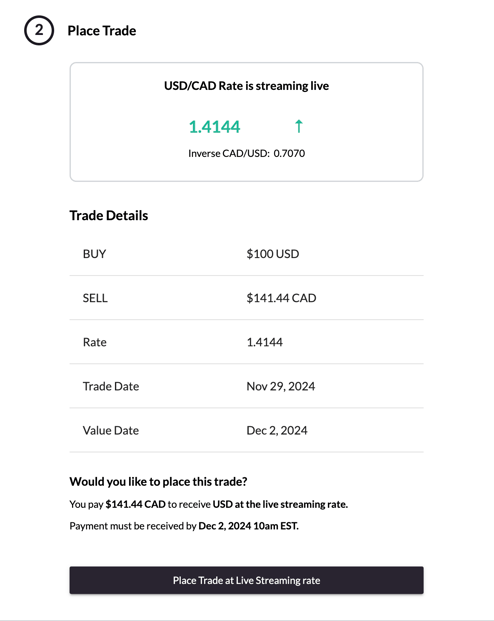
Once all the required information has been entered and the checks have been successfully passed, users can click Get Rate to receive a price for the payment. The rate screen will display a summary of the requested trade, including:
- The exchange rate the currency conversion will be executed at.
- A countdown timer indicating when a new rate will need to be requested.
- Full trade details, including a natural language summary of the transaction.
Settling Trades
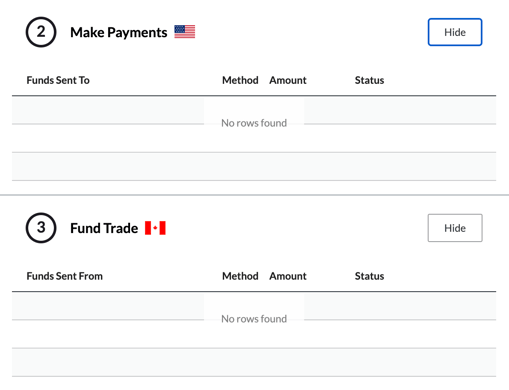
After reviewing the trade summary, users can execute the transaction by clicking Place Trade at Live Streaming Price. This will provide users with an execution summary and the ability to specify the settlement instructions, detailing where funds should be paid from and received into.
The system supports adding multiple funding and payment instructions for a single trade. Payment and funding instructions can be amended or deleted using the pen and cross icons next to the instruction, provided these cashflows have not already been processed. For more information on how users can add funding and payment instructions to a trade, refer to the article: Understanding Settlements in the Payments Portal.
Lastly, users can easily obtain a PDF confirmation of their trade details by selecting the View Confirmation History button located in the top right corner of the screen.