
Branding templates allow you to customize logos, color schemes, and company details, ensuring consistent branding across confirmations, statements, and the trading portal. This article walks you through how to access and configure these templates.
Accessing Branding Templates
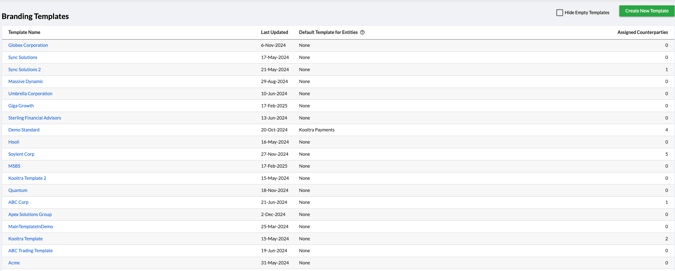
To configure branding templates, navigate to System > Branding Templates in the navigation pane. This will bring you to the Branding Templates page, where you can create or edit your branding templates.
Creating a Branding Template
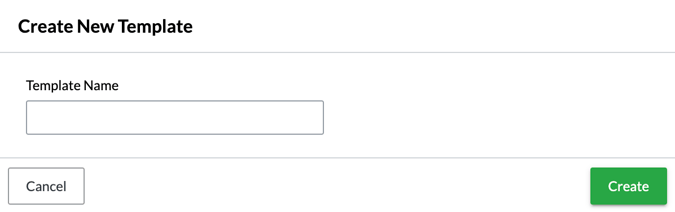
On the Branding Templates page, click the Create New Template button in the top-right corner. A pop-up window will appear, prompting you to name your new template. After entering a name, click Create.
Configuring Branding Templates
Once your template is created, update all the necessary details:
Basic Template Details
-
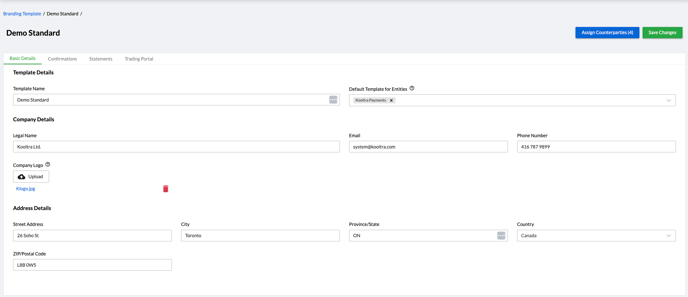
Template Name: Define a name for your template.
-
Default Template for Entities: Select the entities for which these templates should be available. Any new counterparties associated with the selected entities will automatically use this template.
- Legal Name: The official company name to be displayed on statements. If not set, it defaults to what is stored on the entity.
- Email: The company email to be displayed on statements. If not set, it defaults to what is stored on the entity.
- Phone Number: The company phone number to be displayed on statements. If not set, it defaults to what is stored on the entity.
- Address Details: The company address to be displayed on statements. If not set, it defaults to what is stored on the entity.
- Company Logo: Upload an image of your company logo. This appears on statements, the trading portal, and confirmations. If not set, it defaults to what is stored on the entity. The recommended logo size is 270 x 90 px.
Assigning Counterparties
You can assign counterparties from any entity to a branding template, but each counterparty can only be assigned to one template.
To assign a counterparty:
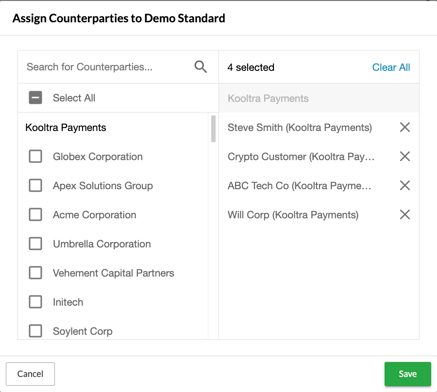
- On the Branding Templates page, click the Assign Counterparties button in the top-right corner.
- A pop-up screen will appear, allowing you to search for counterparties.
- Select counterparties by clicking the checkbox next to their names.
- Click Save to assign the selected counterparties to the branding template.
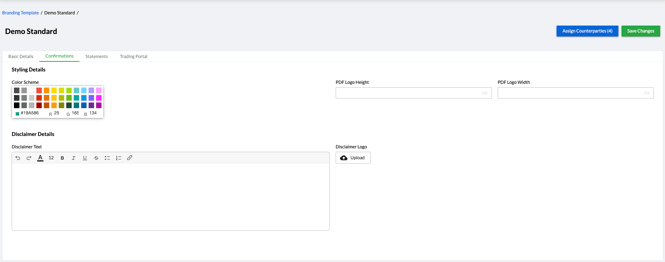
Confirmation Template
Configure the following settings:
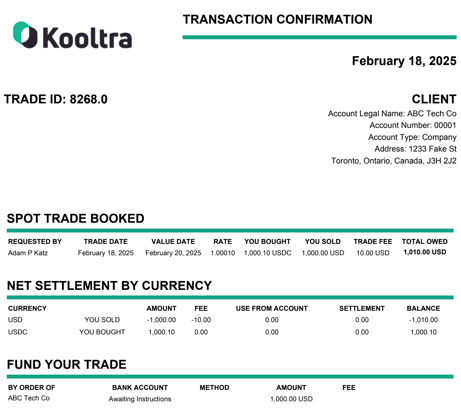
- Color Scheme: Define the border colors in the Confirmations PDF.
- PDF Logo Height: Specify the height of the logo in the PDF.
- PDF Logo Width: Specify the width of the logo in the PDF.
- Disclaimer Text: Displays at the bottom of the Confirmations PDF. Supports rich text formatting (bold, underline, hyperlinks).
- Disclaimer Logo: Always appears at the end of the confirmation. If no settings are configured, the system defaults to what is stored on the entity.
This template applies to all transaction and settlement confirmations.
Statements Template
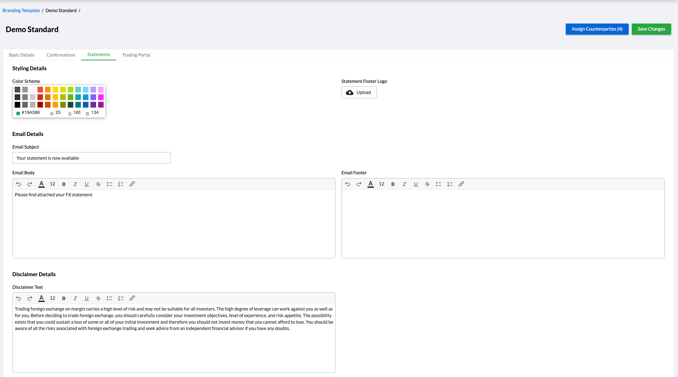
Configure the following settings to customize the appearance of statements and related emails:
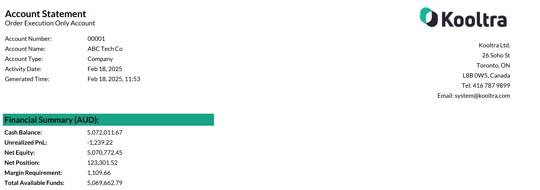
- Color Scheme: Define the border colors in the Statements PDF.
- Statement Footer Logo: Always appears at the bottom of each statement page.
- Email Subject: Define the subject line of the email that the statement recipient will see.
- Email Body: Specify the body text of the email.
- Email Footer: Specify the footer text in the email.
- Disclaimer Text: Displays at the bottom of the Statements PDF. Supports rich text formatting (bold, underline, hyperlinks).
If nothing is set, details will default to what is stored on the entity.

Trading Portal Template
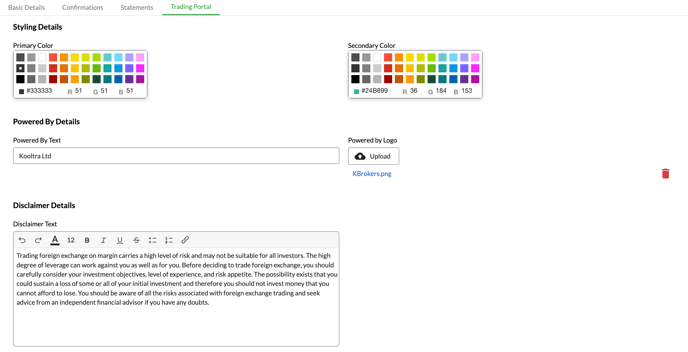
Customize the appearance of the trading portal with the following settings:
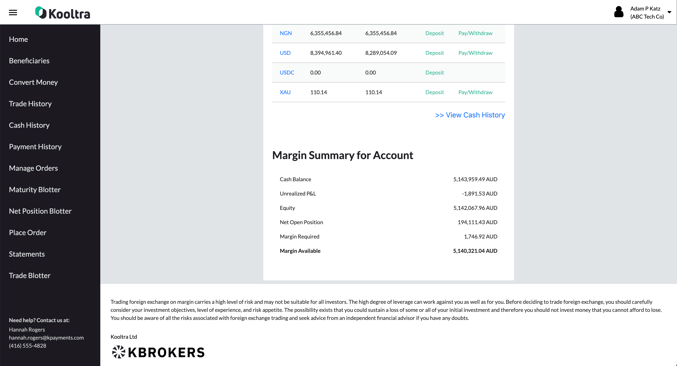
- Primary Color: Sets the main background color for the navigation pane and buttons in the portal.
- Secondary Color: Customizes the color of select hyperlinks within the portal, such as the Deposit and Pay/Withdraw links under the Cash Balances section of the Home page.
- "Powered by" Text: Always displayed at the bottom of the portal.
- "Powered by" Logo: Always displayed at the bottom of the portal.
- Disclaimer Text: Define the disclaimer text to be displayed at the bottom of the portal.
By following these steps, you can effectively create and manage branding templates to ensure consistency across confirmations, statements, and trading portals.