
Confirmations are handled two ways in Kooltra: automatically and manually.
Automatic Confirmations
To automatically subscribe an account for confirmation notifications, you must first ensure that the Confirmations app has “Enable auto-send email confirmations” turned on. To do this, follow the instructions outlined in the Enabling the Confirmations App article.
Once this setting is enabled:
-
Navigate to the Counterparties navicon on the left-hand side of the screen.
-
Select the Counterparties sub-category.
-
After the page loads, use the search tool provided to locate the account.
-
Select the account you would like to subscribe to confirmation notifications.
When the account loads, you should see the "Contacts" tab at the top immediately after the "Overview" tab.
You would see a list of contacts associated with the accounts.
Click the associated contact(s) you would like to automatically subscribe for confirmation receipts, and a new tab opens.
On the address tile at the top right, ensure the correct email address exists on the contact information.
Scroll down to the Email Subscription tile, and select "Send Transaction Confirmation Email" and/or "Send Settlement Confirmation Email"

Click on "Update" to save your changes.
Manual Confirmations
To manually send a confirmation to an associated contact on an account.
Note: this is mostly used for counterparties with settlement type: "PAYMENTS". As the settlements tab doesn't appear for other settlement types.
- Enter a trade for the account, or open an existing trade for the account.
- Click on the settlements tab, at the top of the trade entry page.
- Select "Create confirmation & Email"
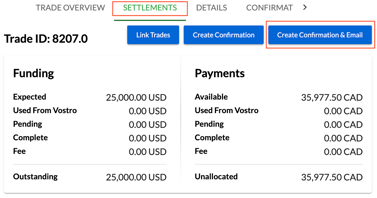
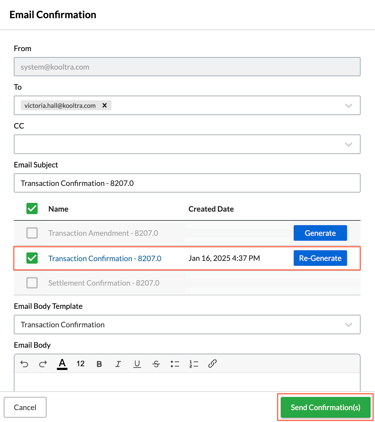
- Make your selection of the recipients (which would be existing account Contacts) in the "to" field and the broker "if one exists on the account" in the "cc" field.
- Click Generate on the transaction confirmation and settlement confirmation (if they don't already exist) and click the check box next to them to select which ones you want to send.
- Send the confirmation email.
Multi-Language Confirmations
All newly created counterparties in the Kooltra platform are automatically assigned a default language of English (United States).
If a counterparty needs to receive confirmations in a different available language, follow these steps:
-
Open the UI and navigate to the left sidebar.
-
Go to Counterparties > Counterparties.
-
Use the search bar to find the relevant counterparty.
-
Select the counterparty from the search results and navigate to the Contacts tab.
-
Select the appropriate contact associated with the counterparty.
-
Scroll to the Language field (dropdown list of languages configured for your organization) and select the preferred language.
-
Save the contact information to apply the change.
The logic used to determine the language for which confirmations are generated considers all the languages associated with the counterparty, and not only the primary contact. The logic is below:
|
Language |
Confirmation Generated |
|
|
1. |
If all contacts associated with the account have English (United States) selected as their language. |
The confirmation generated is English. |
|
2. |
For example, if all contacts associated with the account have French as the selected language. |
The confirmation generated is French. |
|
3. |
If the contacts have a mix of English (United States) and French selected as their language. |
The confirmation generated has English, followed by French. |
Confirmations Document
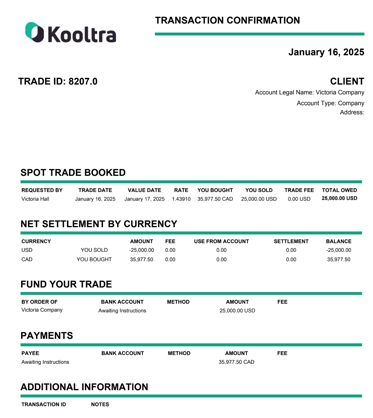
Once the confirmation is sent, your client will receive the confirmation email containing all the details of the trade. This email will include a PDF attachment with full trade information.
The attached PDF will provide a breakdown of the trade's details, which is split into several sections:
- Trade Booked: The title will reflect the trade type that was booked, such as Spot, Forward, Window Forward, or NDF. This section includes the contact who requested the trade, trade date, value date, rate, the amount bought and sold, the trade fee, and the total amount owed.
- Net Settlement by Currency: Breaks down the settlement amounts by each currency involved in the trade, including any fees, amounts, and the balance for each currency.
-
Fund Your Trade: Displays details of the beneficiary the funds will be sent from, including the bank account, settlement method (e.g., wire, ACH), amount, and fees.
-
Payments: Displays details of the beneficiary the payment should be sent to, including the bank account, settlement method (e.g., wire, ACH), amount, and fees.
-
Additional Information: Displays notes and comments made in the Client Comment field of the trading ticket.
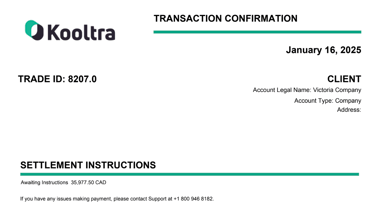
- Settlement Instructions: If settlement instructions are not added before sending the transaction confirmation, this section will say "Awaiting instructions" followed by the amount owed. Otherwise, it provides full settlement instructions, including the amount, beneficiary name and bank, settlement method, branch numbers, and account details for payment.
Additionally, the PDF can be customized by replacing the Kooltra logo with your own. To learn how to configure the Confirmations app in your organization, please refer to the article: Enabling the Confirmations App.