
Background
Manual trade entry is typically used to record trades that have been executed on another platform/venue. Kooltra provides several pages for users to capture these trade details.
It is important to note that manual trade entry will use reference market data and so users must pay attention/ update rates on the ticket as required.
Manual trade entry can be accessed under the Trading section on the main navigation menu. Access to these pages can be configured by User or By Profile, and the page labels can also be customized.
Video Overview - Double Leg Trades
Video Overview - Single Leg Trades
Pages Available
|
Product |
Page |
|
FX Spot, FX Forward, FX Window Forward, NDF, CFD |
|
|
Single Currency trades (e.g USDUSD) |
|
|
FX Swap |
|
FX Trade Entry Prerequisites
In order to successfully book a trade, you need;
-
An entity that is configured to trade the intended Currency & Products
-
An active counterparty (Account) that is configured to trade the intended Currency & Products
Booking a trade
To book a trade using FX Trade Entry page, click on Trading > Trade Entry in the navigation pane.
- Counterparty (required) - Specify a Counterparty/Account name. Note only ‘Active’ counterparties are shown.
- Trade Type (required) - Specify the type of trade to be booked. The products shown are configured by Entity or Account. Please see here for more information. The selected product may enable or disable additional fields. For example, if you select “Window Forward” the system will ask for Window Start/End Dates.
- Contact (optional)—Specify a contact requested or associated with the trade. Only contacts associated with the specified counterparty will be available.
- Book (optional) - Specify the book you would like this transaction to be under If your business segregates transactions into different trading books. It is possible to configure default book for a given Counterparty. See here for more information
- CCY Pair (required) - Specify the currency pair. The currencies that are available for selection is dictated by Entity and Account settings. Please see here for more information.
- House Dealt Action/CCY (required) - Specify an direction of the trade(Buy/Sell) and the Currency. This is from YOUR perspective. For example if the Action is set to Buy then your business (the house) would be buying the specified currency.
- Dealt Amount (required) - Specify the notional amount to be bought or sold. The counter amount will automatically populate based on the rate when an amount is entered. Kooltra supports the use of shortcuts when entering amounts such as the use of 'k' for thousands and for 'm' (millions). Ex. If you would like to book a trade for 100,000.00 you can enter 100k. Kooltra will automatically format this to 100,000.00.
- Rate (required) - Specify the exchange rate of the FX contract. This field will default to the current spot rate of the selected currency pair. Please note this rate is a reference Backoffice rate and does not stream.
- Fee (optional) - Enter a trade fee (commission) if required. For PAYMENT counterparties, Fee currency will default to the broker’s bought currency (the currency that the counterparty has sold). For this type of customer is it not possible to select the Fee currency. For VOSTRO Counterparties, user is free to select the Fee Currency. Trade fees can also be assigned automatically through the use of Fee Groups.
- Trade Date (required)—If it is before 5 p.m. New York, the trade date will automatically populate as today's trade date. If it is after 5 p.m. NY (but before midnight), the trade date will default to the next business day.
- Value Date (required)—Specify the settlement date of the trade. By default, the value date will be the spot date for the selected currency pair.
- Fixing Date (Conditional) - When the selected trade type is 'FX NDF', the fixing date field will be displayed. This is the date that the fixing rate will be determined.
- Fixing Reference (Conditional) - When the selected trade type is 'FX NDF', the fixing reference field will be displayed. This field is used to record the source used for the fixing rate.
- Settlement Currency (Conditional) - The settlement currency field will be displayed when the selected trade type is 'FX NDF'. This field is used to determine the currency used to settle the trade.
- Window Start Date (Conditional) - When the selected trade type is 'Window Forward', the Window Start field will show. This is the date from which a counterparty is allowed to drawdown against the contract.
- Window End Date (Conditional) - This is the last date in which the contract can be drawn down. Window Forward Tickets use Window End date instead of Value date.
- Internal Comment & Client Comment (optional)—You can add internal comments (e.g., comments for compliance officers) and client comments. Client Comments are visible on Transaction Confirmations and Client Statements, while internal comments are only visible to back office users. Both comments are available in reports.
- Hedge Rate (optional) - Specify the rate used to hedge this trade (ex. if the hedge was booked at a later date) or the cost basis of your current inventory. The P/L will be automatically calculated based on the differences between the rate and hedge rate. Note, on a single leg entry page, this field will simply record the hedge rate on the ticket(i.e. this will not create a hedge ticket). The hedge rate defaults to the current system reference rate when the page is 1st created.
- Hedge Counterparty (conditional) - Required when using a Double Leg entry page. This field allows you to select the counterparty used to hedge the trade. This will create a hedge ticket against the selected counterparty. The list will include liquidity provider accounts or internal vostros (for example a treasury desk).
- Hedge P&L Fields - Ticket entry page displays a number of P&L fields assist the user when entering a ticket.
-
-
Spread P&L is calculated as the difference between the rate and hedge rate field. It is always shown in the ‘counter currency’. e.g. if you trade EURUSD with EUR as the dealt currency (currency bought or sold), the spread P&L will be shown in USD.
-
Fee P&L shows profit generated from the trade fee being charged.
-
Total P&L is the sum of spread and fee P&L converted back into entity base currency.
-
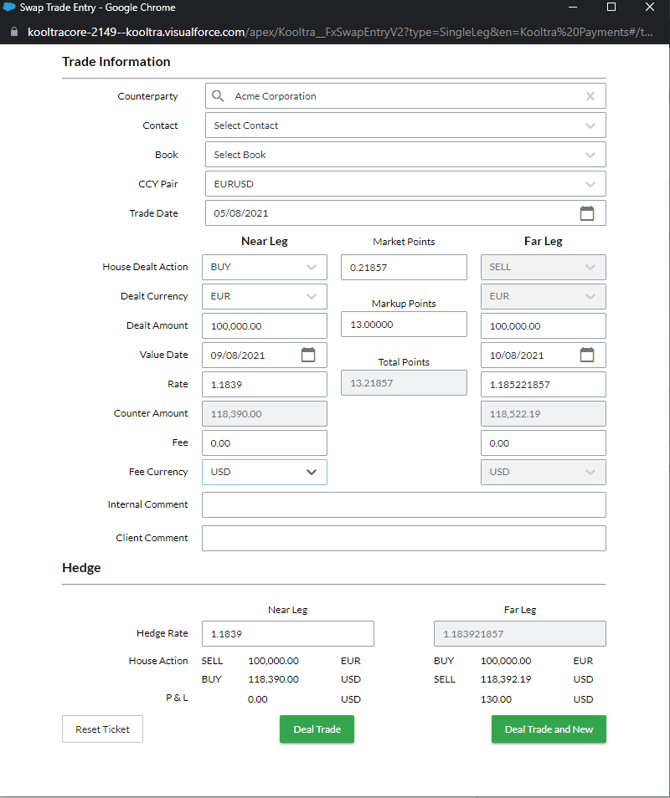
Booking a Swap
The majority of fields on the Swap entry page are similar to those on the Trade Entry page. However, Swap Entry allows the user to enter details for the Near and far legs of the swap. Some fields are calculated and, therefore, disabled from user input to ensure data consistency. For example, House Deal Action on the Far Leg.
- Market Points - Specify the forward points for the selected currency pair. This is a reference swap rate at the time the ticket is opened.
- Markup Points—Specify the markup to be applied to the Market Points. If the far leg is “Buy,” the markup will be subtracted from the Market Points. If the Far Leg is “Sell,” the market points will be added to.
- Total Points - Total points is the sum of Market + Markup Points. Total Points value is added to the Near Leg rate to produce the rate for the far leg of the swap.
Examples
Trade Entry Spot - Single Leg
.png?width=670&height=888&name=Trade%20Entry%20(Spot).png)
Trade Entry (Spot) - Double Leg
%20-%20Double%20Leg.png?width=670&height=935&name=Trade%20Entry%20(Spot)%20-%20Double%20Leg.png)
Trade Entry (Window Forward)
.png?width=670&height=883&name=Trade%20Entry%20(Window%20Forward).png)
FX Swap Entry
Trade Entry (NDF)
.png?width=670&height=947&name=Trade%20Entry%20(NDF).png)