
Accessing Counterparty Information
To access your counterparty information in Kooltra, click on Counterparties > Counterparties in the navigation panel:
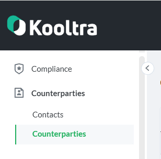
This will load the Counterparties page, which shows a list of all of your counterparties.
You can filter the list by counterparty Status, Compliance Status, Counterparty Type and/or Settlement Type, or sort the table by clicking on any of the column headers.
To identify a specific counterparty, use the Search field next to the Create New Counterparty button.

To load the details of a counterparty, simply click on the name of the counterparty in question.
Updating Counterparty Information
Following the steps above will load the Counterparty Management page as below:
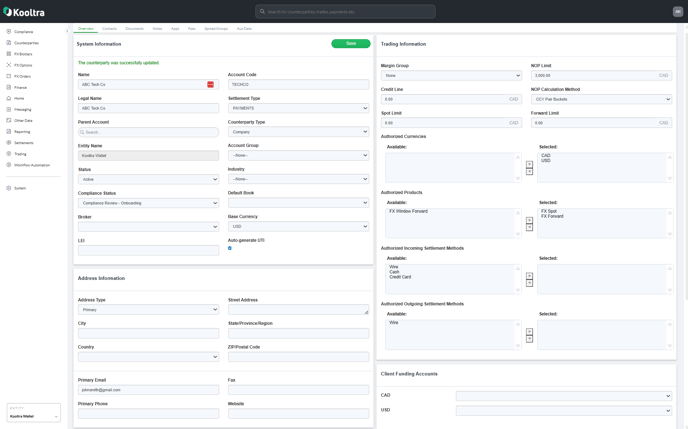
At the top of this page there are multiple tabs from which you can update various aspects of the counterparty's information.
Each of these tabs is explained below.
Overview Tab
The Overview tab allows you to enter or update core information relating to the account, including:
- System Information
- Name and Legal Name
- Account Code (if applicable)
- Parent Account (if applicable)
- Status
- Compliance Status
- Broker assigned to the account (if applicable)
- LEI (if applicable)
- Settlement Type
- Counterparty Type
- Account Group (if applicable)
- Industry (used for risk assessments)
- Default Book (if applicable)
- Base Currency
- Address Information
- Address Type
- Street Address
- City
- State/Province/Region
- Country
- ZIP/Postal Code
- Primary Email
- Primary Phone
- Fax
- Website
- Trading Information
- Margin Group the account is assigned to (if applicable)
- NOP Limit
- NOP Calculation Method
- Credit Line
- Spot Limit
- Forward Limit
- Authorized Currencies
- Authorized Products
- Authorized Incoming / Outgoing Settlement Methods
- PAD Limit (if applicable)
- Client Funding Accounts
- Default Nostros for receiving client funds into
- Compliance - this section has been replaced by our Compliance module and can be ignored
Contact Tab
The Contact tab allows you to view and add information relating to contacts associated with the account. You can also search any information of the contact in the search box on the top right corner. To add a new contact, click the New button.
Documents Tab
The Documents tab allows you to upload any documentation relating to the counterparty. If the client has populated the Onboarding Application, most required documentation will already have been captured. Additional documentation can be stored and updated from this tab.
Notes Tab
You are able to add free-form notes about the counterparty in this section.
Apps Tab
The Apps tab displays all counterparty-level apps that can be enabled, such as regulatory reporting connectivity and liquidity sourcing. If you cannot find the app you are looking for, please check with your Kooltra Administrator.
Fees Tab
The Fees tab allows you to assign the counterparty to a predefined Trade Fee Group that will default trade fees based on volume traded.
Spread Groups Tab
If the counterparty has been assigned to a Spread Group, this tab will detail the rules used when constructing prices for the account.
Aux Data
The Aux Data tab is for system administration and can be ignored.