
Contents
- Overview
- What are the latest FINTRAC guidelines for EFT reporting?
- Where are the new FINTRAC fields captured in Kooltra?
- How do I access the FINTRAC EFTI/EFTO reporting functionality in Kooltra?
- How does Kooltra determine whether an EFTI or EFTO should be reported to FINTRAC?
- How do I review EFTIs/EFTOs that Kooltra has deemed reportable to FINTRAC?
- How do I submit approved reports to FINTRAC?
- How will I know if reports have been successfully submitted to FINTRAC?
- How can I check that I've captured all of the information needed to report to FINTRAC?
- Where can I see the EFTIs/EFTOs that Kooltra does not deem reportable to FINTRAC?
- How do I cancel or amend a previously submitted report?
- Where can I see who approved FINTRAC reports, and when they were submitted?
- Setup
- Considerations
Overview
In 2024, FINTRAC imposed new rules on how Electronic Fund Transfers (EFTs) need to be reported, vastly increasing the amount of information that needs to be submitted with each EFT report and updating the mechanism for reporting them.
Kooltra makes the generation, review and submission of these reports as straightforward as possible to minimize the risk of any hefty fines:
- Identify transactions and auto-generate reports based on 24-hour rule or 10k+ rule
- Easily complete all new reporting requirements including: disposition types, entity identifications, and contact-account relationships
- Achieve full auditability of activity, including error logs, approvals, etc.
- Simply understand which fields in Kooltra are reported to FINTRAC without needing to understand the technical detail
- Bulk report transactions to FINTRAC
What are the latest FINTRAC guidelines for EFT reporting?
This insight article on our website provides a summary of the key changes that came into effect in summer 2024.
Where are the new FINTRAC fields captured in Kooltra?
As part of FINTRAC's GEN2 forms release, there are a number of new fields that are now required to capture and report with each submission. These fields include:
- Disposition Type - this field describes what happened to the funds that are received by the receiver and how the funds are remitted to the beneficiary. Each transaction reported to FINTRAC must have a Disposition Type specified based on a pre-defined list of reasons that have been provided by FINTRAC. The full list of disposition types can be found on FINTRAC's website here under the section "Instructions for Types of Disposition".
Kooltra enables customers to set-up default Disposition Types for each beneficiary or to directly update Disposition Type on the transaction details.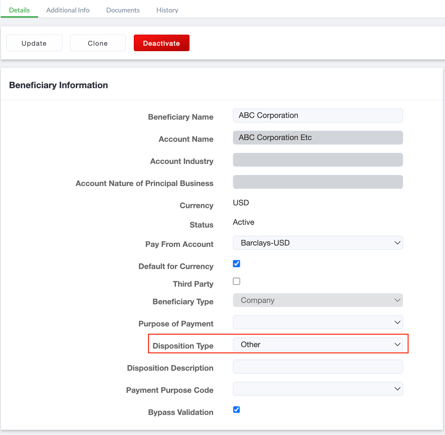
- Relationship of Requester - A list of pre-defined relationships that the account/counterparty has with the requester (e.g. employer). The full list is available to review in FINTRAC's API Schema.
Kooltra enables customers to define the relationship between the counterparty and the requester on the Contact page: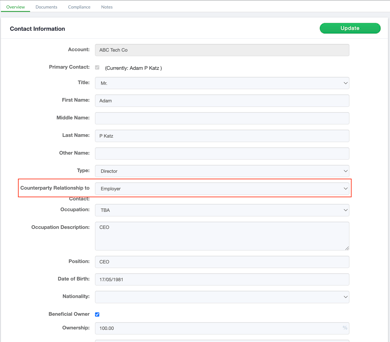
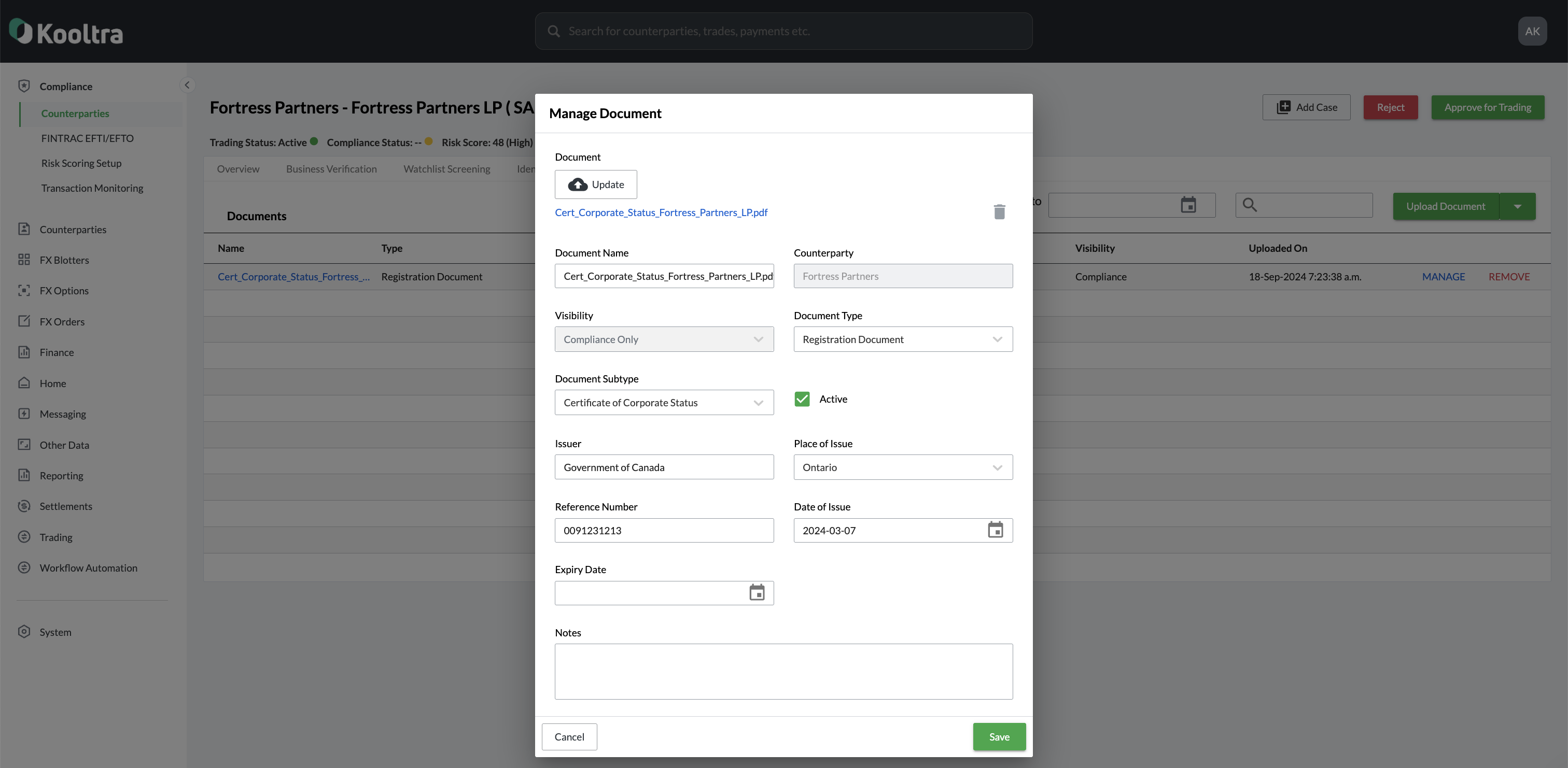
- Entity Identifications - Full details on which documents were used to perform KYB/KYC checks, including the document type (e.g. articles of association, certificate of corporate status) and the jurisdiction of issue.
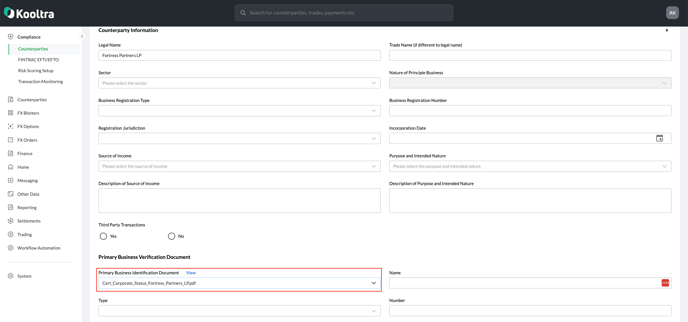
Kooltra enables customers to upload and specify which document was used in KYB and should be reported to FINTRAC for each counterparty.
To upload a new document:
- Go to Compliance > Counterparties in the navigation panel in Kooltra
- Search for the relevant account in the table, and click on their name
- Navigate to the Documents tab and click Upload Document:
-
- Go to Compliance > Counterparties in the navigation panel in Kooltra
- Search for the relevant account in the table, and click on their name
- On the Overview tab, expand the Counterparty Information section and select the relevant file from the drop-down under Primary Business Identification Document
How do I access the FINTRAC EFTI/EFTO reporting functionality in Kooltra?
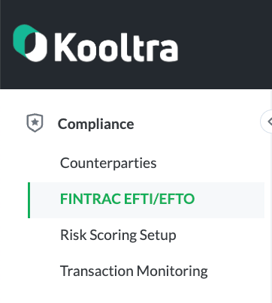
Permissioned team members can access Kooltra's FINTRAC reporting tool by going to Compliance > FINTRAC EFTI/EFTO in the navigation panel on the left of the screen:
How does Kooltra determine whether an EFTI or EFTO should be reported to FINTRAC?
Kooltra manages the determination of reportability for each incoming and outgoing transaction (i.e. payment) on behalf of customers.
At the end of each daily observation window, Kooltra analyzes all transactions entered during that day's observation period to determine if they are reportable under the 24-hour rule or 10k+ rule.
If a transaction is deemed reportable under the 24-hour rule, Kooltra determines whether the aggregation type should be (1) Requester, (2) Beneficiary, or (3) On Behalf Of/Third Party.
If a transaction is determined reportable, it is flagged and displayed on the Pending Review tab in the user interface.
How do I review EFTIs/EFTOs that Kooltra has deemed reportable to FINTRAC?
Users can review EFTs that Kooltra has deemed reportable to FINTRAC from the Pending Review tab at the top of the FINTRAC EFTI/EFTO page.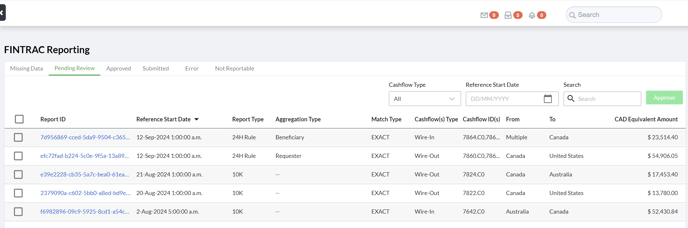
This page shows list of reports that Kooltra has generated based on incoming and outgoing transactions (cashflows) that have been deemed reportable under either the 24-hour or 10k+ rule.
Users are able to filter the list by Cashflow Type (either Wire-In i.e. EFTI, or Wire-Out i.e. EFTO), Reference Start Date or search for specific cashflows.
Compliance users can then click on a report ID to verify the exact details of the cashflow(s) that have been deemed reportable:
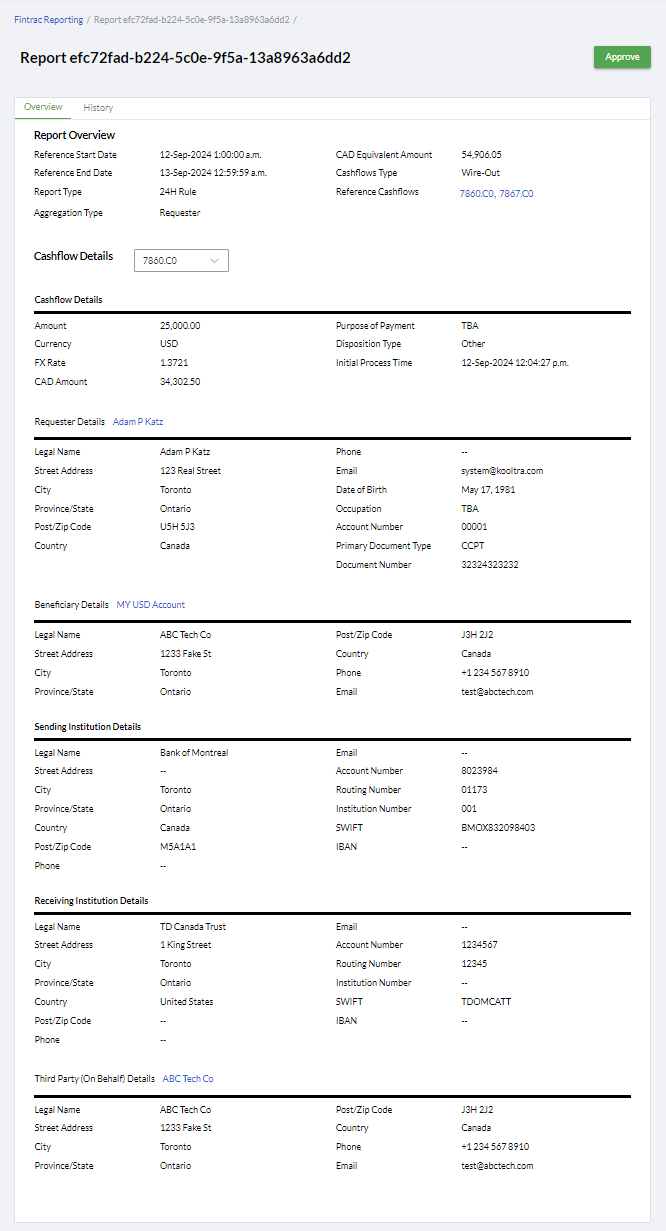
- Cashflow Details - information about the incoming/outgoing payment (i.e., amount, CAD equivalent, disposition type, etc.)
- Requester Details - information about the person/entity that made the request to send the funds
- Beneficiary Details - information about the person/entity receiving funds
- Sending Institution Details - information about the entity that initiated the payment
- Receiving Institution Details - information about the entity that received the payment
- Third Party (On Behalf) Details - information about the person/entity that is ultimate account holder
Once report details are verified, permissioned users can either approve individual reports for submission: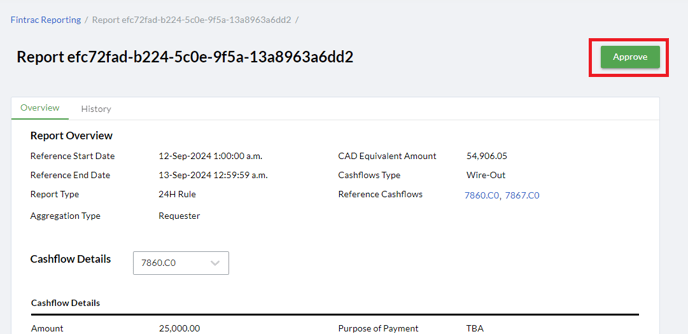
or bulk approve a list of reports for submission: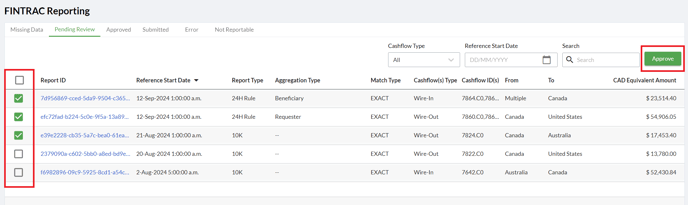
How do I submit approved reports to FINTRAC?
Once a report is approved from the Pending Review tab, permissioned users can perform a final review and submit the report to FINTRAC via the Approved tab at the top of FINTRAC EFTI/EFTO page.
To submit a single EFTI/EFTO report to FINTRAC:
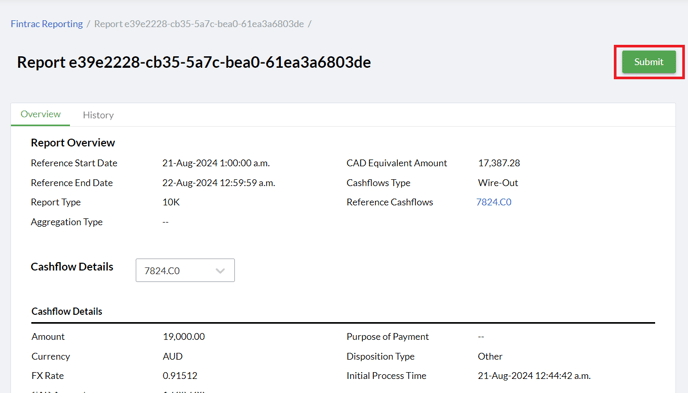
- Click on the report ID in the Approved table to view the report details:

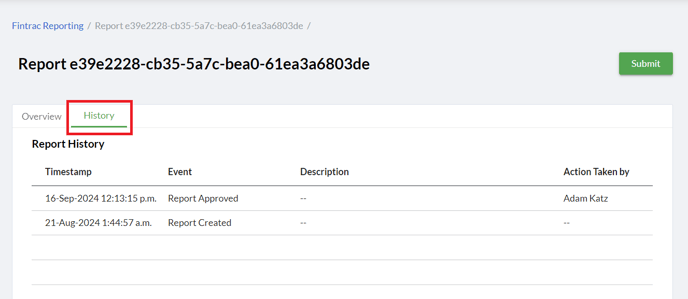
- Review the report details. The 'History' tab can be used to see when the report was created, as well as when the report was approved for submission, and by who:

- Click Submit in the top right corner of the report to send the report to FINTRAC. Kooltra will dynamically generate the FINTRAC Report JSON file and submits the file via FINTRAC's API.
To batch submit multiple EFTI/EFTO reports to FINTRAC:
- Check the box next to each report you wish to submit in the Approved table:

- Click Submit in the top-right of the page:

How will I know if reports have been successfully submitted to FINTRAC?
Reports submissions that are accepted by FINTRAC will appear on the Submitted tab of the FINTRAC EFTI/EFTO page. These reports should also be visible on FWR (FINTRAC Web Reporting System).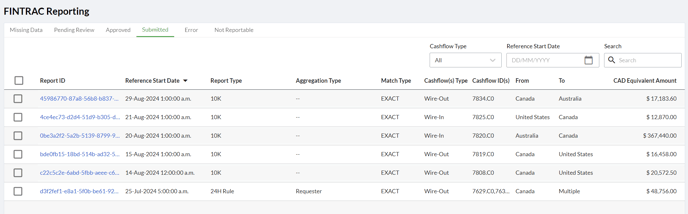
Reports that are rejected by FINTRAC will appear on the Error tab of the FINTRAC EFTI/EFTO page, including a description of the error message we received from FINTRAC. Errors typically relate to underlying data, such as missing identifications or inaccurate address details for entities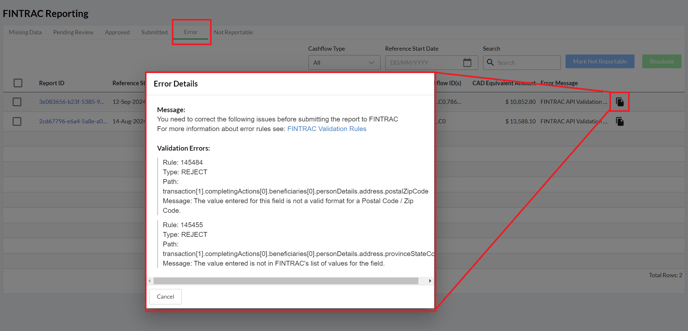
Once the underlying data is corrected, permissioned users can select the associated report and click Resubmit to send FINTRAC an updated report:
How can I check that I've captured all of the information needed to report to FINTRAC?
Kooltra provides two ways to validate that all of the information required is captured in the right format for reporting to FINTRAC:
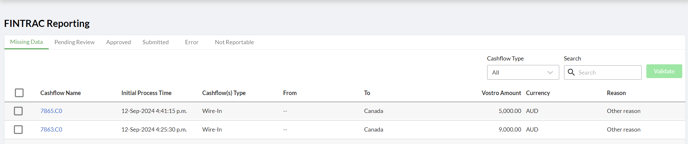
- Missing Data - this tab of the FINTRAC EFTI/EFTO page shows a list of transactions that are missing critical data that is required to determine if they are reportable to FINTRAC, for example where the funds were sent from or sent to:
- Error - this tab of the FINTRAC EFTI/EFTO page shows a list of reports that failed to be submitted to FINTRAC and why, such as validation errors:
Where can I see the EFTIs/EFTOs that Kooltra does not deem reportable to FINTRAC?
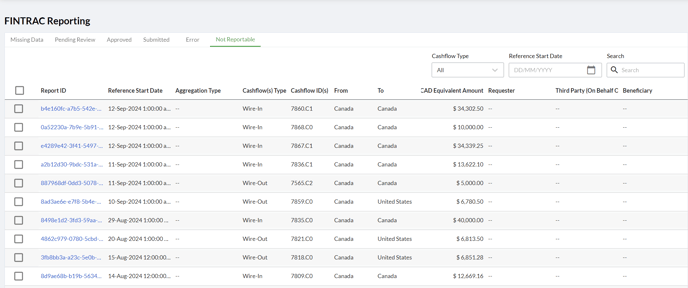
The Not Reportable tab of the FINTRAC EFTI/EFTO page in Kooltra shows a list of transactions that Kooltra has determined do not need to be reported to FINTRAC.
How do I cancel or amend a previously submitted report?
Users will need to log in to FWR (FINTRAC Web Reporting System) in order to cancel or amend any reports that have been successfully submitted through Kooltra.
Where can I see who approved FINTRAC reports, and when they were submitted?
Kooltra tracks every event associated with FINTRAC reporting, including report submission success, report submission reject, report approval, report creation and more. It also includes the timestamp of the event and user who took the action.
To see the history of events for a given report:
- Click on the report ID in from within the FINTRAC EFTI/EFTO page:

- Click on the History tab:
Setup
To setup FINTRAC reporting in Kooltra, the New FINTRAC EFTI/EFTO Reporting app needs to be turned on at the Entity level, as well as for each account whose transactions should be reported.
Administrators are also able to define the 'Observation Window' (i.e. the times between which transactions should be considered for the 24 hour rule) as well as a default in case 'Business Identification Documentation Type' is not specified for an account.
Turning on the FINTRAC app at the Entity Level
To turn on the FINTRAC reporting app at the Entity level:
- Within Kooltra, go to x-System > Entity Settings in the navigation panel
- Click on the Apps tab at the top of the page:

- Identify the New Fintrac EFTI/EFTO Reporting app in the list and toggle this on:

Defining the Observation Window
Administrators can configure the FINTRAC reportability observation window (e.g 12am - 12pm) to align with their internal policies and procedures. This observation window is used when determining which transactions are reportable to FINTRAC.
To set the FINTRAC observation window:
- Within Kooltra, go to x-System > Entity Settings in the navigation panel
- Click on the Apps tab at the top of the page:

- Identify the New Fintrac EFTI/EFTO Reporting app in the list and update the Observation Window Start Time (format HH:mm) then click Update.

Turning on the FINTRAC app for Counterparties
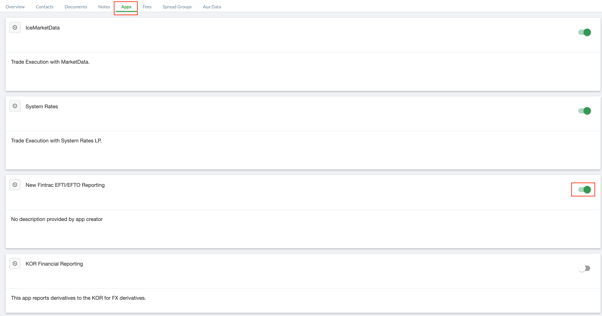
For FINTRAC reports to be generated for transactions associated with one of your counterparties, the FINTRAC app must be turned on under the account in question.
To do this:
- Go to Counterparties > Counterparties in the navigation panel on the left of Kooltra
- Search for the account you wish to turn FINTRAC reporting on for, and click on their name in the table:

- In the screen that loads, use the > button to navigate to the Apps tab:
- Toggle on the 'New Fintrac EFTI/EFTO Reporting' app:
Considerations
Kooltra currently supports Domestic Money Service Businesses (MSBs) reporting non-SWIFT transactions as defined by FINTRAC
- Foreign MSB reporting
- Reporting of SWIFT transactions as defined by FINTRAC (please see guide here for more details on how FINTRAC defines SWIFT transactions)
- Reporting for transactions where the initiator is acting on behalf of a third party or where the receiver is not the ultimate beneficiary of the funds
- Reporting for cases where the reporting entity is both the initiator and final recipient of a payment (i.e. wallets transfers where no funds are moved but the initiator or the recipient are deemed outside of Canada)