Contents
- How do customers access the KYC Portal?
- What information is captured in the KYC Portal?
- Can customers save their progress and complete the application later?
- How should customers submit a completed form?
How do customers access the KYC Portal?
What information is captured in the KYC Portal?
The KYC Portal allows customers to provide all of the information required to start trading.
For individual accounts, the KYC Portal asks customers to provide:
- Contact Information - this section of the form asks customers to provide:
- Contact information such as name, date of birth, phone number and email address
- Residential address information, and any other relevant addresses
- Identification documentation, such as drivers' license or passport details, along with image upload
- Employment & wealth information, such as source of wealth and employment status
- Tax residence information
- Profile - this section of the form asks customers to provide information about how they intend to trade with you:
- Purpose and intended nature of the business relationship
- Trading profile, including expected trade frequency and USD volume
- Financial information, such as annual income
- Settlement methods they intend to use (wire, ACH, PAD, etc)
- Politically Exposed Persons (PEP) Declaration - this section of the form asks customers to confirm whether they (or anyone they are affiliated with) are a PEP, and provide details if they are
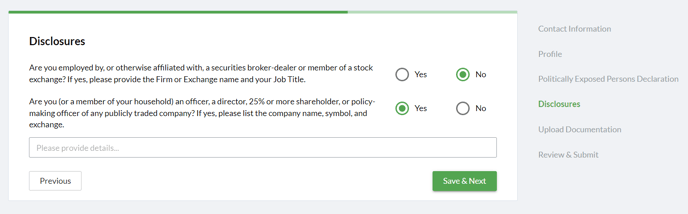
- Disclosures - this section of the form asks customer to answer a series of disclosure questions that are completely configurable. You can configure as many questions as you like in this section, and specify for each question whether customers can answer Yes / No / Yes with additional information:
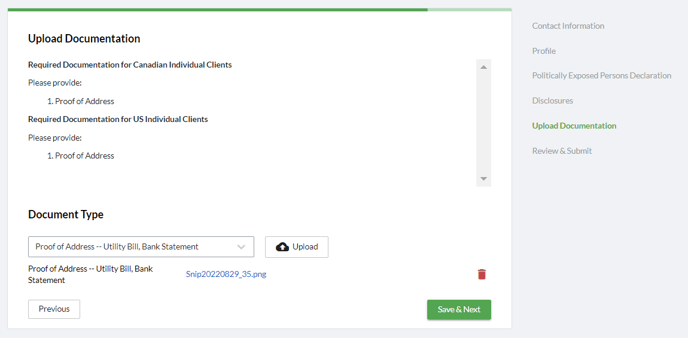
- Upload Documentation - this section of the form asks customers to upload any documentation required. The documentation asked for, and document types supported for upload, are configurable:
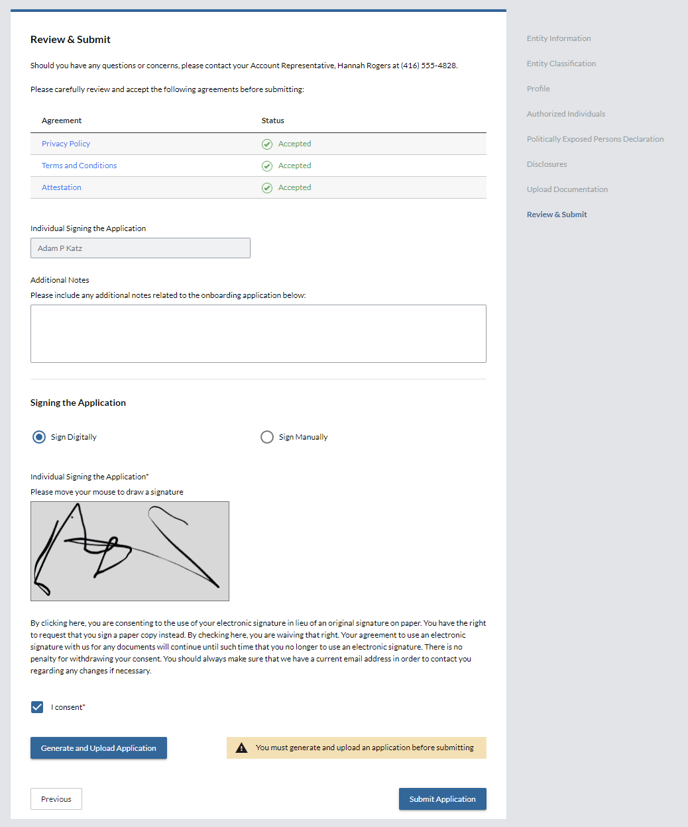
- Review & Submit - this section of the form asks customers to accept any agreements needed (these are fully configurable - you can specify as many agreements as needed in this section and mandate they are accepted before the form is submitted) as well as provide signature before submitting the application:
For company accounts, the KYC Portal allows customers to provide:
- Entity Information - this section of the form asks customers to provide:
- Company legal and trading names
- Contact information
- Legal address information, as well as any other relevant addresses (e.g. billing address)
- Entity registration information, such as business registration type and business registration number
- Tax residence information
- Entity Classification - this section of the form asks customers to provide:
- Details on the sector their company operates in and nature of principle business
- Income disclosure, such as their source of income
- Entity categorization, such as whether they are a private or public company. Depending upon the category chosen, supplementary questions are presented to the customer to answer
- Profile - this section of the form asks customers to provide information about how they intend to trade with you:
- Purpose and intended nature of the business relationship
- Trading profile, including expected trade frequency and USD volume
- Financial information, such as annual income
- Settlement methods they intend to use (wire, ACH, PAD, etc)
- Authorized Individuals - this section of the form asks customers to provide the details of any individuals who will be operating on behalf of the company, including their level of authorization (e.g. whether they are authorized to trade on behalf of the company or not) and identity documentation
- Politically Exposed Persons (PEP) Declaration - this section of the form asks customers to confirm whether they (or anyone they are affiliated with) are a PEP, and provide details if they are
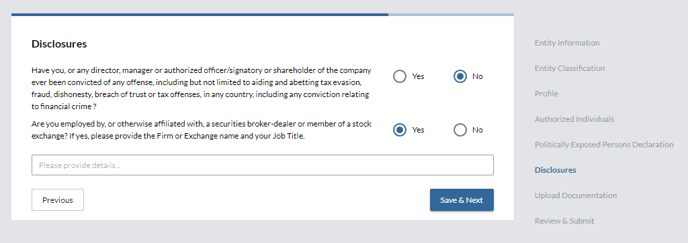
- Disclosures - this section of the form asks customer to answer a series of disclosure questions that are completely configurable. You can configure as many questions as you like in this section, and specify for each question whether customers can answer Yes / No / Yes with additional information:
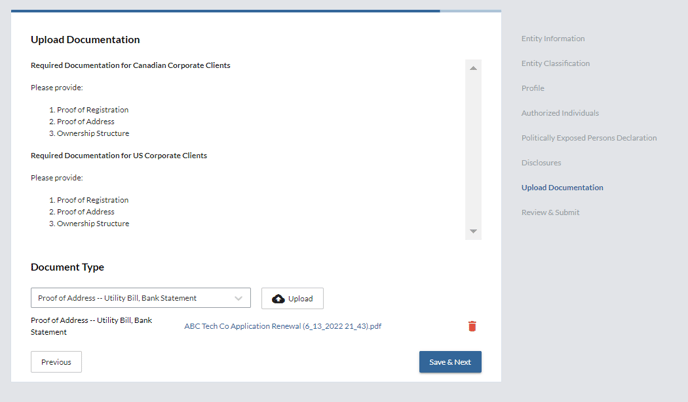
- Upload Documentation - this section of the form asks customers to upload any documentation required. The documentation asked for, and document types supported for upload, are configurable:
- Review & Submit - this section of the form asks customers to accept any agreements needed (these are fully configurable - you can specify as many agreements as needed in this section and mandate they are accepted before the form is submitted) as well as provide signature before submitting the application:
Can customers save their progress and complete the application later?
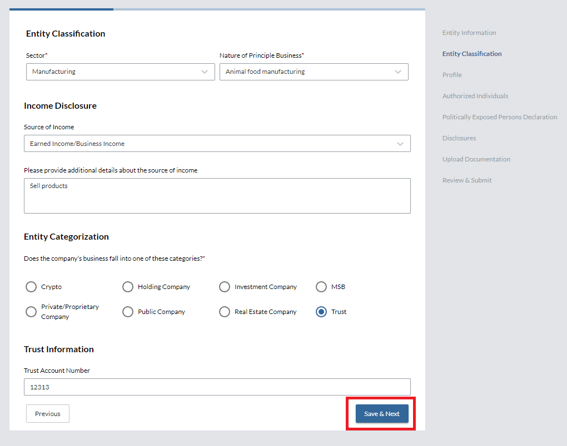
Yes; customers can save their progress any time by clicking the 'Save and Next' button at the bottom of any of the sections of the form:
How should customers submit a completed form?
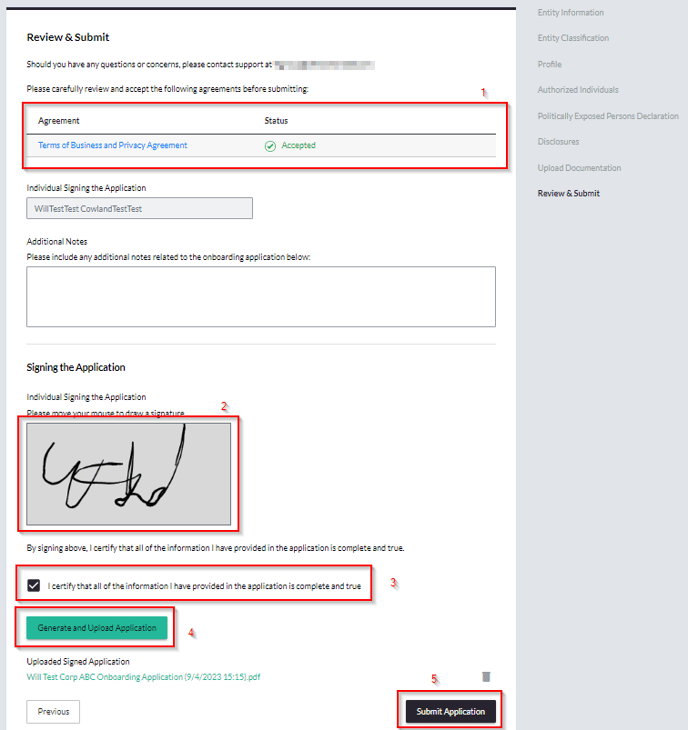
Before sales will be able to submit the completed form for compliance review, the client portal will need to complete the following on the ‘Review and Submit’ stage of the form:
-
Accept the Terms and Conditions specified under the ‘Agreement’ section
-
Provide a digital or manual signature
-
Check the box to confirm all information is complete and correct
-
Click the button to ‘Generate and Upload’ application (this will create a PDF attached to the form of all information entered)
-
Click ‘Submit Application’
Each of these sections is highlighted below: