Contents
- I have a client or prospect that I would like to provide access to the KYC Portal. How do I do this?
- How can I view the KYC information submitted by my client / prospect?
- How do I submit a completed form for compliance to review?
- Can field-level validation be turned off on the KYC Portal?
- How can I check where an application is in the process?
I have a client or prospect that I would like to provide access to the KYC Portal. How do I do this?
Follow the steps below to begin the process of onboarding a new customer within Kooltra and provide the prospective client with access to the KYC Portal, from which they can populate their KYC information for review:
-
Create a new counterparty
-
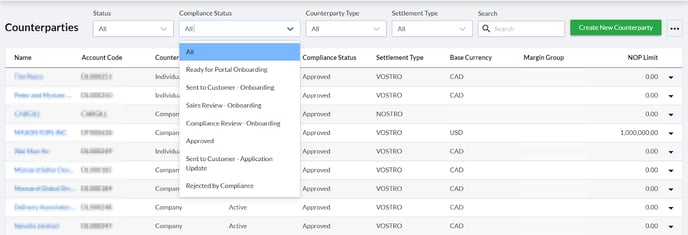
Within Kooltra, navigate to Counterparties>Counterparties and click 'Create New Counterparty'
-
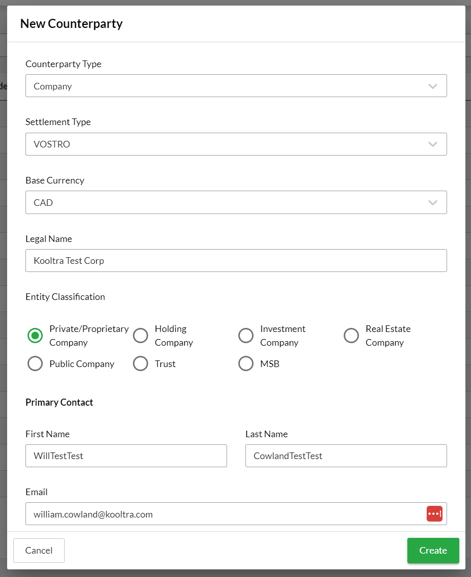
Populate all details then click ‘Create’
-
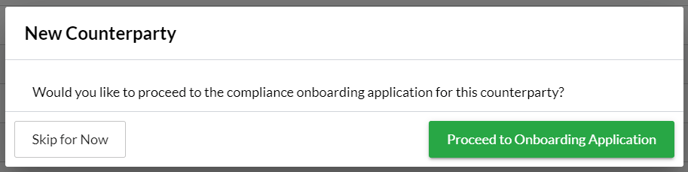
- In the pop-up that loads, click 'Proceed to Onboarding Application'
- On the Onboarding Application, populate any information you already have about the client, such as phone number, address, trading profile, etc and click ‘Save Progress’ at the bottom of the page.
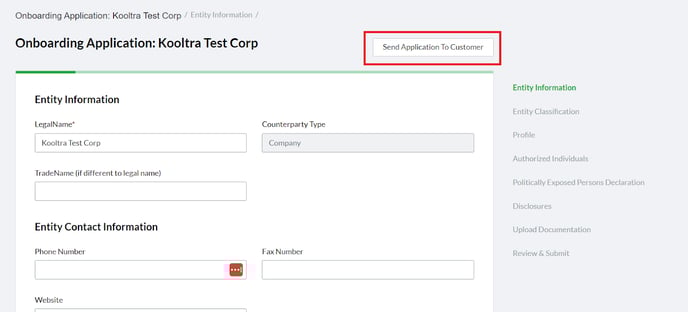
- Click the 'Send Application To Customer' button on the top-right of the onboarding application:
- The primary contact at the client (as defined by the details entered in step 1b above) will then receive an email with directions on how to login to the portal and set their initial password. After setting their password they will be presented with the online KYC form.
How can I view the KYC information submitted by my client / prospect?
The sales team can review a client’s KYC information by following the steps below:
-
Within Kooltra, go to Counterparties > Counterparties in the navigation panel on the left of the screen
-
Search for the account in question
-
On the far-right of the table, click the drop-down arrow then ‘Onboarding Application’ (depending on the status of the client, this may instead say ‘Application Update’ or ‘Application Renewal’)
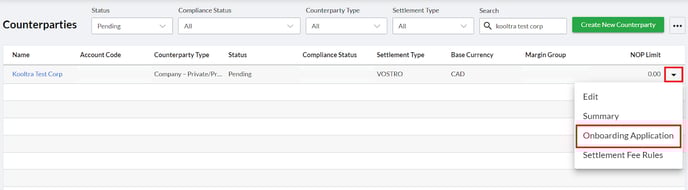
From this page, sales can add any information they already have about the client and click ‘Save Progress’ at the bottom of the page.
This will result in the saved information also displaying to the client in the KYC Portal, saving them time from having to populate these fields themselves.
How do I submit a completed form for compliance to review?
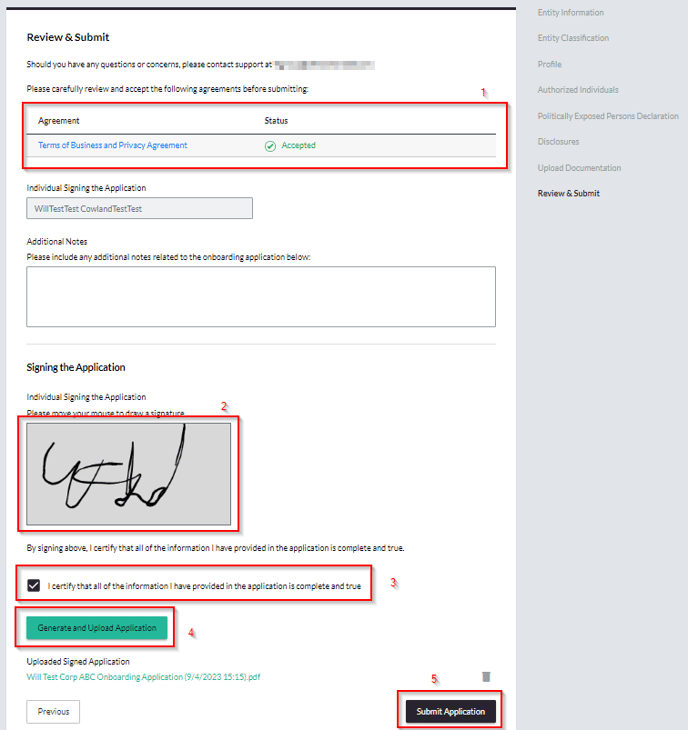
Before sales will be able to submit the completed form for compliance review, the client will need to complete the following on the ‘Review and Submit’ stage of the form in the KYC Portal:
-
Accept the 'Terms and Conditions' specified under the ‘Agreement’ section
-
Provide a digital or manual signature
-
Check the box to confirm all information is complete and correct
-
Click the button to ‘Generate and Upload’ application (this will create a PDF attached to the form of all information entered)
-
Click ‘Submit Application’
Each of these sections is highlighted below:
Once all mandatory information has been entered (and the client has completed all steps detailed in the Submitting a Completed Onboarding Form section of this page), sales can submit the form for compliance review.
Mandatory information that must be populated is highlighted by a red asterisk next to the field name, e.g:

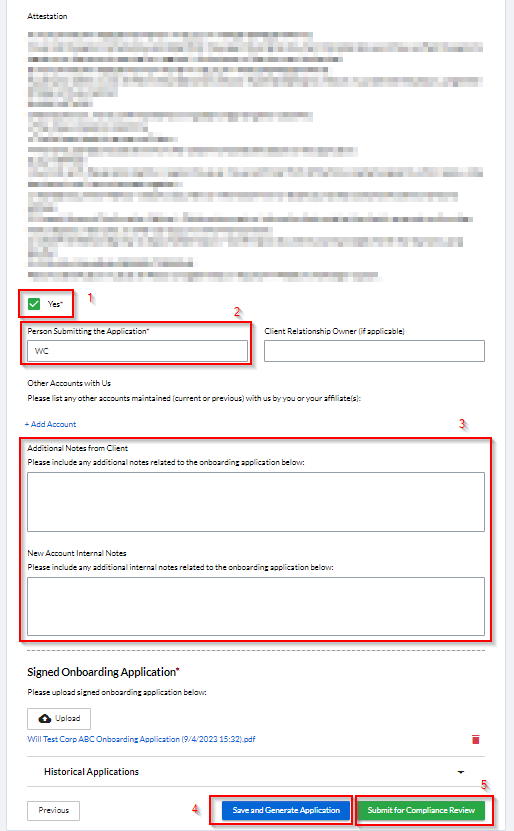
To submit the form to compliance, the sales user must complete the steps below on the ‘Review and Submit’ stage of the form:
-
Check the box to accept the sales Attestation
-
Enter their name in the ‘Person Submitting the Application’ field
-
Add any applicable notes (either client facing or internal)
-
Save and Generate the Application
-
Click ‘Submit for Compliance Review’
Each of these steps is highlighted in the example below:
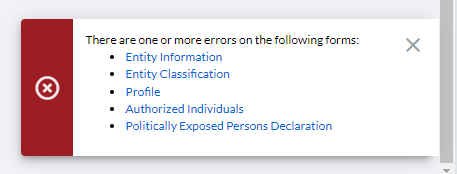
If any mandatory information is missing from the form an error message will appear in the bottom-right corner of the screen stating which section(s) must be completed before the form can be submitted to compliance, e.g:
In order to reduce the friction around onboarding new customers, all field validation can be disabled on the client portal (this can be turned back on at any time via a request into support@kooltra.com).
This means that the client can submit the online application for sales to review having completed as much or as little of the form as they like.
This does not, however, remove the validation when sales try to submit a form for compliance to review, and so sales teams will still need to ensure all required information is populated before they will be able to submit to compliance for final approval.
How can I check where an application is in the process?
The current status of a client’s onboarding application can be seen via the ‘Compliance Status’ field on the account in Kooltra:
Each of these statuses corresponds with a moment in the onboarding / KYC renewal process and is used to determine which department is responsible for the next action. Possible statuses are:
-
Ready for Portal Onboarding - Sales have clicked the "Send Application To Customer" button on the onboarding form. This lets the system know the client is ready for onboarding and a portal user should be created
-
Sent to Customer - Onboarding - the system has successfully created a portal user for the primary contact on the account and has emailed them with login instructions.
-
Sales Review - Onboarding - the client on the portal has submitted an onboarding application and it is awaiting review from Sales
-
Compliance Review - Onboarding - sales has submitted the onboarding application to compliance and it is awaiting compliance review
-
Approved - compliance has approved the onboarding application and the client can begin trading
-
Sales Review - Application Update - the existing client has submitted an application update on the portal and it is awaiting sales review
-
Compliance Review - Application Update - sales has submitted an application update for an existing client to compliance for review
-
Sales Review - Application Renewal - the existing client has submitted an application renewal within 30 days of their KYC renewal date
-
Compliance Review - Application Renewal - sales has submitted an application renewal for an existing client to compliance for review
-
Rejected by Compliance - compliance has rejected the application / update as they need more information. Sales should go to the Notes section of the Counterparty Summary page for details as to the reason for rejection, e.g:
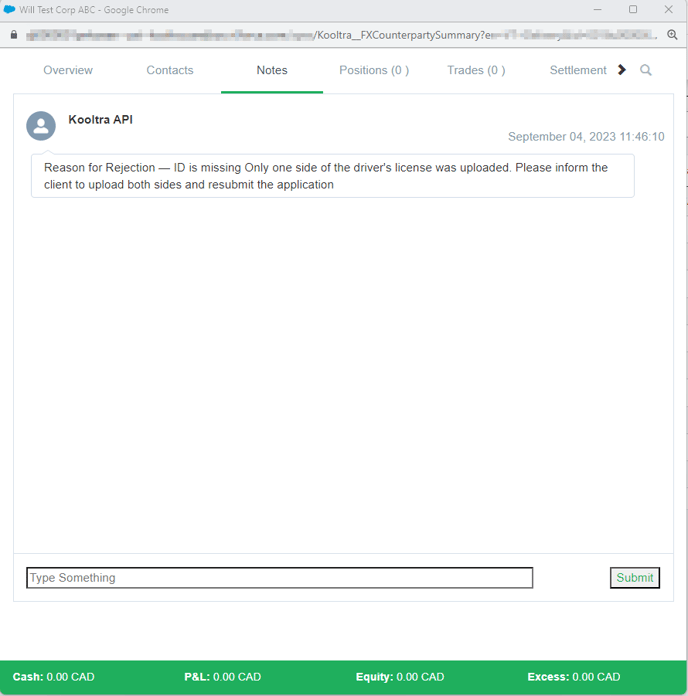
- Greylist - compliance has rejected the application / update and the account has been added to the greylist. Sales should go to the Notes section of the Counterparty Summary page for details as to why the account has been added to the greylist.
Using the ‘Compliance Status’ filter at the top of the Counterparties and Counterparty KYC pages allows users to quickly identify any accounts that require action from their team: