Enable Custom Report Access for a Portal User
In Kooltra, go to Counterparties > Counterparties in the left navigation panel. Locate the client account the portal user belongs to. On the corresponding row:
- Click the drop-down arrow on the far right.
- Select Manage Contact Settings.

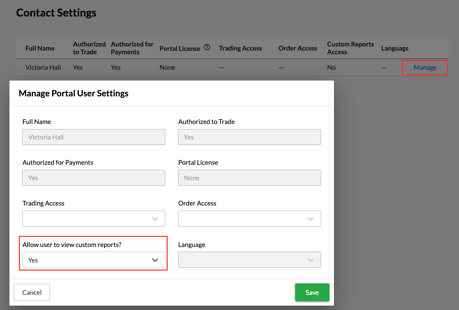
In the list of users, find the user and click Manage next to their name. Set "Allow user to view custom reports?" to Yes and click Save.
What Reports Users Can See
-
Portal users will only see reports that are explicitly shared with them.
-
Reports must be saved in folders that are shared with the specific users or user groups.
-
If no reports are shared with a user, they will not see anything in the Custom Reports section.
Share Reports With Individual Clients or User Groups
To share a report with specific portal users:
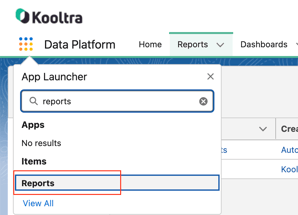
- In Salesforce, search for "Reports" using the App Launcher. On the Reports page, click New Folder to create a new report folder.
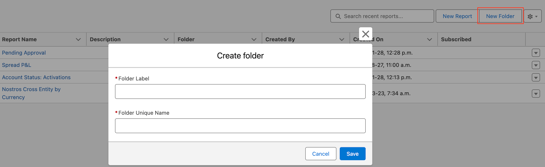
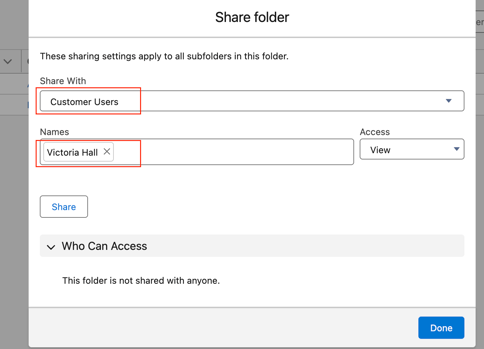
After the folder is created, click the drop-down arrow next to it and select Share.

In the sharing settings:
- Choose Customer Users in the Share With dropdown.
- Select the specific user(s) from the Names list.
- Click Share.
Save any reports you want to share into this folder. Only the users selected in the Share settings will be able to view the reports in this folder.
Where Users Can Find Reports in the Portal
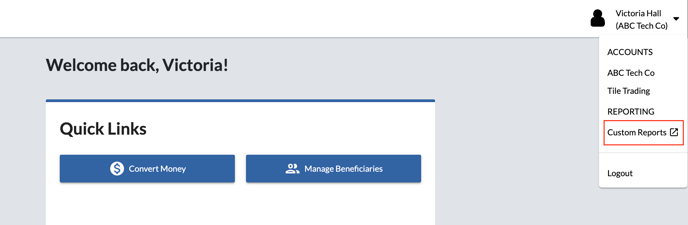
Portal users can access the reports by clicking the drop-down arrow in the top-right corner of the Payments Portal, then selecting Custom Reports.