Charging Clients for Booking a Trade
When booking a trade and exchanging money, you can charge your clients in three ways:
- Spread/Margin – Apply a markup on the exchange rate.
- Fee/Commission – Charge a separate fee in addition to the spread.
- Both Spread & Fee/Commission – Combine both methods for revenue.
Setting Up Fees in Kooltra
- Manual Fee Entry: You can manually enter the trade fee amount and select the fee currency directly on the trade ticket.
- Automated Fee Calculation: Set up a fee group to have the system automatically apply fees based on client-specific settings.
Manual Fee Entry
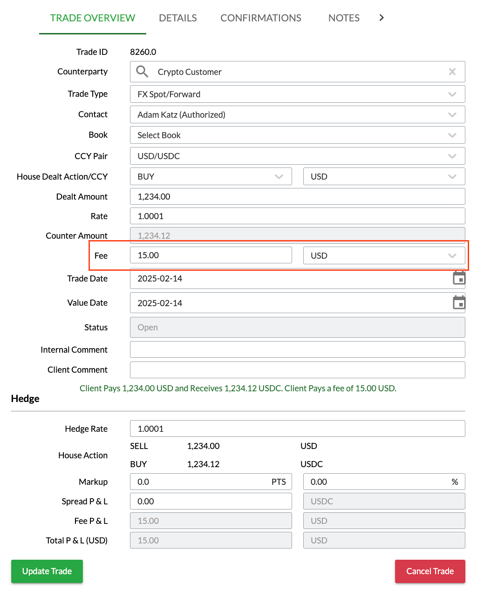
To manually charge the fee/commission, type in the trade fee amount and select the fee currency on the trade ticket as shown in the screenshot below.
Automated Fee Calculations
To configure Fee Groups with rules to automatically charge your clients a fee/commission on trades, navigate to System > Entity Settings and click on the Fee Groups tab.
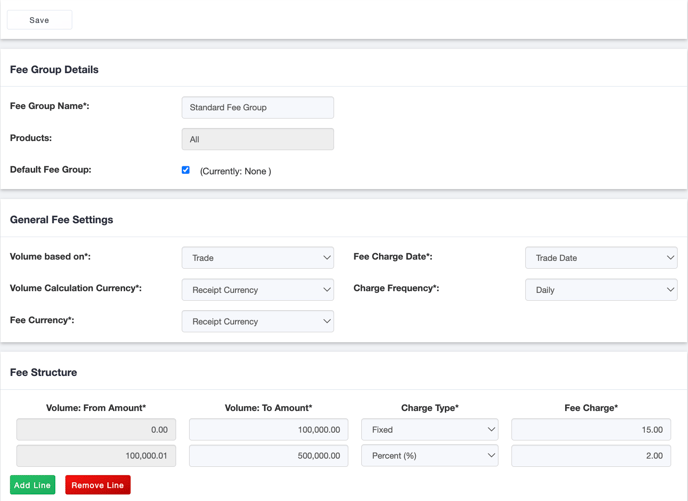
To create a Fee Group, click the Create Fee Group button, which will launch the Fee Group screen, where you can input the necessary details for configuration.

In the sample screenshot below, Standard Fee Group is the default fee structure to be used to charge all clients. Clients will be charged a fee/commission on each trade on the trade date, depending on the trade. The fee/commission amount will be either a fixed 15.00 if the trade amount is up to 100,000 or 2% of the trade amount if trade amount is over 100,000 in the currency that the client owes you.
For example, you book a SELL 100,000 USDCAD @ 1.3 trade with your client. The client will be charged a fee/commission of 2,600 CAD (130,000 x 2%) because you will be receiving 130,000 CAD (receipt amount and receipt currency) from the client in exchange for the 100,000 USD and the fee/commission calculation is based in the receipt currency.
Once the information in the fields has been completed, click the Save button at the top of the page to finalize your fee setup.
To learn more about each field, refer to the article: Understanding Fee Group Fields.
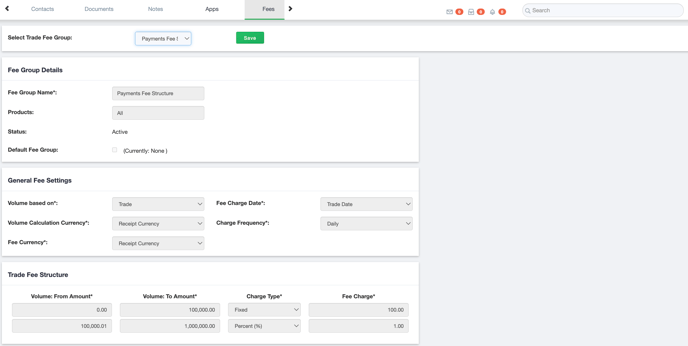
Next, navigate to Counterparties > Counterparties in the side panel to find the client account you want to charge based on the configured fee structure. Once you locate the account, click on the Fees tab, select the desired fee group, and click Save.
If a default fee group is created, all client accounts within the entity will automatically be charged based on this default, and it will be pre-selected on this screen.