
This application is essential for gathering user details and verifying their identity. You can send the onboarding application to your client for them to complete. For detailed steps on how to send the onboarding application, refer to the article: Client Onboarding & KYC in Kooltra.
Once the application is sent, the primary contact at the client will receive an email containing a link to the portal, their username, and instructions on how to log in and set their initial password. After the user sets their password, they will be directed to the online KYC form.
When the user logs in to the portal, they will see the KYC form and need to fill out all mandatory fields. The form will appear the same way as it does on your end.
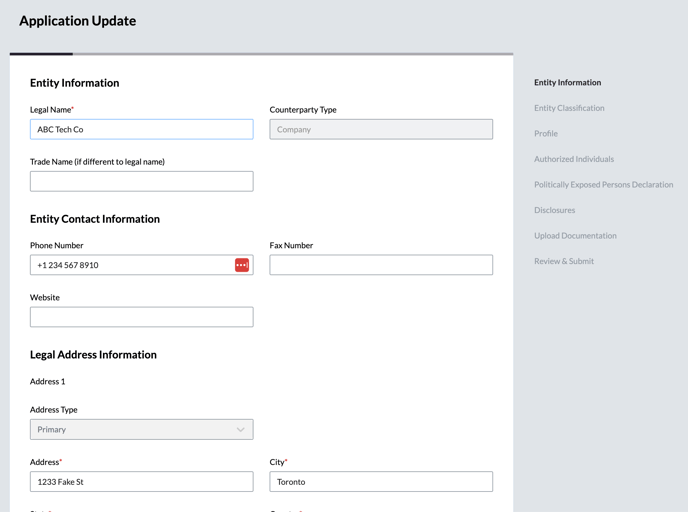
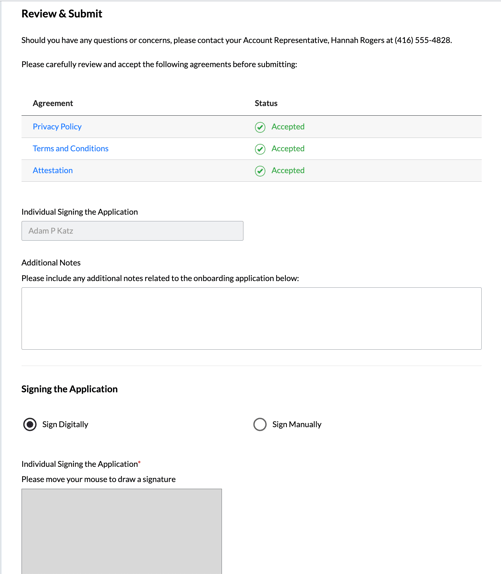
During the Review and Submit stage, the user will need to take the following steps:
- They must accept the Terms and Conditions listed under the Agreement section.
- Provide a digital or manual signature.
-
-
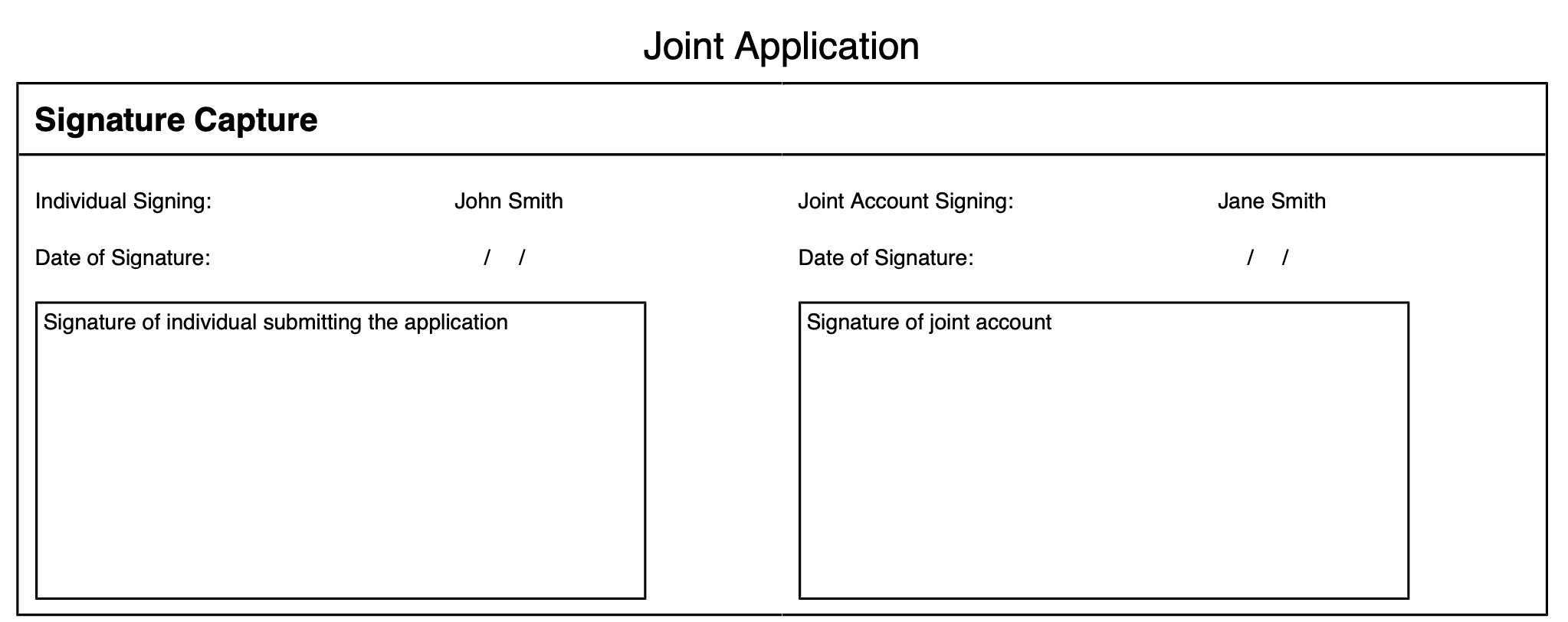
Note: If your client is classified as a joint account, and both contacts need to sign the onboarding form, they must select "Sign manually". Then they'll need to click the Generate Application button, which will download the form to the client's system and populate the form with signature fields for both contacts to sign.
-
-
- Check the box confirming that all the information they have entered is complete and correct.
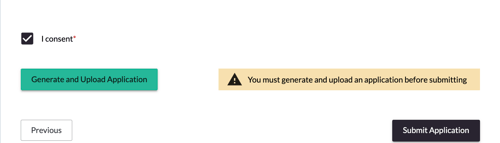
Finally, the user will click Submit Application to submit their KYC form.
Once the application is submitted, the information can be reviewed by compliance by navigating to Compliance > Counterparties KYC in the left sidebar. Alternatively, you can search for the account by filtering the compliance status for Compliance Review - Onboarding and clicking on the counterparty name to view the information entered by the user.