What are Margin Rules?
Margin Rules are used to define how much margin should be charged for a given position, and can be configured at either the Currency or Currency Pair level.
In all cases, Margin Rules are applied to positions the clients holds to determine how much collateral the client needs to hold in order to maintain their positions.
The article How is Margin Required calculated? explains how margin is calculated depending upon whether the Currency or Currency Pair methodologies is chosen for a Margin Rule.
How do I see the Margin Rules that are configured?
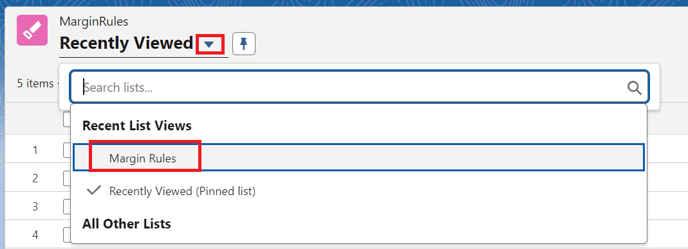
To access Margin Rules, navigate outside of the Kooltra application to the Salesforce front-end (going to Reporting > Custom Reports within Kooltra is one method for doing this).
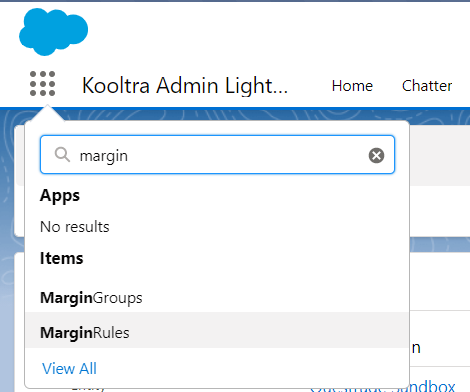
Within the Salesforce UI, click on the app menu in the top-left corner of the page and search for MarginRules, as shown below:
How do I create or update Margin Rules?
To create or update Margin Rules, follow the steps in the previous section and then:
- Edit an existing Margin Rule by clicking on the Margin Rule Name
- Create a new Margin Rule by clicking New on the right-hand side of the screen as below:

When creating or updating Margin Rules, the fields below should be specified. After making any changes, be sure to click Save:
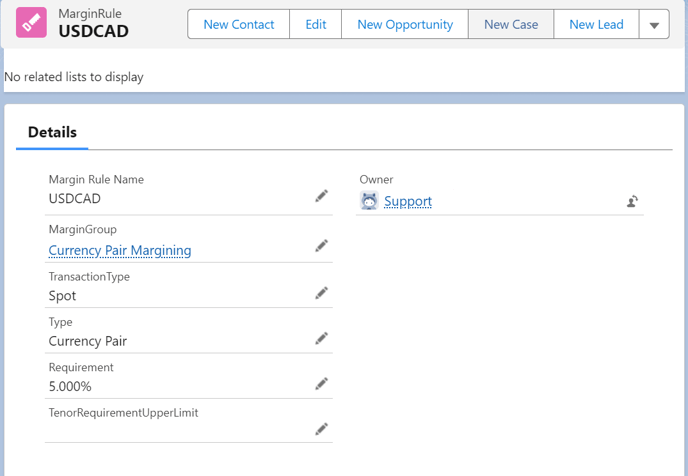
- Margin Rule Name defines the currency or currency pair that margin should be calculated for. This should therefore always be a 3 character currency symbol, or a 6 character currency pair symbole (e.g. USD or EURUSD). Note: if Type (step 3 below) is set to 'Currency Pair', only one Margin Rule can exist for any given currency pair within the same Margin Group.
- Margin Group defines the margin group that the rule will be contained within
- Type defines the method that will be used for calculating margin, either Currency or Currency Pair. See the article How is Margin Required calculated? to understand the differences between these methods
- Transaction Type defines the type of the transaction to apply this margin rule to. The possible options are "Spot" or "Forward". Note: if the Type of the Margin Rule is 'Currency Pair' (item 3 above) then the Transaction Type must be set to 'Spot'.
- Requirement specifies the margin percentage that will be charged on positions that meet the Margin Rule criteria
- Tenor Requirement Upper Limit defines the maximum requirement that can be charged on a Forward margin rule, since the term requirement is a function of time to maturity which will be illustrated below. This should only be defined if the Transaction Type is Forward
Note: Transaction Type is only supported on Margin Rules with where 'Type' is 'Currency'.
If the Margin Rule has Type = Currency Pair, the Transaction Type field must be set to 'Spot'.
Note: Tenor Requirement Upper Limit should only be specified on Margin Rules where
Below is an example of a Margin Rule of type Currency Pair:
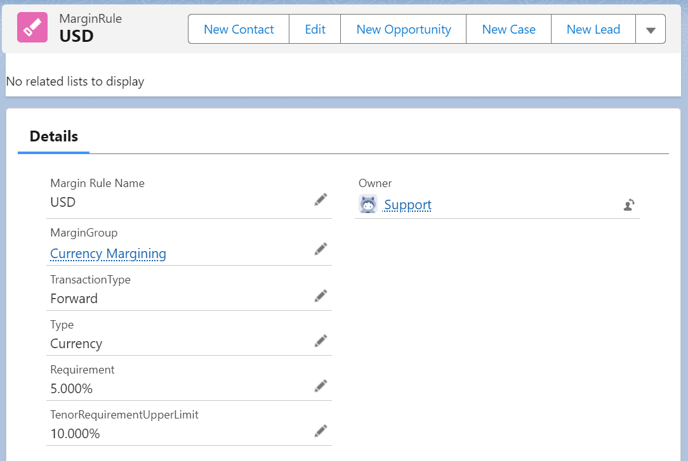
And an example of a Margin Rule of type Currency:
What are Margin Groups?
Margin Groups are a set of Margin Rules which can be assigned to an account.
For accounts assigned to a specific Margin Group, their Margin Required will be calculated based on all of the Margin Rules contained within that group.
How do I see the Margin Groups that are configured?
To access Margin Groups, navigate outside of the Kooltra application and to the Salesforce front-end (going to Reporting > Custom Reports within Kooltra is one method for doing this).
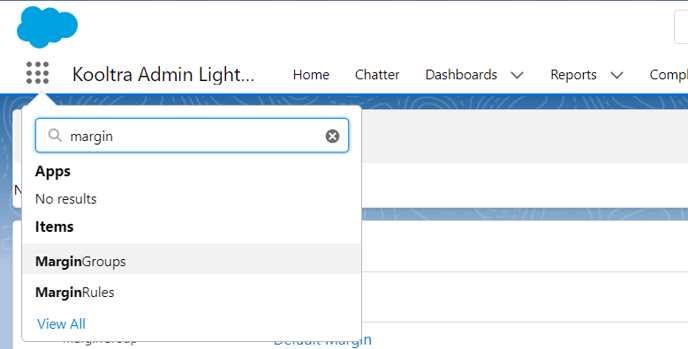
Within the Salesforce UI, click on the app menu in the top-left corner of the page and search for MarginGroups, as shown below:
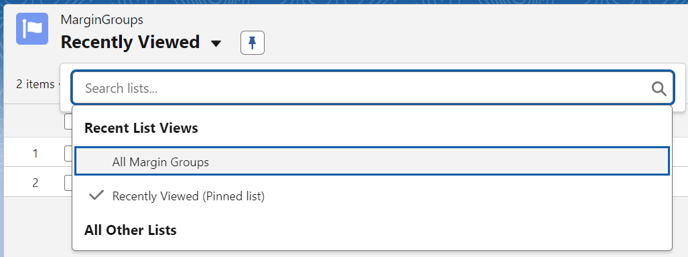
Note: In this example the list that shows all Margin Groups is called 'All Margin Groups', but the name may differ in your environment
How do I create or update Margin Groups?
To create or update Margin Groups, follow the steps in the previous section and then:
- Edit an existing Margin Group by clicking on the Margin Group Name
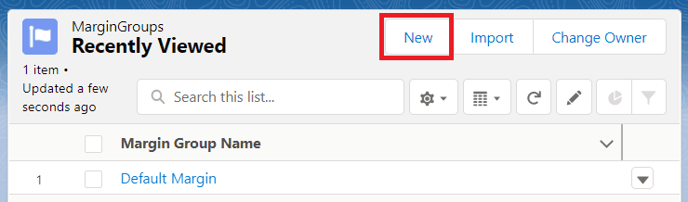
- Create a new Margin Group by clicking New on the right-hand side of the screen as below:
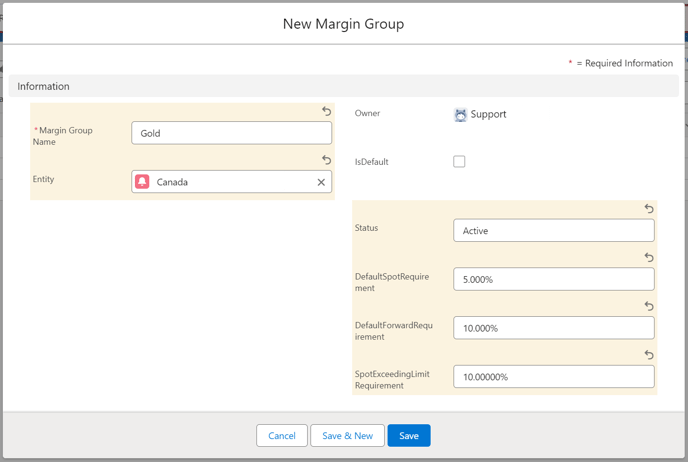
When creating or updating Margin Groups, the fields below should be specified. After making any changes, be sure to click Save:
- Margin Group Name defines the name that will be used to identify the margin group
- Entity defines the entity within Kooltra that the Margin Group will be available for use within
-
IsDefault defines whether the Margin Group should be the default group for all accounts in the Entity if they have not been assigned to a Margin Group
- Status defines whether the Margin Group is available for use. Possible options are 'Active' or 'Inactive'. Only Margin Groups with a status of 'Active' can be used to calculate client margin requirements
- Default Spot Requirement defines the default margin percentage for spot positions where no margin rule has been defined
- Default Forward Requirement defines the default margin percentage for forward positions where no margin rule has been defined. Note: this is only applicable to Margin Groups that contain Margin Rules of type 'Currency'. If the Margin Rules in the group are of type 'Currency Pair' then this field should be left blank.
- Spot Exceeding Limit Requirement defines the margin percentage that should be applied to spot positions that exceed any configured Spot Limit.
Click Save.
Note: Margin Groups can only contain Margin Rules of the same Margin Type.
For example, a Margin Group cannot contain one Margin Rule with Margin Type 'Currency', and another Margin Rule with Margin Type 'Currency Pair'.
Note: Only Margin Groups with Margin Rules of Type 'Currency' support Transaction Type margining (applying margin differently to Spot and Forward trades).
Margin Groups with Margin Rules of Type 'Currency Pair' can only have a single Margin Rule defined per currency pair.
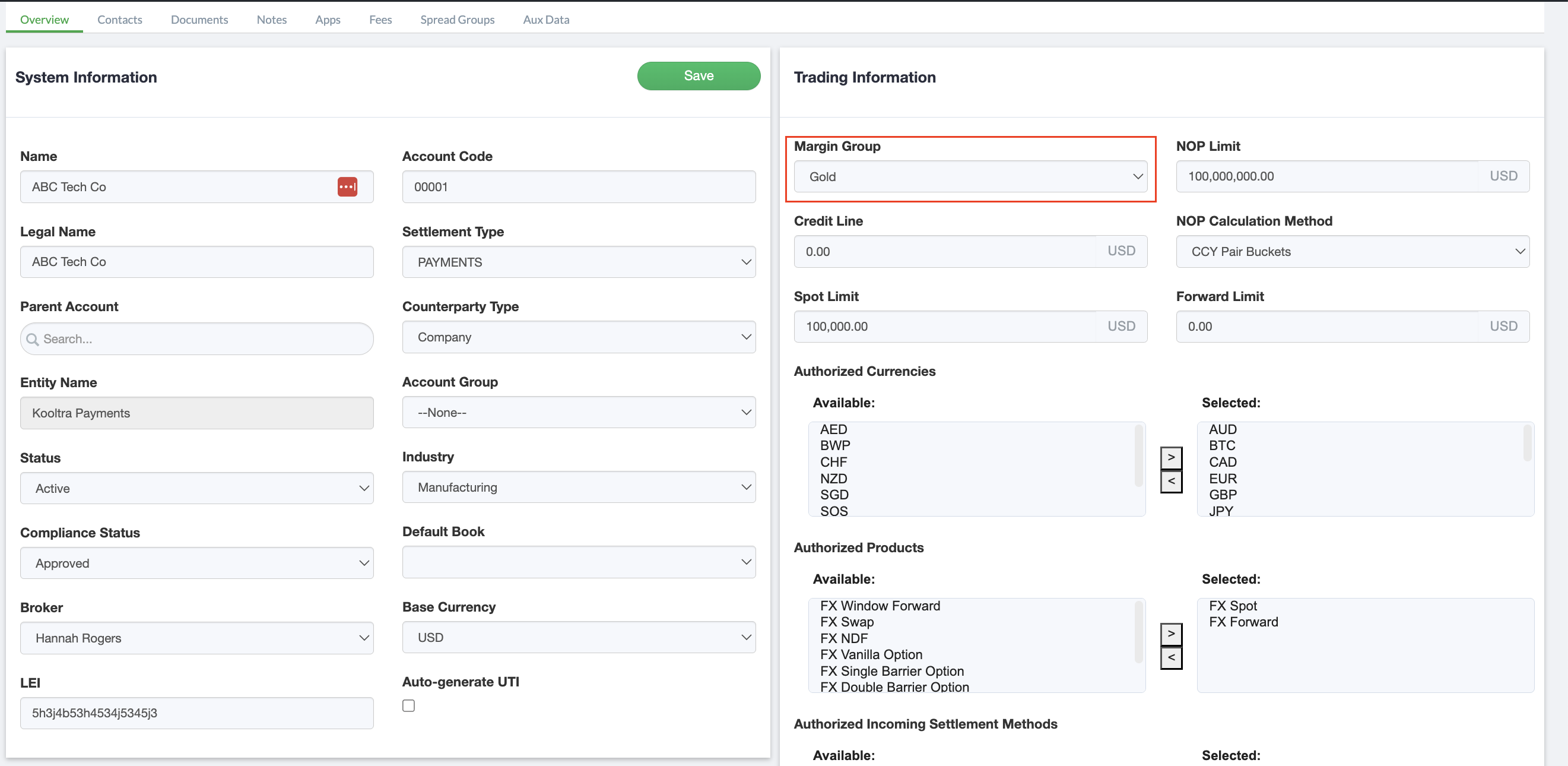
Once Margin Groups have been defined and their constituent rules configured, counterparties (Accounts) must be assigned to a margin group in order for the system to calculate their margin requirements.
To assign a counterparty to a Margin Group:
-
Within the Kooltra application, go to Counterparties >Account Setup and select the counterparty you wish to assign to a Margin Group
-
Within the Account Setup page for the counterparty, select the required Margin Group from the drop-down on the right-hand side of the page, and click Save: