
1 For 1 Trades (e.g., CADCAD) may be booked for specific reasons, such as:
- Paying out a Vostro balance
- Transferring a Vostro balance to another account
In Kooltra, you can facilitate this using the 1 For 1 Deal Entry feature.
Booking a Single Currency Trade
To utilize this feature in Kooltra, navigate to Trading > 1 For 1 Deal Entry in the side panel. Fill out the following fields on the trade ticket. Once completed, click Deal Trade to book the trade. If you wish to create an additional 1 for 1 trade, click the Deal Trade and New button to open a new entry screen.
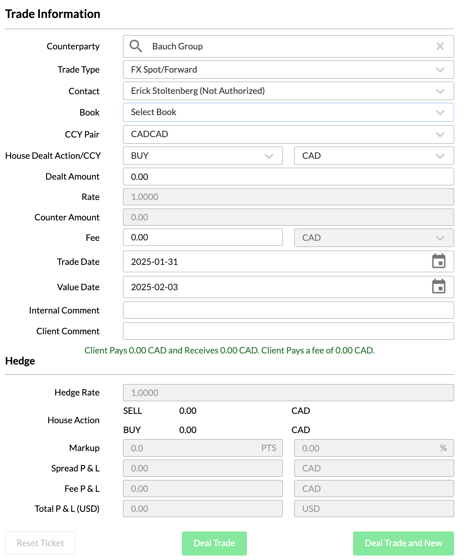
Trade Information
Counterparty: Specify a Counterparty/Account name. Note that only Active counterparties are shown.
Trade Type: This field will auto-populate to the FX Spot/FX Forward trade type due to the nature of this transaction.
Contact (Optional): Specify the contact that is associated with this trade.
Book: Specify the book you would like this transaction to be under if your business segregates transactions into different trading books.
CCY Pair: Specify the currency pair. This dropdown will auto-populate to show single currency pairs only. The currencies that are available for selection are dictated by Entity and Account settings.
House Dealt Action/CCY: Specify the direction of the trade(Buy/Sell).
Dealt Amount: Specify the notional amount to be bought or sold.
Rate: The rate will automatically display as 1 and will be uneditable.
Fee: Enter a trade fee (commission) if required. Trade fees can also be assigned automatically through Fee Groups.
Trade Date: If the current time is before 5 p.m. in New York, the trade date will automatically be set to today. However, if it is after 5 p.m. and before midnight, the trade date will default to the next business day.
Value Date: By default, the value date will be the spot date for the selected currency pair.
Internal Comment & Client Comment: You can add internal comments (e.g., notes for compliance officers) and client comments. Client comments appear on Transaction Confirmations and Client Statements, while internal comments are only visible to back-office users. Both comment types are available in reports.
Hedge
In the Hedge section, the fields are locked for editing by default, and the hedge rate is preset to 1 for single currency trades.