
Entities represent individual business units or business lines. Kooltra Admins are responsible for creating and managing the appropriate business entities. To create a new entity in Kooltra, follow these steps:
Click on x-System > New Entity in the navigation pane and enter the required details in the entity setup screen.
-
Entity Name: The name you want to use for the new entity in Kooltra.
-
Legal Name: The entity's legal name.
-
Entity Code: A unique code to identify the entity.
-
Entity Email: The entity's email address.
-
LEI (Legal Entity Identifier): Enter the LEI associated with the entity.
-
Type: Select the entity type, such as Company, Trust, Government Body, Partnership, Association, or Registered Body.
-
Address: The street address of the entity's office.
-
City: The city where the entity is located.
-
Province: The province or state of the entity's address.
-
Postal Code: The postal or ZIP code of the entity's address.
-
Country: The country where the entity is registered.
-
Phone Number: The contact phone number of the entity.
-
Base Currency: The primary currency used by the entity.
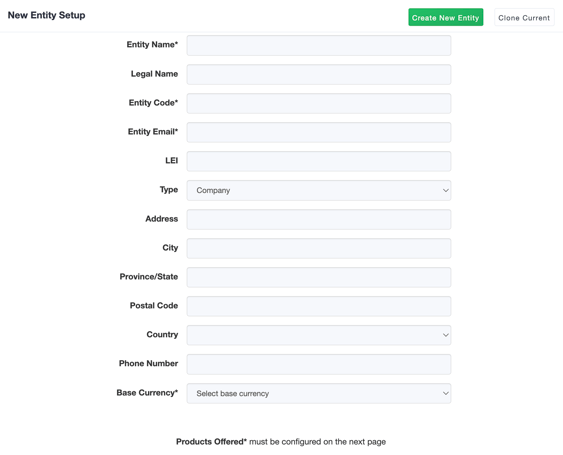
After entering all required details, select Create New Entity button in the upper right-hand corner of the screen to complete the setup.
Alternatively, if you are creating multiple entities similar to the entity you are currently in, you can click on the Clone Current button. This button will auto-populate the fields based on the information available from your current entity.
Once you create a new entity, you will be automatically redirected to the Entity Settings page, where you can configure your entity further. To learn more about configuring your entity settings, refer to the article: Understanding Entity Settings.