
To make the most of the Cashflow Export functionality, you will need either payment files or a direct connection configured for your banking and payment partners. Speak with your Kooltra Account Manager for more details on this.
To access the Cashflow Export page, click on Settlements > Cashflow Export in the navigation panel.
Approvals
The Approvals tab on the Cashflow Export page is where back office can approve cashflows for export.
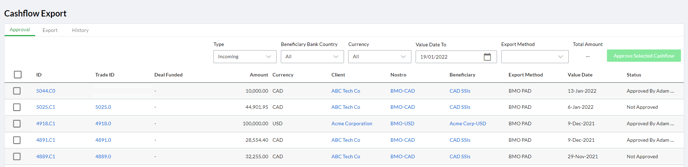
To approve one or more cashflows, check the box on the left of the associated row(s) in the table, and then press the green Approve Selected Cashflows button.
You will be notified of successful approvals (or errors in approving the cashflows) via a pop-up notification at the bottom of the screen as below:

Outgoing cashflows must pass a credit check before they can be approved. To perform the credit check, click the Credit Check button on the right of the row (as highlighted below):

This will generate a pop-up displaying the result of the credit check:
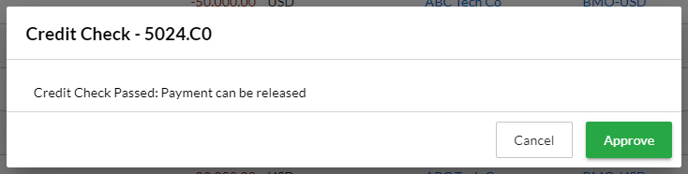
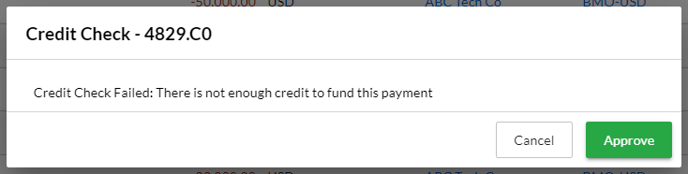
The credit check is performed based on the configured Funds Available settings.
If the user performing the credit check has override privileges, then they can bypass any credit check failures and approve the cashflow.
If the user does not have override privileges, then credit check failures will prevent approval of the cashflow until the credit issues are resolved.
Filters available:
Type - Used to filter the page for either Incoming or Outgoing cashflows.
Beneficiary Bank Country - filters the page to only show cashflows where the beneficiary bank is equal to the selected value
Currency - filters the page to only show cashflows of the specified currency
Value Date To - filters the page to show cashflows up-to and including the specified date
Export Method - filters the page to show cashflows of the specified export method
Export
The Export tab on the Cashflow Export page is where back office can export approved cashflows for upload into banking portals.
To export cashflows, check the box on the left of the associated row(s) in the table, and then press the green ‘Export Selected Cashflows’ button.
To push cashflows back to requiring approval, check the box on the left of the associated row(s) in the table, and then press the blue ‘Reset Approved Cashflows’ button.
You will be notified of successful exports (or errors in exporting the cashflows) via a pop-up notification at the bottom of the screen.
We have validation on the Beneficiary and Beneficiary bank details required for each export method. This means that if critical
Beneficiary or Beneficiary Bank information is missing, you will see an error in the user interface that lets you know which fields need to be updated.
Send Manually Functionality
-
If you are interested in moving an approved cashflow off of the export tab because you have already processed it manually with your bank, you can select a cashflow and click “Send Manually”
-
Once you have selected “Send Manually”, the cashflow will move to the history tab, its export method will be updated to N/A, and its export status will be reflected as “Manually Sent”
Filters available:
Currency - filters the page to only show cashflows of the specified currency
Export Method - filters the page to show cashflows of the specified export method
History
The History tab on the Cashflow Export page displays a history of export files that have been generated.
You can also reset cashflows from the History tab. If you do so, you will need to re-approve and re-export the cashflow.