
Based on your user's profile permissions, you have access to two tools for importing data into Kooltra: the Data Import Wizard and the Data Loader.
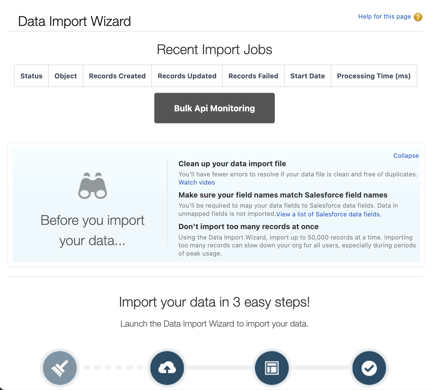
Data Import Wizard
Automated Data Mapping
The Data Import Wizard includes automatic data mapping that maps data from CSV files to the appropriate Object fields. If any mappings are missing or incorrect, you can manually edit them to ensure the data is imported correctly.
Data Loader
Save Mappings
When importing records, you must map the columns in your CSV file to the corresponding fields in the object you're importing into. The Data Loader tool lets you save these mappings, so you can reuse them for future imports, making the process quicker and more consistent.
Set Batch Size
Data imports can be processed in batches, with a default batch size of 200 records. If you encounter errors during the import process, especially those related to system limits, consider reducing the batch size and retrying.
Recommended Batch Sizes by Object Type
- Accounts: 200 records
- Contacts: 50 records
- Beneficiary: 200 records
- Nostro: 50 records
- FxTrade: 200 records
- Cashflow: 50 records
Use External IDs
Importing data into lookup fields can be challenging without using external IDs. Lookup fields require either a Salesforce ID or an external ID. To illustrate this challenge, consider the example below.
The Account field on a contact record is a lookup field that connects the contact to its associated account. Should you choose to utilize Salesforce IDs to link the contact to the account record, the process involves multiple steps:
-
Insert Account Records
You must first upload all account records into Salesforce. -
Retrieve Salesforce-Generated Account IDs
After the account records are created, you'll need to query Salesforce to get the system-generated Account IDs. -
Update the Contact Import File
Add these retrieved Account IDs into the contact import file to associate the correct contact with its account.
This process introduces manual steps, making it tedious and error-prone. You can prevent this issue by using the External ID field. Since External IDs are predetermined, you can establish the connections between records during the extraction and transformation process. This allows the records to be imported in the correct order.
