An Adjustment in Kooltra represents a free-form cashflow that is not associated with trading activity.
Posting an Adjustment
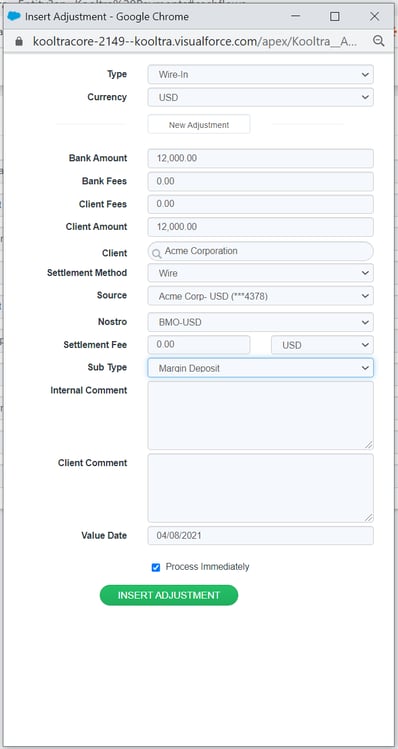
To enter a cash adjustment in Kooltra:
-
Go to Settlements -> Adjustment in the navigation panel
-
In the window that launches, specify the:
-
Type of the adjustment
-
Currency the adjustment will be entered in
-
Client Amount - the amount to be sent to / received from the client.
This is calculated as Bank Amount + Bank Fees - Client Fees -
Client - the counterparty that the adjustment is being entered for
-
Settlement Method - choose from available Settlement Methods for the selected client
-
Source or Beneficiary - choose from a list of approved client Beneficiaries
-
Nostro - the Nostro that the funds will be sent from or received into
-
Settlement Fees - any fees associated with the settlement method
-
Sub-Type - the sub-type of the adjustment
-
Internal Comment (Optional) - any additional notes you would like to capture on the adjustment for internal use
-
Client Comment (Optional) - any additional notes you would like to capture on the adjustment that will be visible to the client (on settlement confirmations or the Client Portal)
-
Value Date - the date on which the cash will be sent / received
-
If adjustments are posted without checking off the Process Immediately checkbox, they will be entered as ‘Open’ and will appear on the Pending Settlements card in the Settlement Processor.
If an adjustment is marked as Process Immediately then it will be closed automatically after insertion.
Cancelling an Adjustment
When a cashflow is created in error or needs to be removed, users may change or nullify the cashflow by following the steps below:
-
-
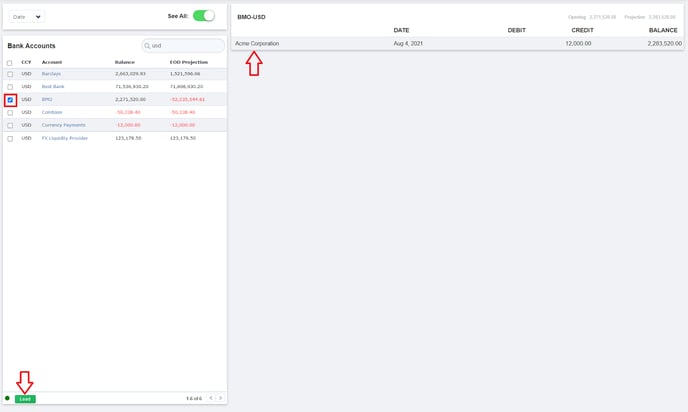
Navigate to Settlements -> Bank Accounts in the navigation panel
-
Select the checkbox next to the Nostro that money was deposited to. Users are able to search for a specific Bank Account using the search box provided
-
Click ‘Load’ at the bottom of the page. The right-hand panel will subsequently load cashflows within date range selected (top left of the page). If the expected cashflow does not appear you may need to change the date range at the top of the page for when the cashflow was entered.
-
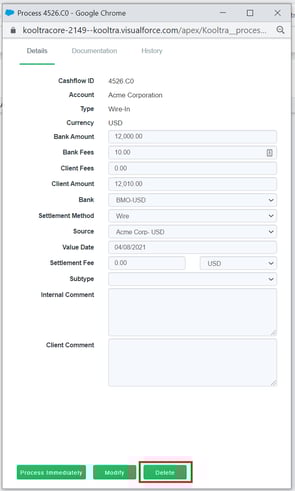
Click on the desired cashflow to open the cashflow ticket.
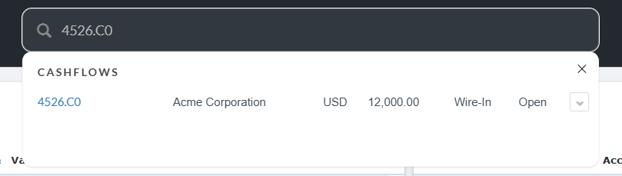
Note: if you already know the number of the Cashflow to be cancelled (e.g. 4526.C0) then steps 1-4 can be skipped by simply searching for this number in the global search
-
Click Delete in the Cashflow ticket
-
Editing an Adjustment
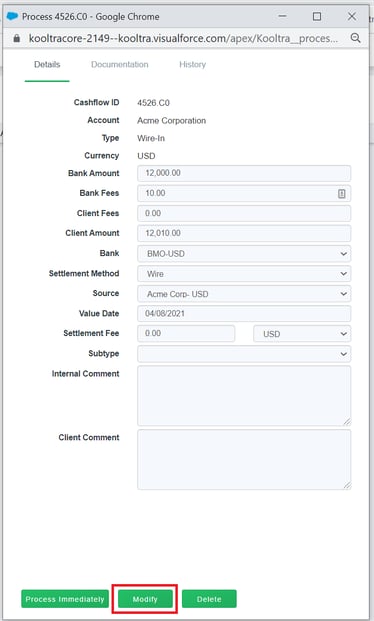
When a cashflow is created with inaccurate data, you may edit the information by following steps 1-4 of the Cancelling an Adjustment process above, updating the necessary fields with the correct data and clicking Modify to save the changes.