Data Import Wizard
The Data Import Wizard is a flexible tool for importing or updating data in Kooltra. Here's an example of how to use it to update a custom object. While this scenario focuses on updating Currency Pairs, the steps can be applied to other objects as well.
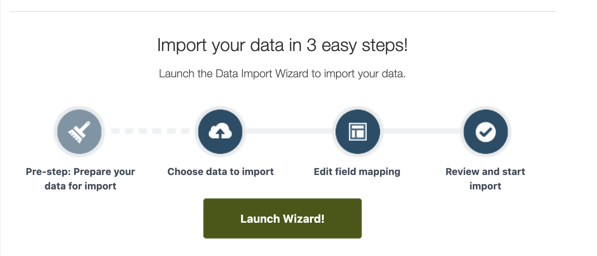
Start by navigating to Setup and searching for Data Import Wizard in the Quick Find bar. Open the Data Import Wizard and select Launch Wizard.
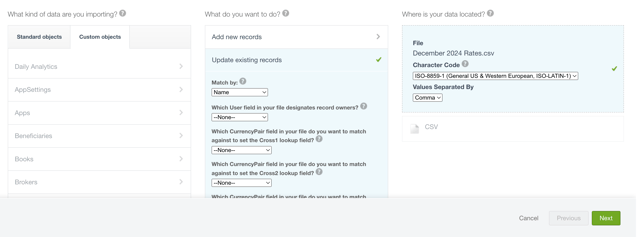
Once the wizard is open, locate the object you want to update. In this case, we're searching for Currency Pairs under Custom Objects.
When using the Data Import Wizard, the option you select depends on the type of update you’re performing. You can choose to Add New Records, Update Existing Records, or Add New and Update Existing Records.
In this example, we’re updating the Accounting Rate for existing Currency Pair records, so you would select Update Existing Records. Prepare a CSV file with the updated data, ensuring the headers in the file match the fields you’re updating. Drag and drop the CSV file, then click Next to proceed.
You'll then map the fields from your CSV file to the corresponding fields on the Object, such as matching Currency Pair and Accounting Rate fields. After confirming the mapping, click Next and start the import process.
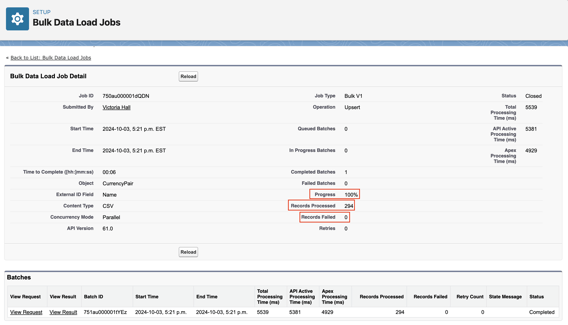
To monitor progress, you'll be redirected to the Bulk Data Load Jobs screen, where you can see indicators for the import's success or failure.
Key indicators include:
- Progress: Percentage of the import completed.
- Records Processed: Total number of records processed.
- Records Failed: Number of records that encountered errors.