
Data Loader
Kooltra uses Data Loader to insert and update data in the system. To use Data Loader, it must first be installed on your computer. For detailed instructions on how to install it, please follow the steps provided here.
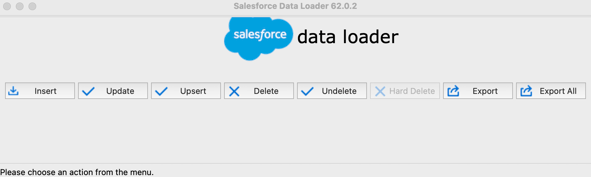
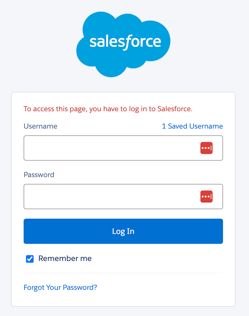
First, open Data Loader and log in using your Kooltra credentials. Select Production and click Log In. Allow Data Loader to access and manage your data.
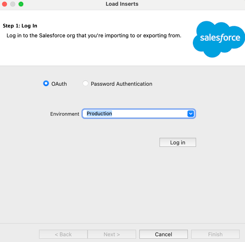
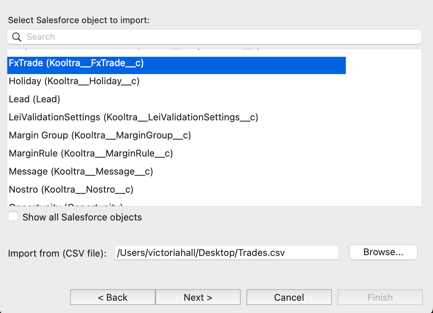
Select the object you'd like to insert into, which in this example is Fxtrades (Kooltra_FxTrade_c), and choose the CSV file containing the trade information. Then, click Next.
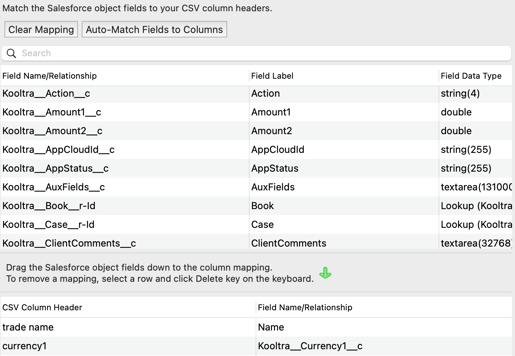
Map the fields from your CSV columns to the object fields. If this is your first time using Data Loader, create a mapping. Click Auto-match Fields to Columns or manually drag the object fields to match the file column headers. Save the mapping and confirm by clicking OK.
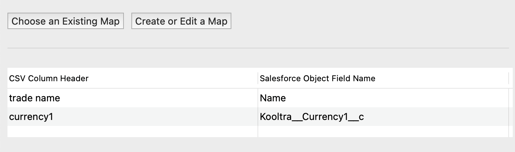
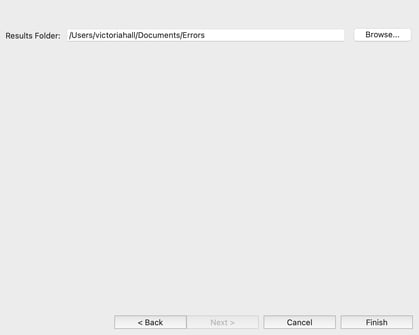
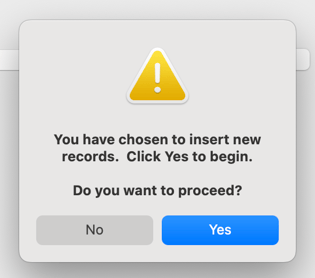
Next, specify the directory where success and error files will be saved, and click Finish. Confirm by clicking Yes to start the insertion process. Then you will able to view the trades that were successfully processed or rejected.
If the records fail to insert, ensure that all mandatory fields are specified in your file. Double check the data before starting the process.
Differences between Insert, Update & Upsert:
| Insert | Add new records. The keys (i.e. trade ids, account code and etc) must be unique. |
|---|---|
| Update | Update existing records. Make sure you input the correct keys for the records to be matched and updated. |
| Upsert | Add new records when they don't exist in Kooltra system and update existing records if matched. |