Customer Support Portal Overview
The Customer Support Portal offers a centralized hub for managing your support tickets. Through the portal, you can:
- Submit New Support Tickets: Easily create and submit new support requests.
- View Past Tickets: Access and review previously submitted tickets by you or any member of your organization.
- Track Ticket Status: Monitor the status and updates of all your active tickets in real time.
Navigating the portal is simple, and this guide will walk you through all the features and functions to help you get the most out of the Customer Support Portal.
Account Setup
To begin using the Customer Support Portal, we will send you an email invitation to set up your password. Once your password is created, you will be redirected to the Customer Support Portal home page.
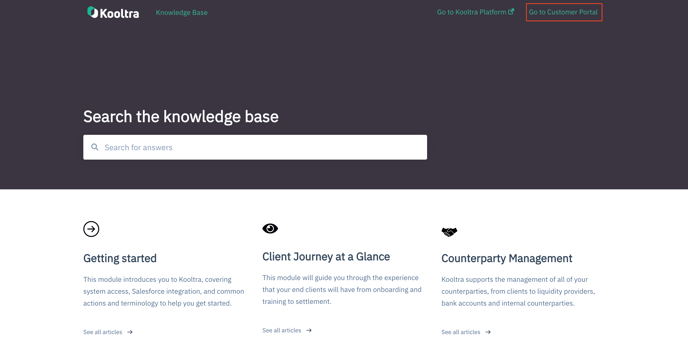
You can also log in directly through the Knowledge Base page. At the top of the page, you'll find a link labeled "Go to Customer Portal" that takes you directly to the portal.
Filing a Support Ticket
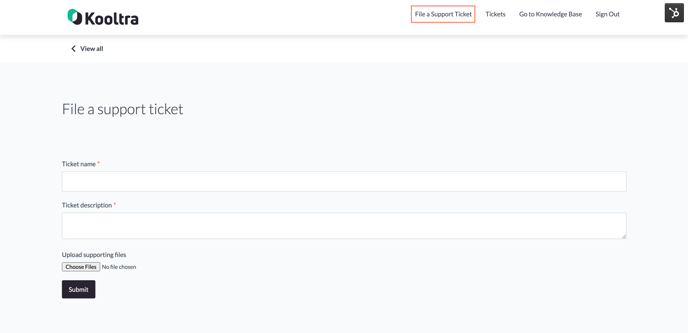
To submit a support ticket, click on "File a Support Ticket" in the navigation bar.
- Enter the ticket name and description.
- Attach any relevant files by clicking the Choose Files button. You can attach multiple files by holding down Ctrl (Windows) or Command (Mac) while selecting them.
Once your ticket is complete, click the Submit button to send your ticket request.
Viewing Your Tickets
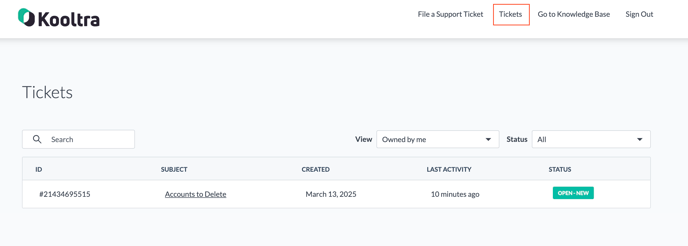
To view your submitted tickets, go to "Tickets" in the navigation bar. By default, you’ll see a list of tickets assigned to you. To view a full list of tickets submitted by you and others in your organization, select "Owned by Organization" from the "View" dropdown menu.
You can track the status of each ticket, which we will update as we work on your request. Additionally, you can search for tickets using the search bar by entering either the Subject or Ticket ID. You can also filter tickets based on their status, such as whether they are open or closed.
Responding to Ticket Updates
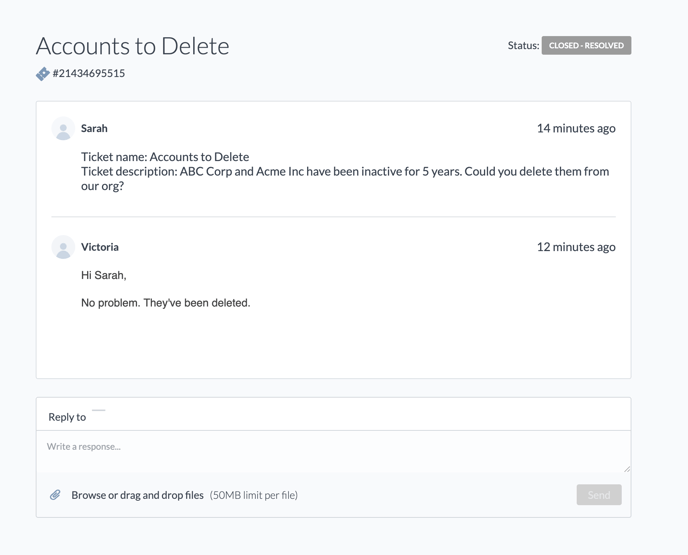
To view responses from our support team, click on any of your submitted tickets. Please note that you can only reply to tickets you have submitted, however, you can view all tickets associated with your organization.
To ensure you're always informed, you'll receive email notifications whenever our support team responds to your ticket. You will also receive an email confirming the submission of your ticket.