
Overview
Kooltra can offer live dealing by integrating with your Liquidity source. This allows your Clients, Sales and Trading teams to execute trades using RFS or RFQ workflows.
Prerequisites
In order to successfully book a trade, you need;
-
Ensure liquidity apps are installed and configured
-
An Entity that is configured to trade the intended Currency & Products
-
An active counterparty(Account) that is configured to trade the intended Currency & Products
-
Active Spread rules for the intended Currency
Contact Kooltra Support for an Integration list or to discuss an integration with your Liquidity Source.
Access trade execution
Back office users can access trade execution by clicking on Trading → Trade on Behalf from the main Navigation pane.
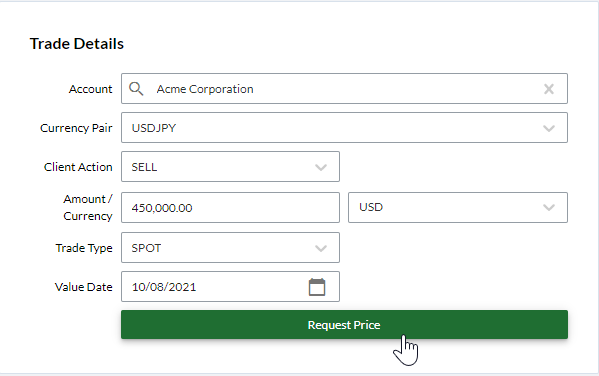
A description of the fields are as follows:
- Account - Specify a Counterparty/Account name. Note only ‘Active’ counterparties will be selectable. When an account is selected, Kooltra will select the associated spread group and execute according to the rules defined in that group.
- Currency Pair - CCY Pair (required) - Specify the currency pair. The currencies that are available for selection is dictated by Entity and Account settings. Please see here for more information.
- Client Action - Specify an direction of the trade(Buy/Sell) and the Currency. This is from client perspective. For example if the Action is set to Buy then your client (counterparty) would be buying the specified currency
- Amount/Currency - Specify the notional amount to be bought or sold. Kooltra supports the use of shortcuts when entering amounts such as the use of 'k' for thousands and for 'm' (millions). Ex. If you would like to book a trade for 100,000.00 you can enter 100k. Kooltra will automatically format this to 100,000.00.
- Trade Type - Type of the trade for example; Spot, Forward
- Value Date - Settlement date of the trade
Please see Portal Documentation for information on Dealing via the Payments Portal.
Submit a Quote Request
A quote is requested by completing the form and clicking the “Request Price” button. Kooltra will compare the request details to your pre-configured spread rules.
If a matching spread rule is not available, the system will move the request to “Dealer Intervention”
Kooltra will connect to your chosen provider and stream a price in accordance with your spread rules. Rates are updated in real-time as they are received from the provider and are shown in the Hedge Rate field (in accordance to spread rules).
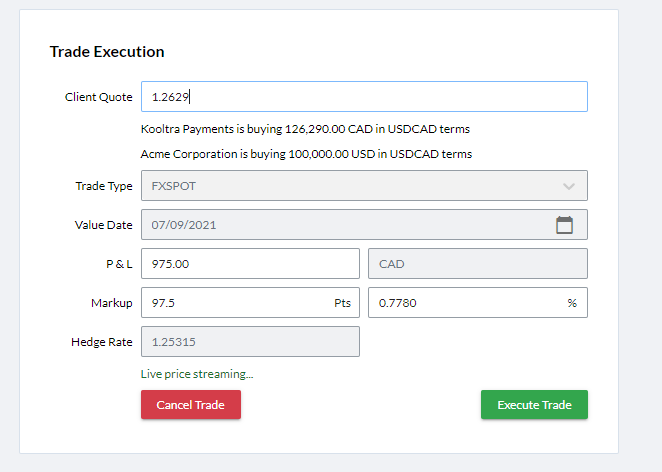
While streaming, there are a number of fields that can be updated:
- Client Quote - Client Quote is the rate that should be quoted to the customer. Users can edit this field directly. Alternatively users can adjust the P&L or Mark up fields and Kooltra will automatically calculate and update the client quote field. Users can also freeze the client quote by clicking on the field. In this case, the P&L field will continue to update as new rates are received.
- P&L - The P&L field shows the sales profit that will result from executing the trade. Users can specify the profit they would like to make on the deal and Kooltra will update the Client Quote to the appropriate rate. If the Client Quote field is frozen, the P&L field will update as new rates are received from the provider.
- Markup (Pts & Percent) - The Markup field allows users to specify a markup for the deal in Percent or points. When a Markup is entered, the Client Quote field will update as new rates are received in order to maintain the Markup. If Client Quote or P&L is specified, the Markup field will be automatically calculated
The general workflow on the page is to;
-
Request a price
-
Set the P&L or Markup to the desired value
-
Freeze the client quote and communicate with the client
-
Click the Execute Trade button to book the trade
Trade Execution
When the quote is agreed, the user can click on “Execute Trade”. Kooltra will book the trade according to the configured spread rules.