
Users can add settlement instructions to trades through the Payments Portal if the following criteria is met:
- A Settlement Method is enabled for the account.
- Beneficiaries are set up for each traded currency.
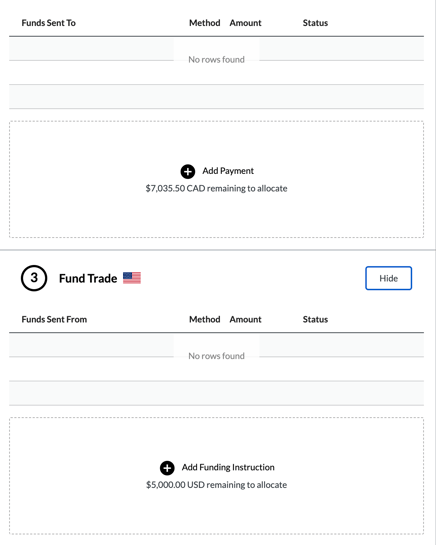
Settlement instructions can be added to a trade immediately after execution. To add settlement instructions to an existing trade, navigate to Trade History in the left sidebar. From there, users can select the specific trade they'd like to settle. This will open the trade page, where users can make payments or fund the trade.
Making Payments
Clicking Add Payment will open the New Payment screen, where users can specify where the funds should be sent—either to their own bank account or a third-party beneficiary.
On the new payment screen, users must enter the following:
- Select whether the beneficiary is a bank account or third party
- Choose the payment method (Wire, ACH, etc.)
- Enter the amount
- Add any comments to the recipient
- Include supporting documentation (e.g., invoices, agreement, etc.)
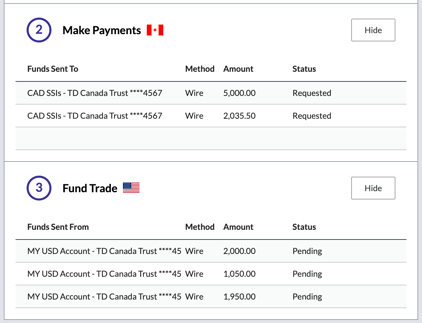
Once the payment instructions are added, the status updates to requested.
Funding Trades
In the Fund Trade section, users can specify how the trade will be funded by selecting the account or third-party beneficiary that the funds will be sent from.
On the new funding instruction screen, users must enter the following:
- Choose the funding method (Wire, ACH, etc.)
- Select whether the beneficiary is a bank account or third party
- Enter the amount
- Add any comments to the recipient
- Include supporting documentation (e.g., invoices, agreement, etc.)
Once funding instructions are added, the status updates to pending.
Viewing Payment History
Users can view their requested payments on the Payment History page of the Payments Portal, which displays the following details:
- Payment Transaction ID
- Trade Transaction ID (if linked to a specific trade)
- Date Requested
- Amount
- Currency
- Recipient
- Applicable Settlement Fee
- Status (Requested, Sent, Deposited, Cancelled)
- Date Sent (if available)
- PDF download of payment details
On this page, users can filter payments by specifying a date range using the "Date Sent From" and "Date Sent To" fields. Additionally, they can search for specific payments by entering a currency or trade reference. Users can also export the filtered results to a CSV file by clicking the "..." button in the top-right corner of the blotter.