
Creating Reusable Beneficiaries (Settlement Instructions)
Beneficiary Management on the Client Portal
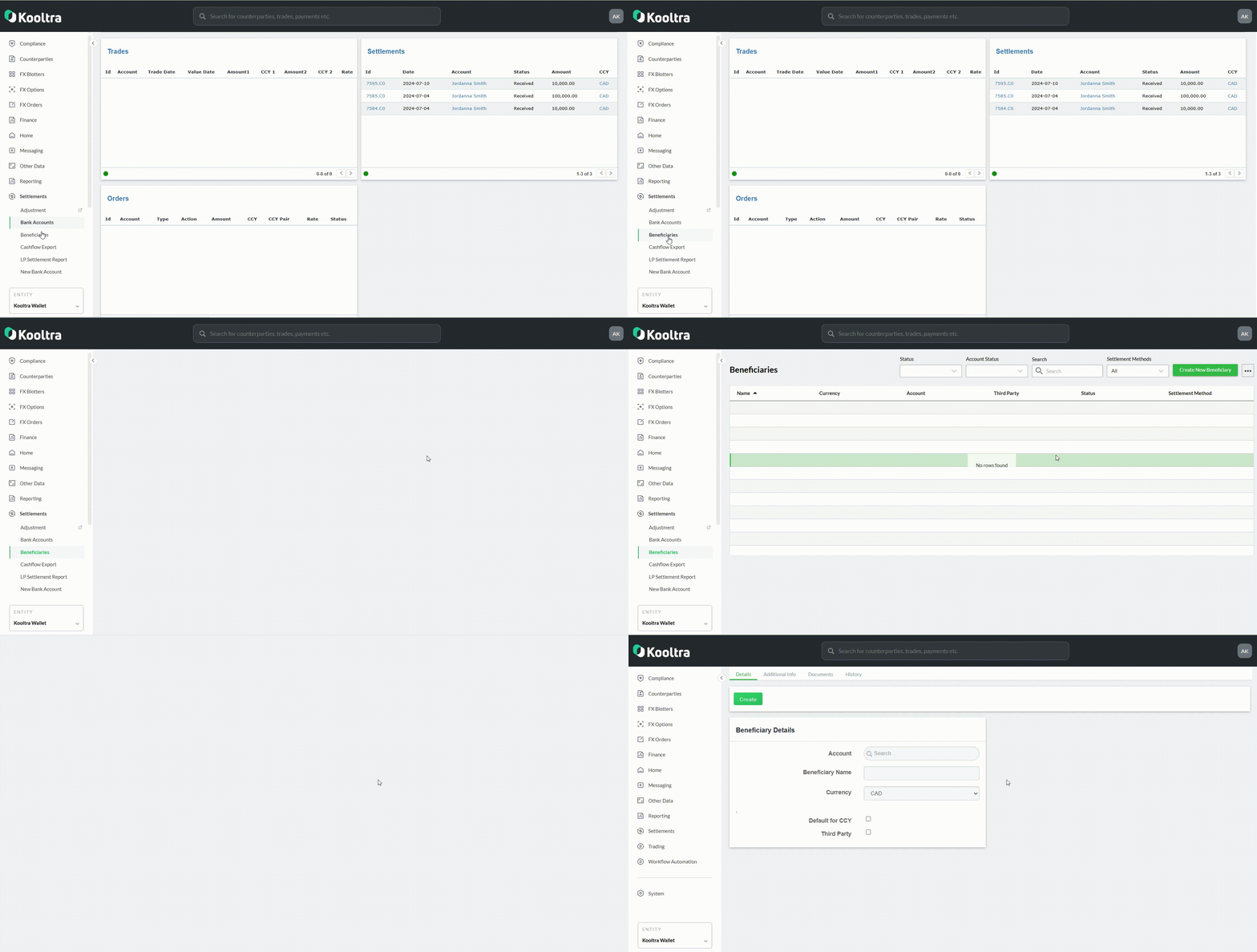
To settle trades, clients must set up beneficiaries for each currency. The “Beneficiaries” page in the client portal makes this a breeze—clients can manage all their beneficiaries, view details like currency and banking information, and check their status. They can also create new beneficiaries for future payments or cashflows, submit them for compliance approval, or deactivate them when necessary.
Beneficiary Management by the Sales and Backoffice Teams
Adding Settlement Instructions to the Trade
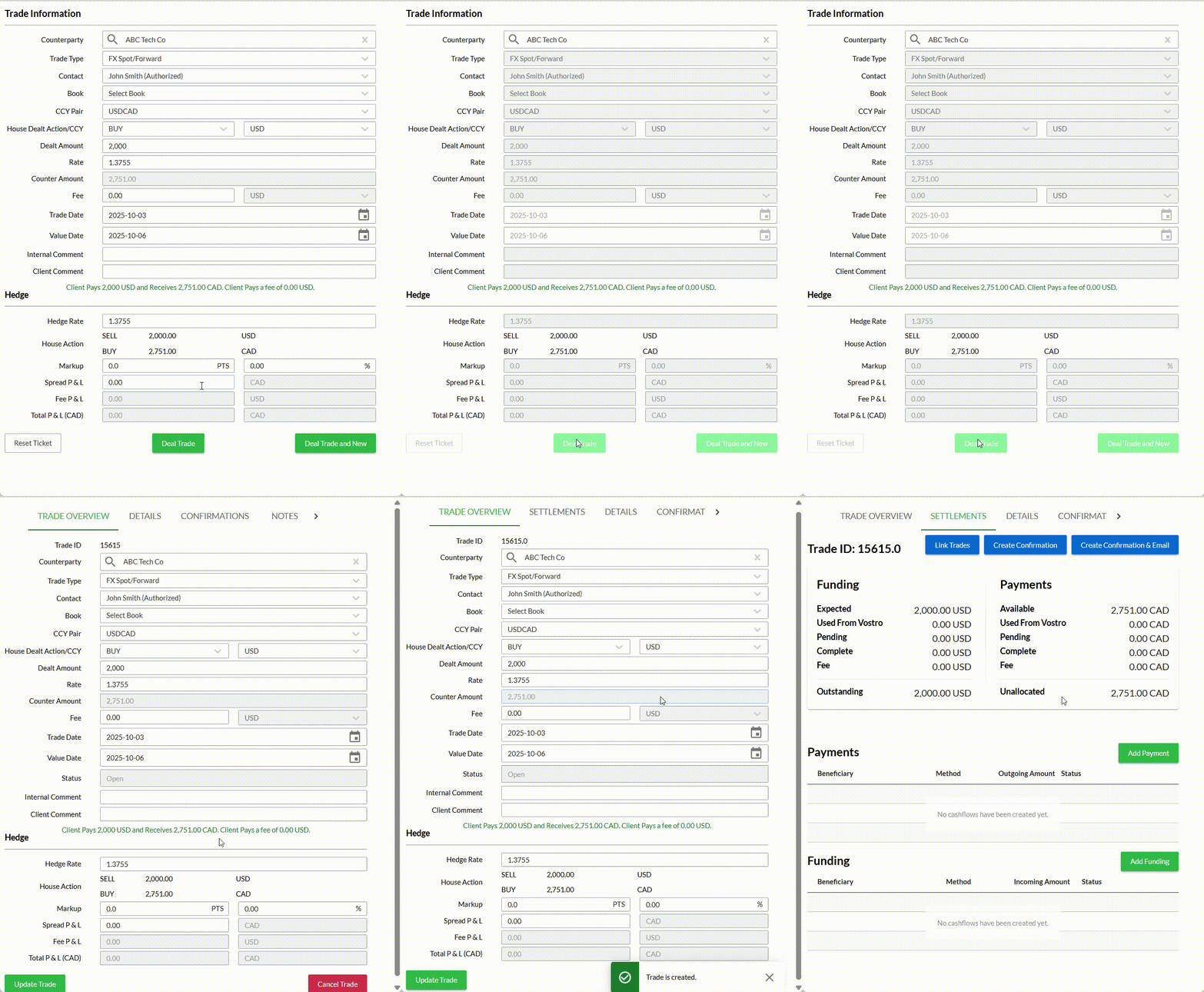
When you book a trade in Kooltra, you’ll need to add settlement instructions. When you’re on the trade entry screen and have booked a trade, you’ll see a prompt to add these settlement instructions. Just click the “Add Payment” and “Add Funding” buttons, and then choose the right beneficiaries - for sending funds and for receiving them.
Generating your Banking Files
Generating bank files is fast and effortless. Go to the Cashflow Export page under Settlements in the left sidebar. From there, you can easily approve cashflows by checking the box next to the relevant ones and clicking the "Approve Selected Cashflows" button.
Once approved, head over to the Export tab. Select the cashflows you want to export, check the box next to each one, and hit "Export Selected Cashflows". In no time, your file will be downloaded and ready to send to your bank, streamlining your cash flow process.