
The Daily Reconciliation page in Kooltra provides an overview of all activities that had an impact on the entity's cash position on a given day, and a process to reconcile/explain the change in its equity.
The daily reconciliation report is generated every day after the end-of-day (EOD) process runs and creates a snapshot of the EOD information.
To access the Daily Reconciliation page, go to Finance > Daily Reconciliation in the navigation panel.
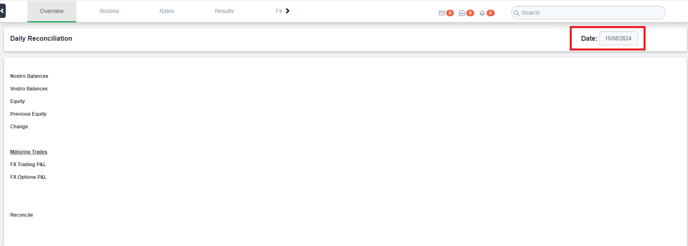
By default, the Daily Reconciliation page loads the current date.
If you are accessing the page before the end of the current trading day, you will see an empty page.
To change the date, click on the date filter and select the desired date.
How to use the Daily Reconciliation Page
Step 1. Review the Overview Tab
Review activities that happened on a given day.
The top section of the overview page breaks down your equity by currencies and show its change compared to the previous date.
The bottom section lists the line items that explain the change in equity between the two dates.
The last line (Reconcile) displays any unexplained changes. The goal of performing the reconciliation is to bring this number to 0 by posting adjustments where necessary.
Step 2. Review the Nostro Tab
Cross-check the nostro balances against your bank accounts and liquidity providers to make sure they are accurately represented in Kooltra.
If a nostro balance is updated, an adjustment of type 'Balance Adjustment' will be added to the Overview tab, contributing to the reconciliation.
Step 3. Review the Rates Tab
Once the Overview tab reconciles down to 0 by individual currency, it's time to review the total equity in the your base currency.
The Rates tab represent the accounting rates used to translate individual currency into the entity's base currency.
Cross-check the rates to ensure that they are correct.
Note: please note that every time the accounting rates change, you incur a currency translation gain/loss line item.
Step 4. Review the Results Tab
After the accounting rates are updated, the Results tab displays your total equity in the entity's base currency, aggregating the individual currency positions using the updated accounting rates.
This information is ready to be emailed to, and reviewed by, Finance and Management.
Step 5. Review the Files Tab
The files tab shows the raw information captured at EOD, providing the data behind the P&L calculations.
Overview Tab
By default, the daily reconciliation page loads the current date. If you are accessing the page before the end of the current trading day, you will see an empty page.
To change the date, click on the date filter and select the desired date.
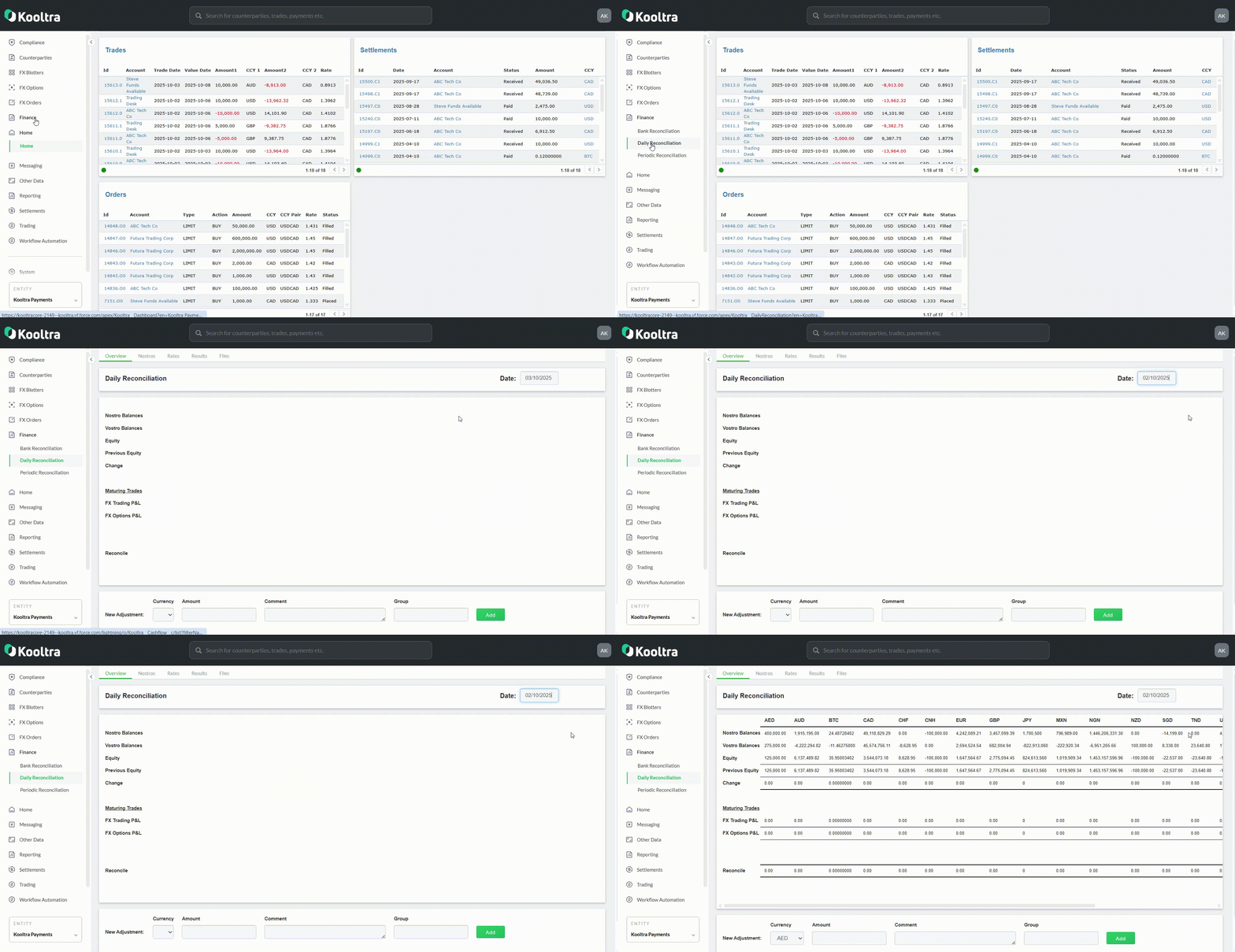
All of the information on the daily reconciliation page is grouped by currency. The headers for each row of the daily reconciliation page are explained below:
|
Header |
Description |
|---|---|
|
Nostro Balances |
Total value of the nostro balance (your assets) for a specific currency |
|
Vostro Balances |
Total value of the vostro balance (your liabilities) for a specific currency |
|
Equity |
Calculated by subtracting the vostro balance from the nostro balance |
|
Previous Equity |
The equity amount on the previous day's daily reconciliation report |
|
Change |
The difference between equity and previous equity |
|
FX Trading P&L |
The sum of Amount 2 in a specific currency that is settling on the date specified in the date filter |
|
FX Options P&L |
FX Options P&L is the aggregate value for premiums in a specific currency for options that have a premium date specified in the date filter |
|
Reconcile |
Calculated by subtracting the Change from Total Amount in Maturing Trades section. The goal of performing the reconciliation is to bring this number to 0, by posting manual adjustments where necessary |
Posting Manual Adjustments
You can insert a new adjustment when the statement does not reconcile. To post manual adjustments, go to the New Adjustment card at the bottom of the Overview tab and:
-
Select a Currency from the Currency dropdown.
-
Enter an Amount.
-
Enter a Comment (optional). Kooltra recommends that you add a thorough comment for auditing purposes.
-
Enter a Group. Adjustments can be categorized and grouped together.
-
Click Add.
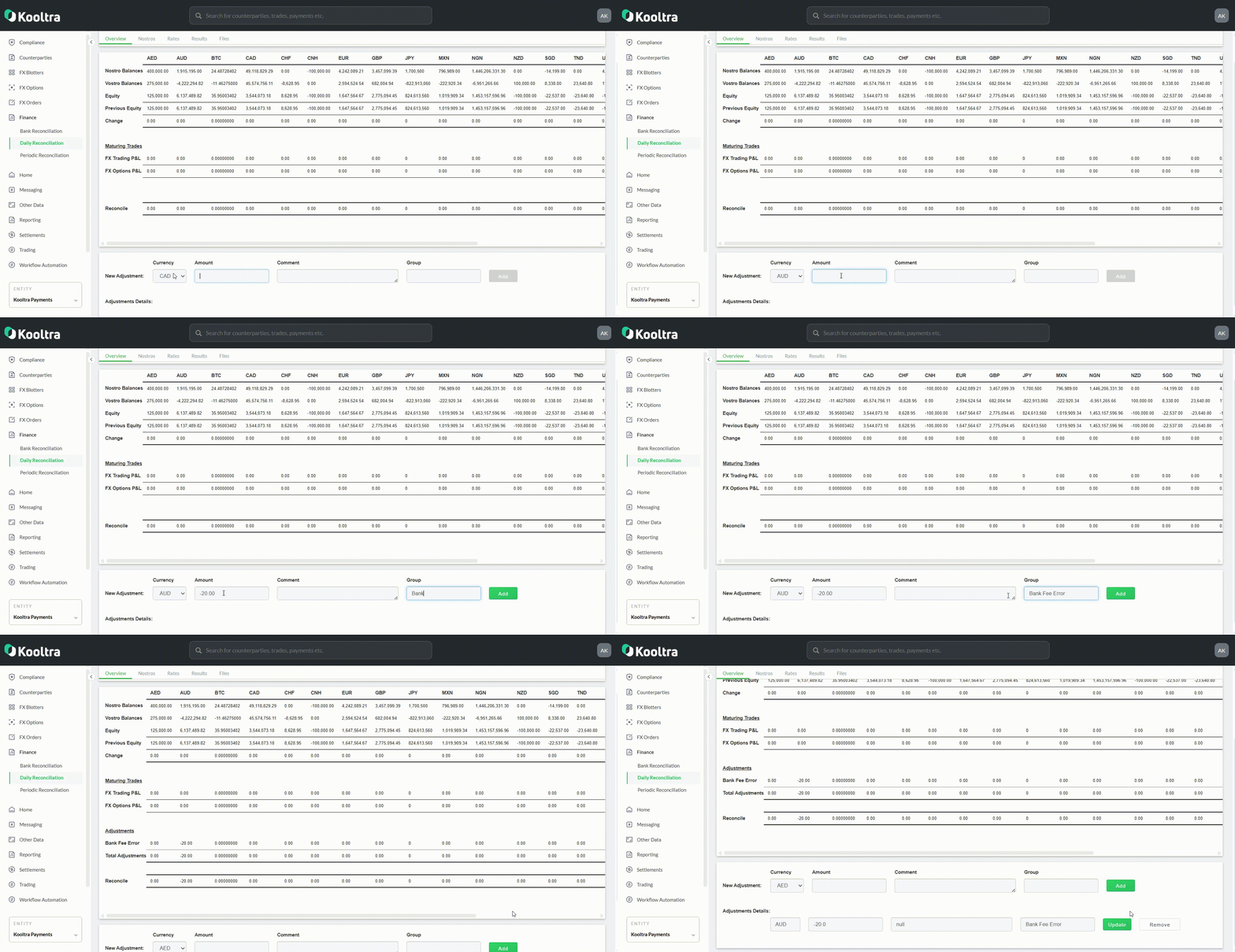
Ideally, the bottom line (reconcile row) of your Daily Reconciliation report would net out to 0.00 and you would not need to post any adjustments. However, this is not always the case, and the daily reconciliation report should be adjusted to account for missed information. These adjustments may not necessarily be missing transactional data, but may be adjustments such as payroll.
Nostro Tab
The Nostros tab lists all the bank accounts in your entity, and their End of Day (EOD) currency-specific balance. You can use this tab to reconcile the EOD balance with the actual amount you have in your bank accounts. To access the Nostros tab, navigate to Nostros in the top-menu.
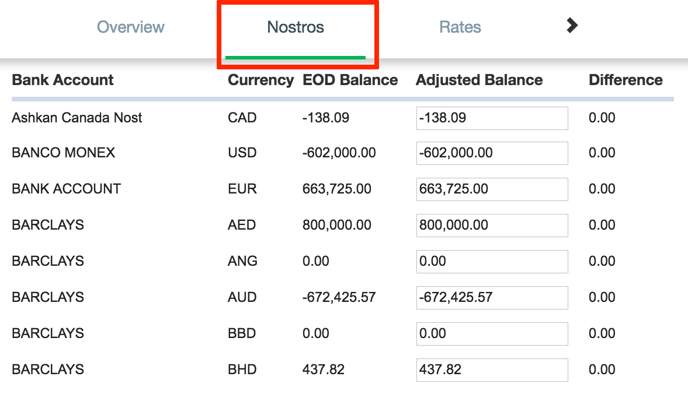
If there are any differences in your records, enter the actual balance in the Adjusted Balance column. Repeat this for every nostro account. Once you have entered the Adjusted Balances, scroll down to the bottom of the page and click Update. If the update is successful, a message beside the Update button will say "Balances are updated successfully". The difference column will then show the difference between the EOD balance and adjusted balance.
Note that if you refresh the page, the EOD balance will be set to the Adjusted balance amount and the Difference will go back to 0.00.
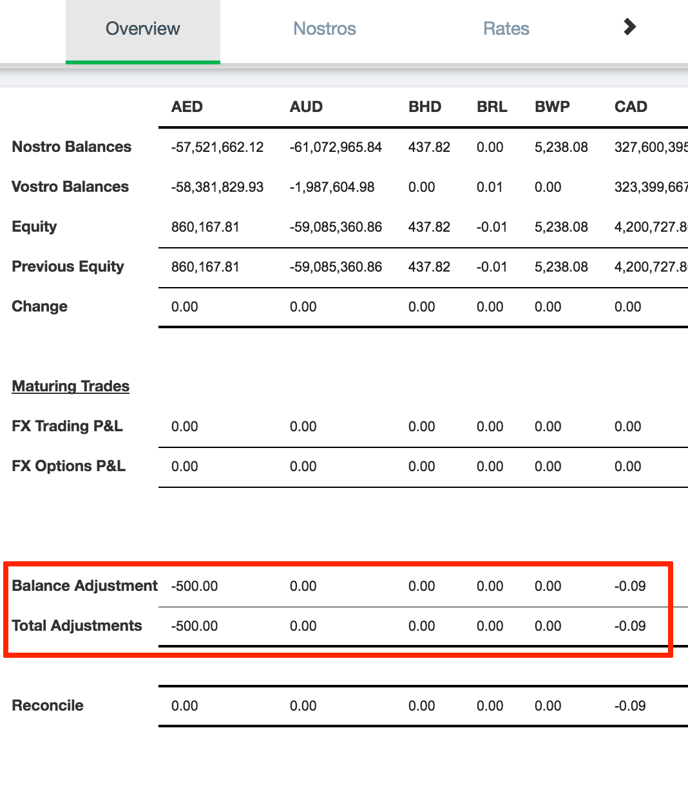
If any of your nostro accounts had differences, these differences will now be posted in the Balance Adjustment column of the Daily Reconciliation Overview.
Rates Tab
Kooltra allows you to adjust the accounting rates that were used to calculate equity in daily reconciliation. To do this, navigate to the Rates Tab in the top menu bar.
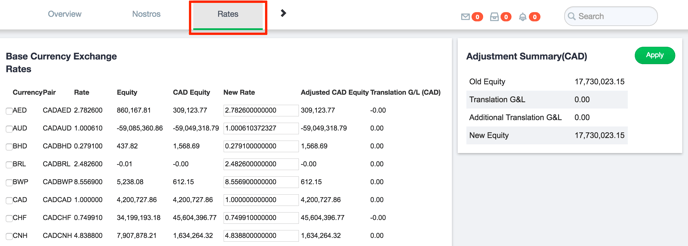
The rates page lists the accounting rates that were used to convert each currency into the entity base currency. If these rates need to be updated, you can enter the new rate in the New Rate column. Updating the new rate will automatically calculate a Translation Gain/Loss (Translation G/L) and update the Additional Translation G&L in the Adjustments Summary card on the right.
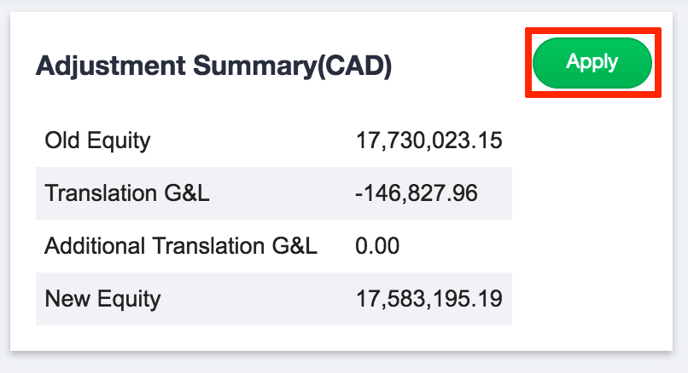
To capture the Additional Translation G&L, click the Apply button in the Adjustment Summary card. This will move the Additional Translation G&L amount into the Translation G&L and reset Additional Translation G&L to 0.00.
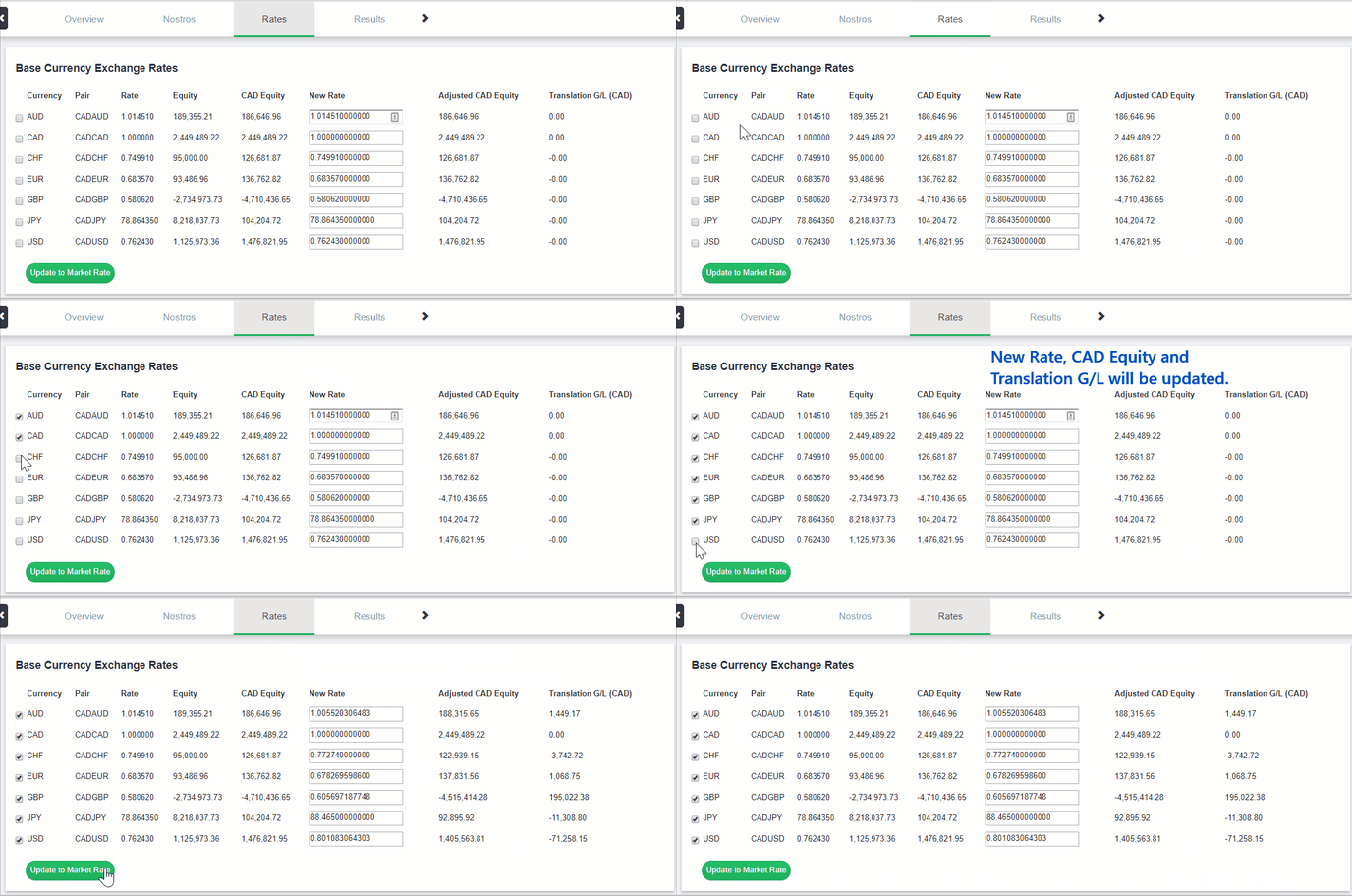
If you would like to use the market rates instead of the accounting rates to calculate the equity, scroll down to the bottom of the page and click on the Update to Market Rate button.
Results Tab
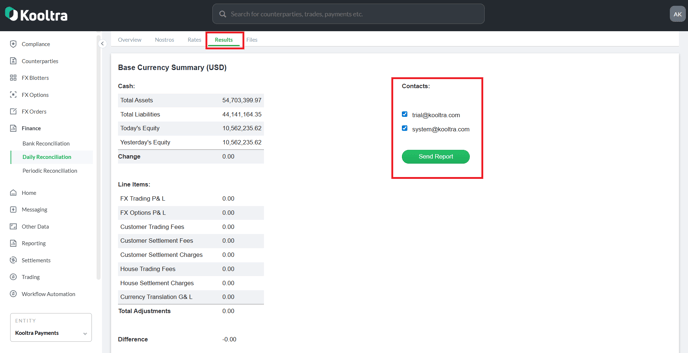
The results of the Daily reconciliation process are generated in the Results Tab. To access them, navigate to Results tab in the top menu bar.
The results tab summarizes information that you would see on a typical balance sheet such as total assets, total liabilities and equity for cash and for line items. This result can be emailed out to relevant contacts by checking off the respective contacts and clicking on the Send Report button.
Files Tab
Files pertaining to each of the steps of the Daily reconciliation process can also be accessed by navigating to the Files tab in the top menu.
The available files are explained below:
|
File Name |
Description |
|---|---|
|
AccountRiskSnapshot_YYYY-MM-DD.csv |
.csv file that contains the EOD risk metrics pertaining to each account. For each Account, this file lists:
|
|
Accounting_rates_snapshot_YYYY-MM-DD.csv |
.csv file that contains the EOD accounting rates for all currencies traded against entity base currency |
|
AllAdjustments_YYYY-MM-DD.csv |
.csv file that provides details of all cash adjustments entered into the system |
|
AllCFs_YYYY-MM-DD.csv |
.csv file that lists the details of cashflows that were captured during the EOD process |
|
CancelledCFs_YYYY-MM-DD.csv |
.csv file that lists the details of cancelled cashflow records captured during the EOD process |
|
CancelledTrades_YYYY-MM-DD.csv |
.csv file that lists the details of cancelled trade records captured during the EOD process |
|
Nostro Positions_YYYY-MM-DD.csv |
.csv file that contains the same information as the Nostros tab of the Daily Reconciliation |
|
OpenTrades_YYYY-MM-DD.csv |
.csv file that lists all open trades after the last EOD |
|
Positions_YYYY-MM-DD.csv |
.csv file that lists all open positions after the last EOD |
|
Rates_snapshot_YYYY-MM-DD.csv |
.csv file that lists the rates for all currency pairs with open positions |
|
SettledTrades_YYYY-MM-DD.csv |
.csv file that lists the trades details from the Maturing Trades section of the Daily Reconciliation Report |
|
Vostro Positions_YYYY-MM-DD.csv |
A csv file that contains the balance of each Vostro account in the entity |