The Entity Settings page is organized into tabs for easy configuration. This configuration includes:
- Selecting currencies that should be available to users accessing that entity
- Creating cashflow subtypes
- Enabling apps
- Creating documentation types
To access Entity Settings, click on x-System > Entity Settings in the navigation pane.
Overview Tab
The Entity Settings page opens on the Overview tab (outlined in black below).
-
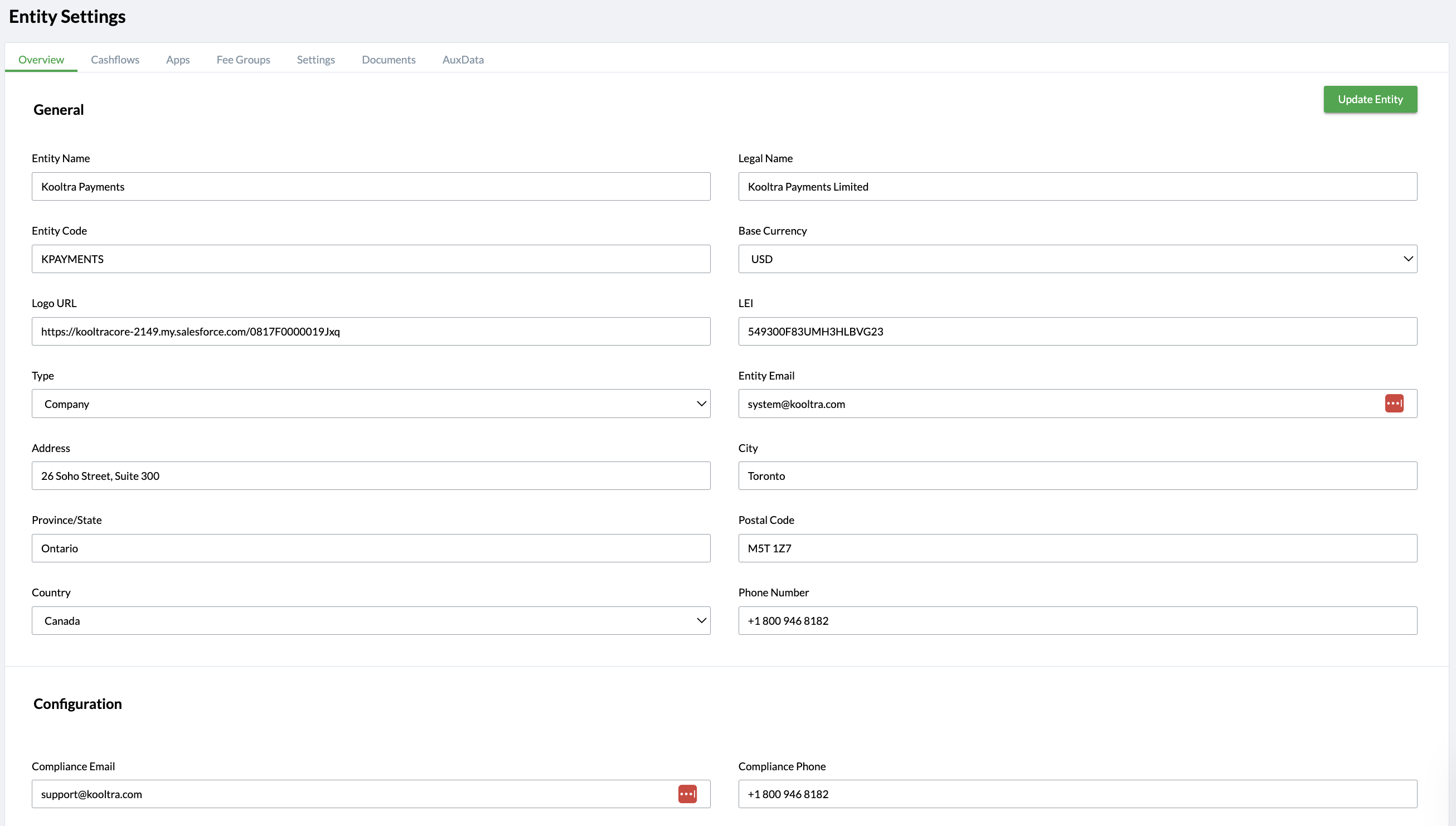
General Card: Displays the information entered on the New Entity page and allows you to add a Logo URL. This logo appears in PDF files generated from Kooltra (e.g., the FX Statements Report).
-
Configuration Card: Allows you to enter the compliance email, compliance phone number, and disclaimer, as well as configure available currencies, FX transaction types, incoming and outgoing client settlement methods, and internal settlement methods.
To make a selection, click on an option in the Available box, then click the ">" button to move it to the Selected box. To remove a selection, click on an item in the Selected box, then click the "<" button.
Cashflow Tab
The Cashflows tab allows you to specify subtypes for cashflows. These subtypes show up on the adjustment page and allow you to classify your cashflows for reconciliation purposes. For each subtype, you can specify whether you'd like it to be the default for the Parent Type (ex. if you insert a Wire-in cashflow you'll always have the CASH subtype set), and whether you'd like it to show up on the Daily Reconciliation page.
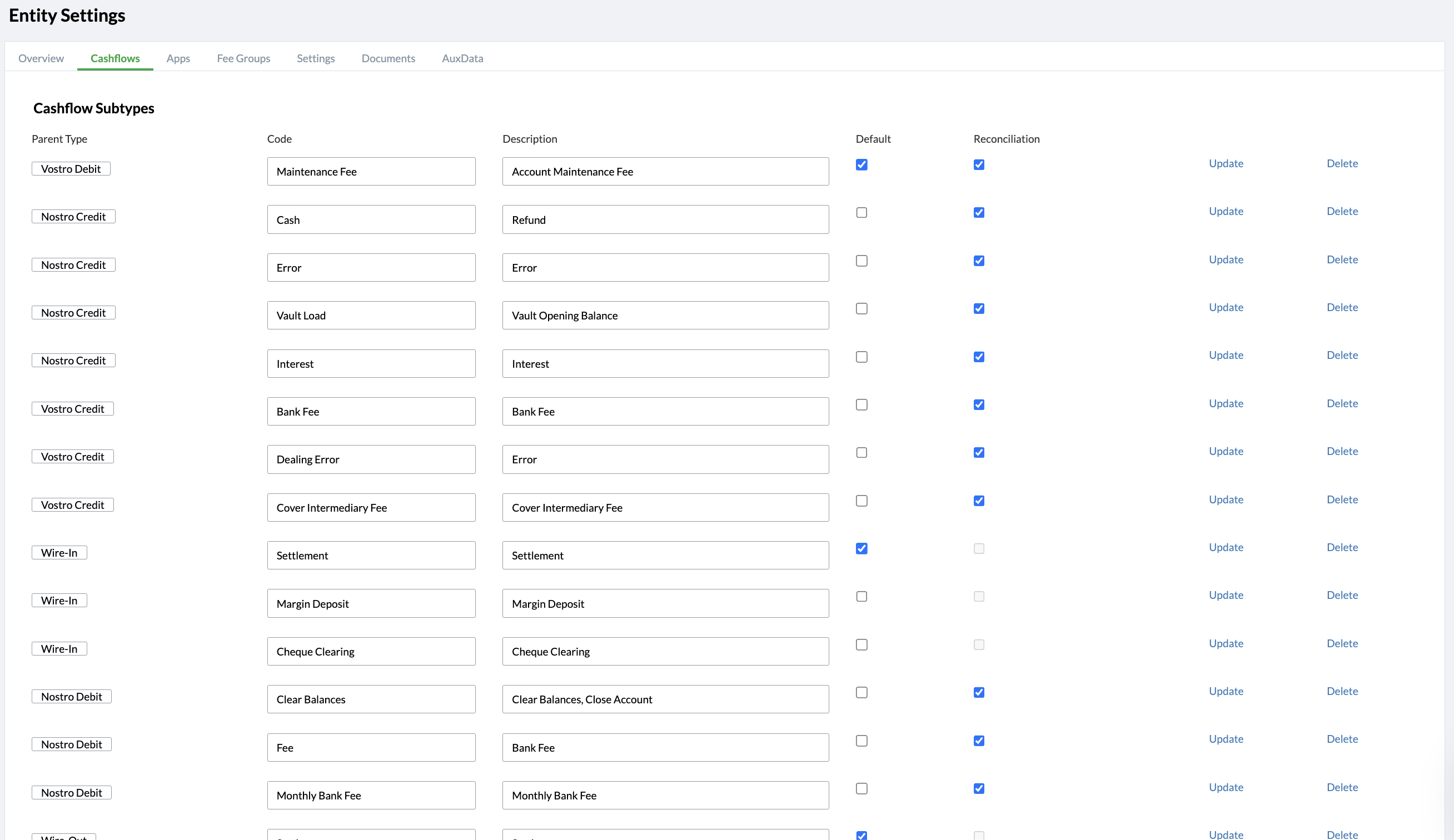
Cashflow subtypes can be updated or deleted by clicking on the blue Update or Delete text on the right-hand side of the Cashflow Subtypes card.
Apps Tab
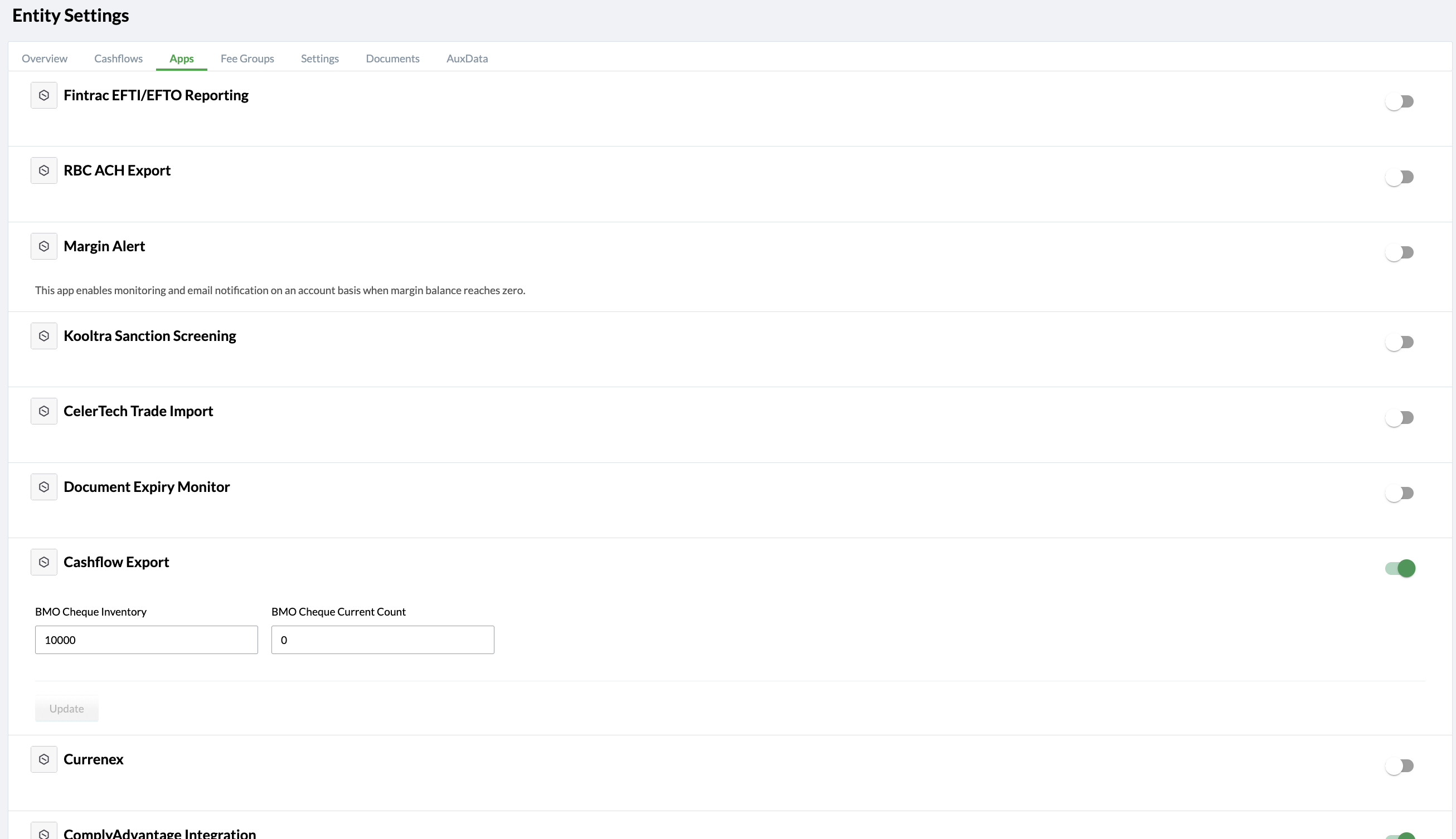
The Apps tab allows you to enable apps at the entity level. Certain apps must be enabled for an entity before they can be used for accounts within that entity. Use the toggle switch to enable or disable an app. Depending on the app, you may need to enter values in additional fields when enabling it.
Fee Groups Tab
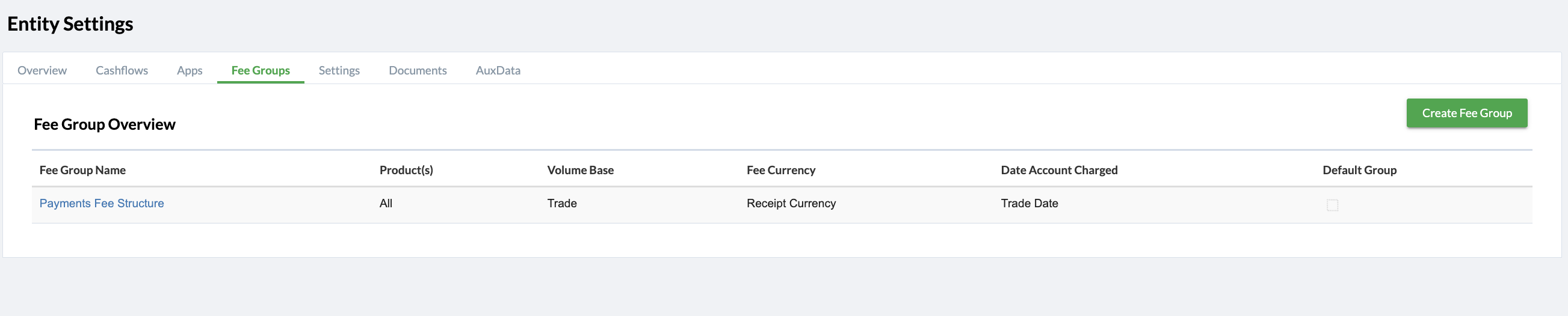
The fee groups tab allows you to set up a fee group at the entity level to automatically calculate the fee/commission charge on all trades on a client by client basis.
To learn more about configuring the Fee Group, please refer to the article: How to Add Fees/Commissions.
Documents Tab
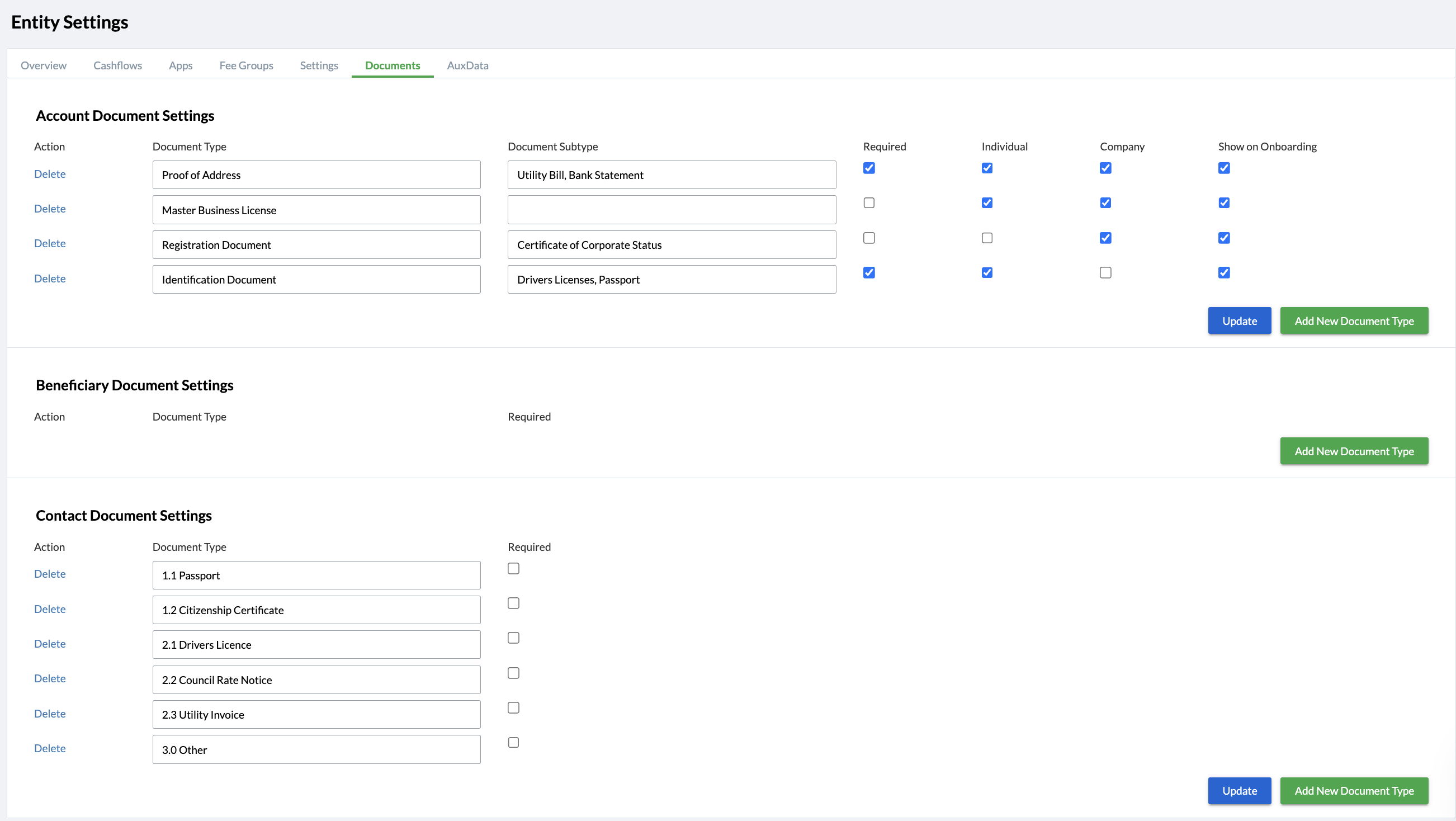
The documents tab is used to set the document types for Accounts, Beneficiaries and Contacts.
To add a new document type, click the Add New Document Type button, enter the document type name, and specify whether the document is required.
Under Account document settings, you can also select whether the document applies to individual or company counterparty types and whether it should be shown on the onboarding form.
Document types can be deleted by clicking on the X under Action. Document types can also be updated by clicking on the green Update Button.
AuxData Tab
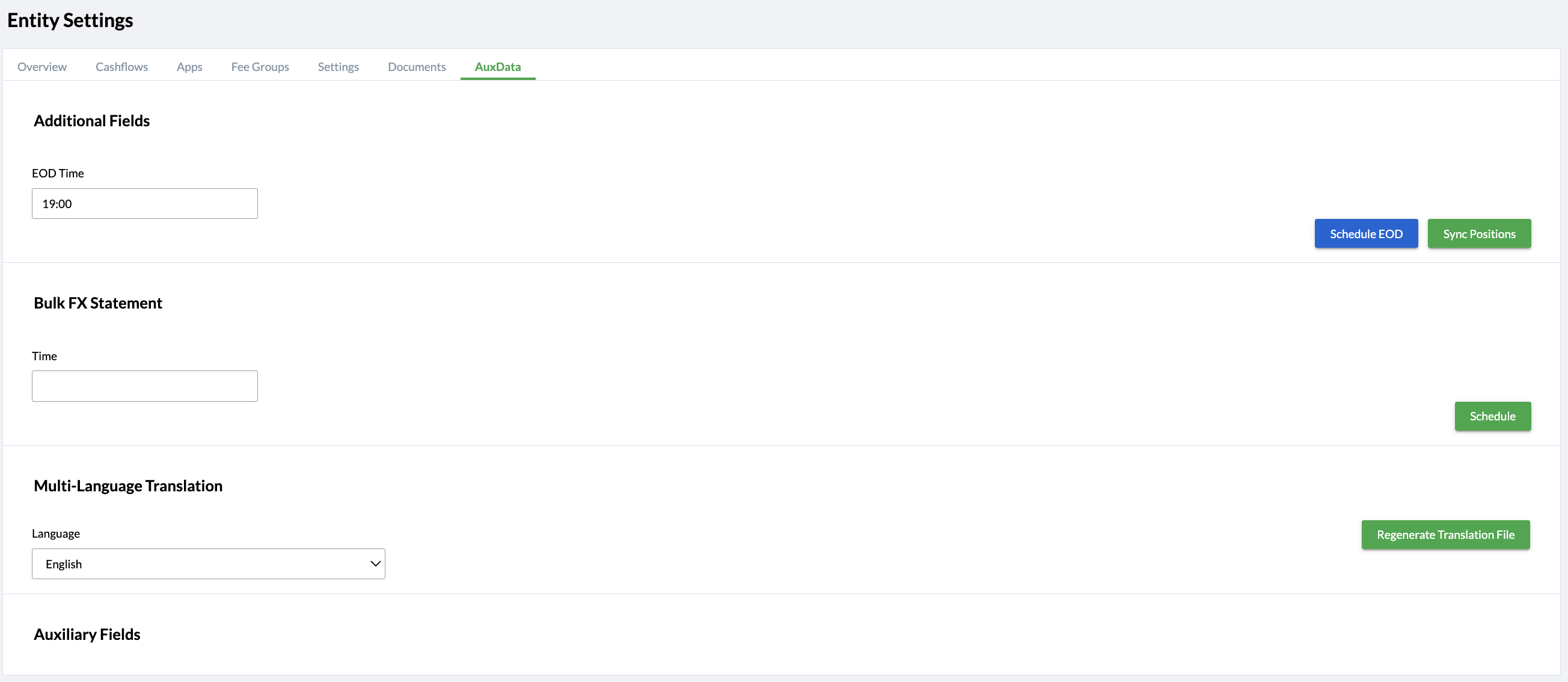
The Aux Data tab allows you to schedule end of day settlements by entering the time in the EOD Time field (24 hour format).
The Sync Positions button allows you to sync your positions if your trade information is outdated or mismatched.
Additionally, if bulk FX statements are configured for your entity, you can also schedule when these statements will be sent to contacts with statements enabled in the Time field under the Bulk FX Statement section.