
Introduction
As Kooltra is built on Salesforce, this is all possible via Salesforce’s powerful reporting tools that can be used to build, save and organise custom reports around any data captured by the Kooltra application (subject to user permissions in accessing this data).
How to Access Custom Reports
To access the custom reporting functionality from Kooltra, go to Reporting > Custom Reports in the left-hand navigation panel (below). This will launch the Reports module of the Salesforce Lightning Experience.
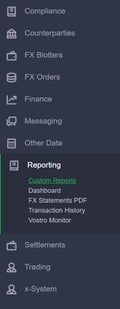
Salesforce Reports & Dashboards
To learn how to build custom reports within Salesforce, please see the ‘Reports & Dashboards for Lightning Experience’ guide, provided by the Salesforce learning resource ‘Trailhead’ below:
 Reports & Dashboards for Lightning Experience
This guide covers the following topics:
-
Introduction to Reports and Dashboards in Lightning Experience
-
Create Reports with the Report Builder
-
Format Reports
-
Visualize Your Data with the Lightning Dashboard Builder
Once you understand how to build reports within Salesforce, the key to creating your report successfully is understanding the Kooltra data model and which Report Types should be used to access what data.
Which Report Types to use
When building a custom report within Salesforce, the first thing you will have to specify is the Report Type.
Which Report Type to select depends on the data you wish to report on; all data captured in Kooltra can be reported on, but using the right Report Type is crucial.
The main report types used to access key Kooltra data are detailed below:
Accounts with Cashflows
Use the Accounts and Cashflows Report Type if you wish to report on cash movements and associated counterparty information.
The Account object relates to Counterparties in Kooltra and is used to store information pertaining to clients or liquidity providers.
The Cashflow object is used to store information on trade settlements and cash adjustments.
FxTrades with Counterparty
Use the FxTrades with Counterparty report type if you wish to report on trades and the associated counterparty information.
The FxTrade object is used to store information on Spot, Forward, Window Forward, NDF and Swap Trades.
Accounts with Cashflows and FxTrade
Use the Accounts with Cashflows and FxTrade report type if you wish to report on cash movements and associated trades and counterparty information.
Cashflows with Vostro / Cashflows with Nostro
Use the Cashflows with Vostro or Cashflow with Nostro report type if you wish to report on information relating to cash movements and associated Vostros or Nostros respectively.
The Nostro object is used to store information about cash accounts owned by you, either as a balance held with a liquidity provider or a bank.
The Vostro object is used to store information about cash accounts belonging to one of your clients or counterparties.
Report Fields
Once you have selected the Report Type corresponding with the data you want to report on, the next step is adding fields to the report to show the information you are looking for.
The tables below highlight some of the most common fields used when building custom reports
FxTrade Fields
|
Field Name |
Description |
|
FxTrade: Trade Name |
The ticket number corresponding with the FX trade in Kooltra e.g. 1234.0 |
|
Counterparty |
The name of the Account the trade has been executed against |
|
Type |
Type of trade from FX SPOT, FX FORWARD, FX SWAP, FX NDF, FX WINDOW FORWARD |
|
Subtype |
Sub Category of the trade. Used predominantly in swap tickets. Values include: Rollover, Drawdown |
|
Action |
Shows Buy / Sell direction of the FX trade |
|
DealtCurrency |
‘Traded Currency’. Currency that was bought or sold. |
|
Request |
Provides the ID of the associated electronic RFQ/RFS request |
|
Status |
The current status of the FX trade from: Open, Closed, Cancelled |
|
TradeDate |
Date the FX trade was executed, in the format dd/mm/yyyy |
|
ValueDate |
Date the FX trade is due for settlement, in the format dd/mm/yyyy |
|
Currency1 |
First currency in the traded pair. For example for a USDCAD trade, this would show USD |
|
Currency2 |
Second currency in the traded pair. For example for a USDCAD trade, this would show CAD |
|
Currency1Amount |
Notional amount of Currency1 on the trade |
|
Currency2Amount |
Notional amount of Currency2 on the trade |
|
CurrencyPair |
The currency pair traded |
|
Rate |
The exchange rate the FX trade was executed at |
|
HedgeRate |
The market rate used to hedge the FX trade with LPs |
|
SpreadPL |
P&L in Currency2 resulting from the difference between the Rate (client executed price) and HedgeRate (LP hedge price) |
|
SpreadPLInEntityBase |
Spread P&L converted back into Entity case currency |
|
Fee |
Shows any fees associated with the FX trade |
|
USDtransactedvalue |
DealtCurrency notional amount converted to USD |
|
EntitybaseTransactedValue |
DealtCurrency notional amount converted to base currency |
Cashflow Fields
|
Field Name |
Description |
|
Cashflow Name |
The Kooltra cashflow ID number e.g. 1234.C0 |
|
Type |
Type of Cashflow from:
|
|
Subtype |
Subtype of the Cashflow as defined in Kooltra under System -> Entity Settings -> Cashflow tab |
|
Currency |
Currency of the cashflow |
|
Status |
Status of the Cashflow from:
|
|
ProcessTime |
This field represents the date and time the cashflow settled into the Nostro/Vostro account. It represents the actual settlement date of the Cashflow. |
|
InitialProcessTime |
This field represents the date and time that the instruction to release the cashflow was made. This may or may not be the same as Process Date. For example: |
|
ValueDate |
Anticipated settlement date of the Cashflow. This is set at the time the cashflow is created and represents the target date for settlement. When booked during the gross settlement flow (client Settlement Type = Payments), the value date on the cashflow defaults to the value date of the trade. |
|
Nostro |
Name of the Nostro assigned to the cashflow for settlement |
|
NostroAmount |
Amount to be added / debited from the Nostro when the cashflow is processed |
|
NostroBalance |
Holds the snapshot of the new Nostro balance after the cashflow is processed |
|
Vostro |
Name of the Vostro account assigned to the cashflow for settlement |
|
VostroAmount |
Amount to be added / debited from the Vostro when the cashflow is processed |
|
VostroBalance |
Holds the snapshot of the new Vostro balance as a result of the cashflow being processed |
|
Instruction |
Name of the Beneficiary that is the sender or recipient of the cashflow |
|
SettlementMethod |
The method of settlement assigned to the cashflow from a defined list. Default possible values are:
See Understanding Settlement Methods for more details on the cashflow settlement types |
Account Fields
|
Field Name |
Description |
|
Status |
Status of the counterparty from:
|
|
Entity |
Entity that the counterparty is saved under. Using the entity field as a filter is important if you are managing multiple business lines within Kooltra. |
|
CashBalance |
Net cash balance on account across the counterparty's assigned Vostros / Nostros, converted back to the counterparty's base currency |
|
Group |
Group that the counterparty has been assigned to, if specified |
|
SettlementType |
Settlement Type assigned to the counterparty. used by the Account. Options are:
|
|
Counterparty Type |
Counterparty Type from:
|
Report Filters
Once you have built your custom report, you can apply filters to isolate the results to only those relevant to you. Any of the fields described above can be used to filter reports.
Some commonly used report filters are:
Dates
When trying to identify records that were created / modified / related to a particular date, various date filters can be applied including:
-
Created Date
-
ValueDate
-
TradeDate
-
Last Modified Date
-
ProcessDate
For each of these it is possible to filter before / after / on specific dates, or filter based on relative dates such as ‘TODAY’, ‘TOMORROW’, ‘LAST WEEK’ etc by clicking on the link highlighted below:
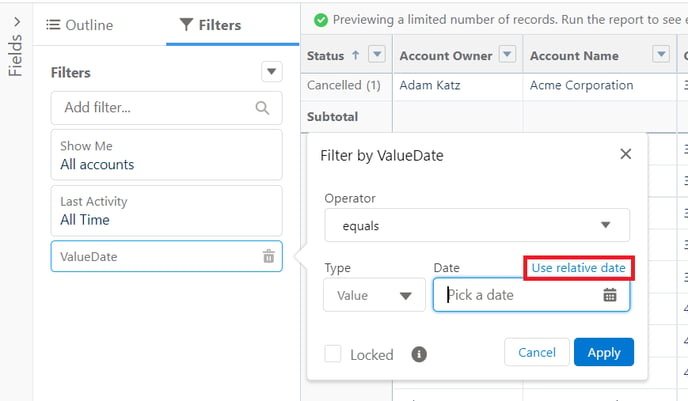
Settlement Type
The Settlement Type field can be used as a filter in custom reports to separate LP records from client records.
Filter for “Account: SettlementType equals NOSTRO” to view only LP activity.
Alternatively filtering by “Account: SettlementType not equal to NOSTRO” will ensure the report only displays client records.
Entity
If more than one Entity has been configured within Kooltra it is sometimes necessary to view information relating to just one of these. Use the Entity field as a filter to isolate the records pertaining to the entity/entities in question.
Status
Use the ‘Status’ filter on Accounts, Cashflows and FxTrades to view only the records that have the status in question. Examples of where this can be used are in identifying:
-
Cancelled FxTrades / Cashflows
-
Active Accounts
-
Open FxTrades