
The holiday calendar in Kooltra is updated via the Reuters Holiday Integration App, which provides holiday information across all currencies for the next 10 years directly from Reuters. In addition to this integration, it is also possible to customise the holiday calendar within the system to accommodate your specific business needs.
Viewing Settlement Holidays in Kooltra
To view the settlement holidays configured in your Kooltra instance, navigate to the Salesforce UI and search for ‘holidays' in the app drawer as below:
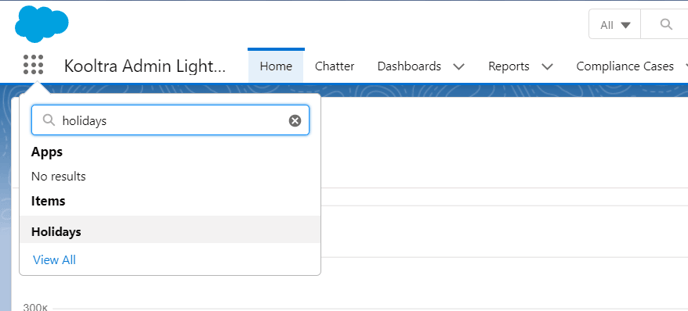
This will launch a list view of any recently viewed holidays. To see all holidays in the system, click on the downward arrow next to ‘Recently Viewed’ and select ‘All’.
From here, you are able to see all of the holidays configured alongside the associated currency and date.
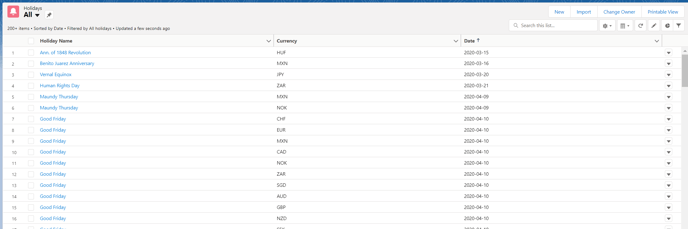
The search bar on the top-right of this list is available to search for holidays by name, currency or date. It is also possible to filter this list by a wide range of parameters; in the example below we have filtered the list only to show CAD holidays:
.png?width=688&height=502&name=image-20211001-164858%20(1).png)
Adding New Holidays
Although the calendar provided by Reuters is comprehensive, it will sometimes be necessary to add custom holiday data into your Kooltra to meet specific business needs.
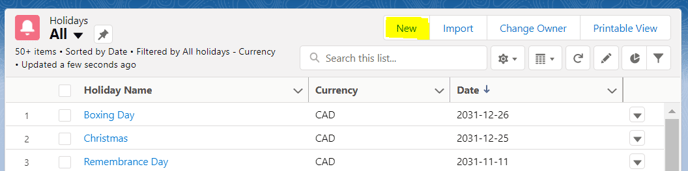
To do so, access the holidays list view (as described in the previous section) and click ‘New’ on the top-right corner:
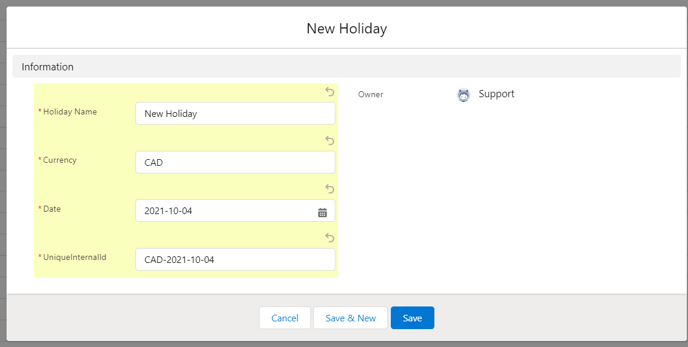
You will need to populate:
-
Holiday Name - the name you wish to assign to the new holiday
-
Currency - the currency that the holiday affects. If the holiday impacts multiple currencies, you will need to add a new holiday for each
-
Date - the date on which the holiday falls
-
UniqueInternalID - a unique identifier for the holiday, typically of the format 'CCY-YYYY-MM-DD'
Once these fields have been populated, click Save.
The holiday will then be added to the system and visible in the list view.

Bulk Import of Holidays
To save time, you can bulk upload holiday data from a .csv file instead of adding them one by one.
Each line of the csv file will need to contain:
-
Currency - the currency that the holiday affects. If the holiday impacts multiple currencies, you will need to add a new holiday for each
-
Date - the date on which the holiday falls
-
UniqueInternalID - a unique identifier for the holiday, typically of the format 'CCY-YYYY-MM-DD'
If you wish to import holiday data, please speak with Kooltra Support for assistance and provide the relevant csv file.