
An administrator can set entity and page access on a user level. This gives the administrator more flexibility and control over the information in Kooltra. To set the page access at the user level, go to x-System > User Management in the navigation pane.
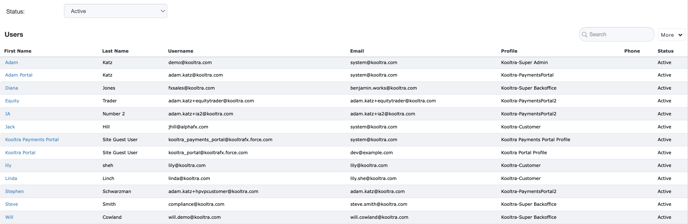
When you access User Management, you will see the Users card. This card gives you details about all of the users in Kooltra. This card can be sorted by clicking on any of the table headers. There is also a More button (highlighted in blue) that allows you to export the user card into an Excel csv.
Updating a User’s Profile and Access Permissions
To update entity and page access, click a user's first name in the Users card. This opens the individual user settings page.
Profile Card
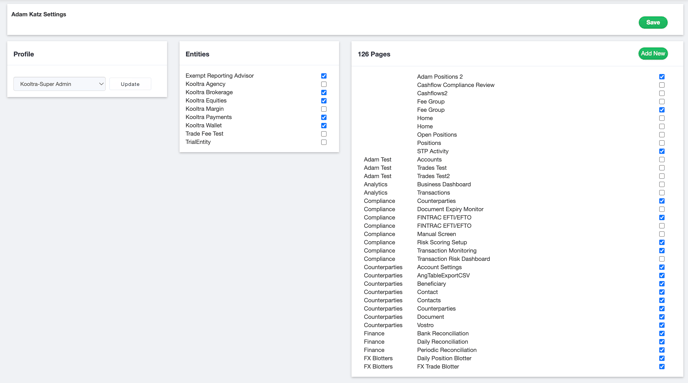
On the Individual user settings page, you can change the user’s profile by selecting a new option from the dropdown menu in the Profile Card and then clicking the Update button to save the change.
Entities Card
To modify the entities the user can access, check or uncheck the boxes next to each entity name as needed in the Entities Card.
Pages Card
Similarly to entities, you can manage which pages the user can access by checking or unchecking the boxes beside each page. It's important to note that users who share the same profile can still have different access to entities or pages depending on how their individual settings are configured.
To associate new pages with a profile, refer to the Understanding Profile Management article for instructions on assigning pages to a profile. After pages have been added to the profile, return to the User Management page. At the top of the Pages Card, click Add New to load the newly assigned pages. You can then select the appropriate pages to grant access to the user.
Lastly, click Save to apply your changes.