![Kooltra_Logo_Green_White_RGB.png]](https://help.kooltra.com/hs-fs/hubfs/Brand%20Assets/Kooltra_Logo_Green_White_RGB.png?height=40&name=Kooltra_Logo_Green_White_RGB.png)
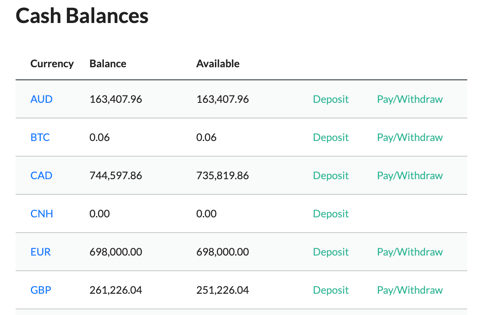
The Cash Balances section on the Home page of the Client Portal provides users with an overview of the balances they hold for each currency traded. For each currency, users can view:
- Balance: The total amount of the currency held in their account.
- Available: The amount available for execution, calculated as the balance minus any funds held for future trades or margin requirements.
In addition, links are provided next to each Cash Balance to deposit or withdraw funds for that currency. These options are explained below. The View Cash History link, located beneath the Cash Balances table, allows users to view a detailed record (Cash History Blotter) of all deposits and withdrawals.
Deposit
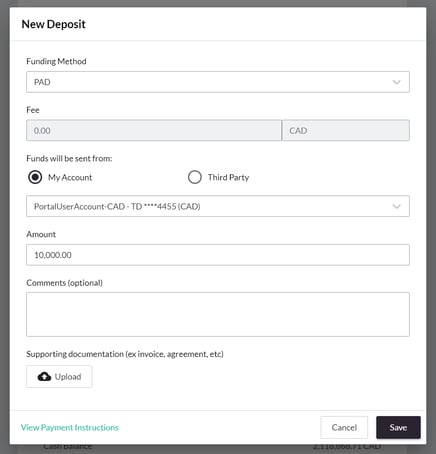
The Deposit button next to the individual Cash Balances allows client portal users to add funds to their trading account for the relevant currency. To make a deposit, users must provide the following details:
- Funding Method: The method by which the deposit will be made. The options available are limited to those authorized for the client.
- Source of Funds: The account from which the funds will be sent. Depending on whether My Account or Third Party is selected, the dropdown will display the appropriate accounts the user has set up.
- Amount:The amount of funds to be added.
In addition to these, the following fields are available:
- Fee: A read-only field that displays the fee charged by the provider for processing the selected currency and funding method.
- Comments: An optional field for storing notes related to the deposit.
- Supporting Documentation: A feature allowing users to upload documents related to the deposit (e.g., invoices).
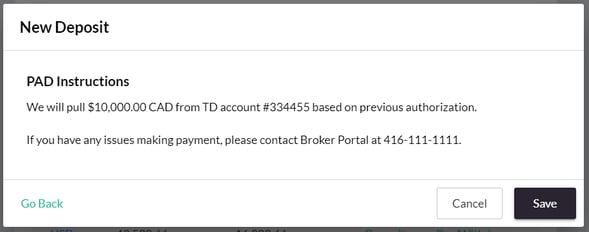
Users are also able to view a natural language summary of the deposit by clicking on View Payment Instructions at the bottom of the Deposit window:
Pay/Withdraw
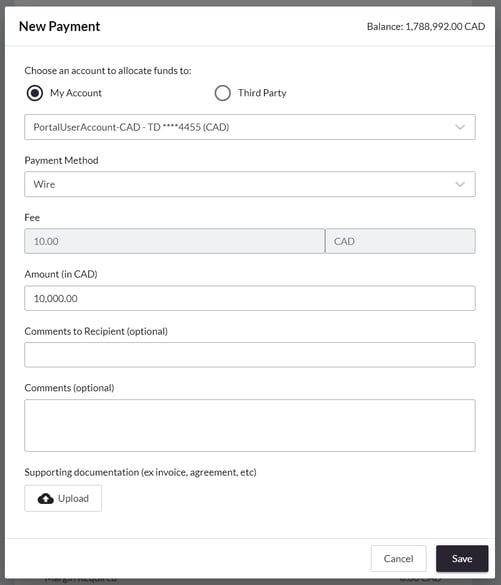
The Pay/Withdraw button under Cash Balances allows Client Portal users to withdraw funds from their trading account in the selected currency and specify the destination for the funds. To initiate a withdrawal, users must provide the following details:
- Account: The account to which funds will be allocated. Depending on whether My Account or Third Party is selected, the dropdown will display the relevant accounts that the user has set up.
- Payment Method: The method by which the payment will be processed. The available options are limited to those authorized for the client.
- Amount: The amount to be withdrawn from the account.
In addition to these, further fields are available:
-
Fee: A read-only field that shows the Client Portal user what fee their provider charges to process the chosen currency and payment method
-
Comments to Recipient: An optional field to allow notes to be stored on the payment that are visible on the confirmation and included on the payment itself
-
Comments: An optional field to allow internal notes to be stored on the payment
-
Supporting Documentation: A feature allowing users to upload documents related to the payment (e.g., invoices).
Supporting Documentation
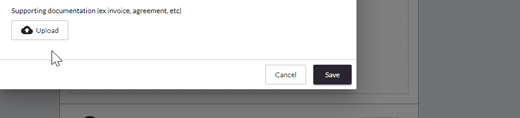
The Client Portal was designed to easily capture important information relevant to a transaction. When making deposits or payments, the user may need to include supporting documentation as a part of their business requirements. With ease of use in mind, the Client Portal allows users to attach relevant documentation (such as invoices, contracts, agreements, etc.) to each deposit or withdrawal.
Margin Summary for Account
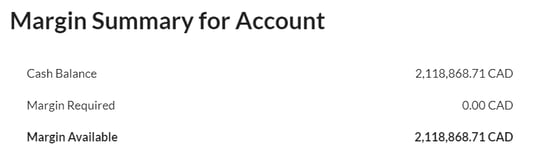
The Margin Summary for Account section of the Home page shows users the total margin available for trading. This is calculated as all cash balances held on account converted into base currency (in this example CAD) less any margin requirements for that client.