
Once you've picked up a request by clicking the Pickup Request button in the notification pop-up, you will be redirected to the Dealer Intervention page to respond to the request.
On the left-hand side of this page, you will find all the relevant details about the request:
- Source: This indicates where the request originated. Currently, it could be either from the Client Portal or sales user requests via Trade on Behalf. In the future, this may include multi-dealer platforms or direct API requests.
- Request Type: This specifies the type of price being requested.
- Reason: This describes why the request needs dealer intervention.
- Account: This refers to the counterparty that is making the request.
- Currency Pair: The currency pair involved in the trade request.
- Client Action: Indicates whether the client intends to buy or sell the currency specified in the Amount / Currency field below.
- Amount / Currency: The notional amount of the trade request and the corresponding currency.
- Trade Type: The closest tenor to the requested value date.
- Value Date: The settlement date of the trade request.
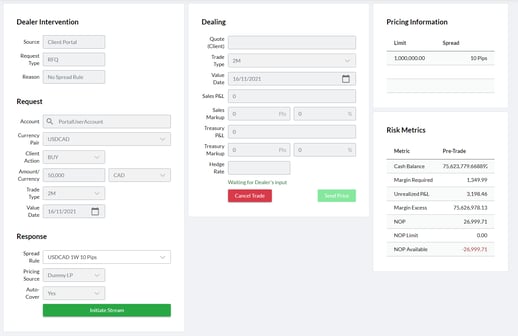
Underneath these fields is the Response section, which determines whether the request should be auto-priced or manually priced.
Auto-Pricing
Although the request doesn't match a defined Spread Rule (which is why it was routed to Dealer Intervention), it is possible to automatically price the request based on other spread rules defined for the currency pair.
For example, if a request was submitted for ClientABC to buy €10,000 EUR against USD for delivery in 2 years, but a Spread Rule was only defined for EURUSD pricing up to 12 months. The request is routed to Dealer Intervention, and from here traders can choose to price the request based on the spreads defined for up to 12months.
To price a request based on existing Spread Rules, follow the instructions below.
-
Select the desired Spread Rule from the dropdown in the Response section in the bottom left of the page:
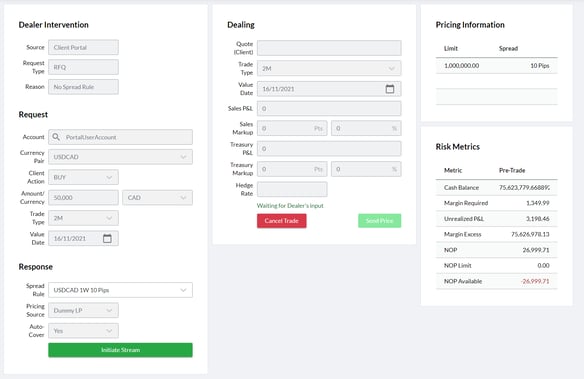
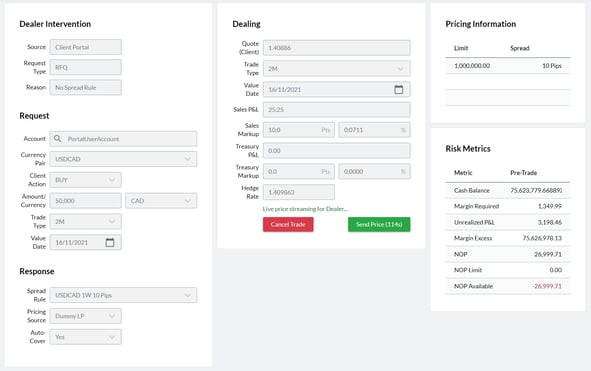
- Click Initiate Stream at the bottom of the page. This will open a stream with your LP and populate the Dealing fields based on the rates received plus any applicable spreads.
-
Review the pricing fields and ensure you are happy with the values. Each field is described below.
-
Quote (Client): The price to be shown to the client once the Send Price button is clicked. This is equal to Hedge Rate + Treasury Markup + Sales Markup
-
Trade Type:The nearest tenor to the value date requested
-
Value Date: The settlement date of the trade request
-
Sales P&L: Profit/loss resulting from Sales Markup
-
Sales Markup: Additional spread applied on top of the ‘Treasury Price’ (i.e. Hedge Rate + Treasury Markup) by Sales, specified in both pips and percentage terms
-
Treasury P&L: Profit/loss resulting from Treasury Markup
-
Treasury Markup: Additional spread applied on top of the Hedge Rate by Treasury, specified in both pips and percentage terms
-
Hedge Rate: The price received from the LP that any hedge trades will be booked at
-
-
Click Send Price to quote the client.
Please Note: In the auto-pricing workflow, it is not possible to amend the price being quoted or margin applied; these are both calculated based on the rates received from your LP plus the spreads defined in the chosen Spread Rule in step 1 above. Should you wish to manually adjust the price being quoted, please follow the Manual Pricing workflow below.
Manual Pricing
Alternatively, if no Spread Rules are defined for the currency pair, or you don’t wish to price the client based on the Spread Rules that have been defined, it is possible to manually quote the client.
To manually price a request:
-
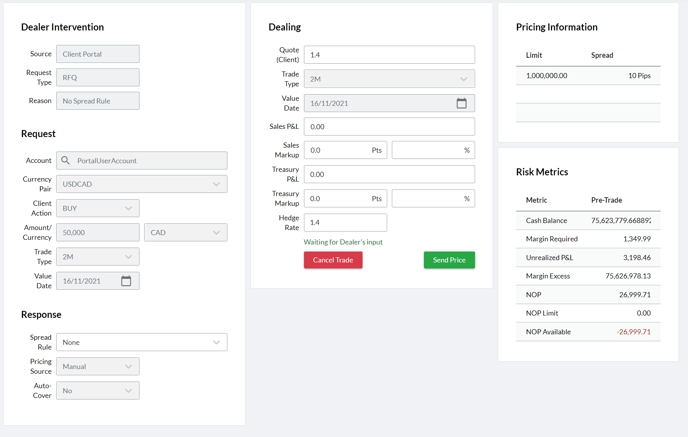
Select None in the Spread Rule dropdown in the Response section in the bottom left of the page.
-
Populate the Quote (Client) field manually and press Tab. This will take you directly to the Send Price button and auto-populate the Hedge Rate field with the same value entered in the Quote (Client) field:
-
Press Enter or click Send Price. This will result in the value entered in the Quote (Client) field being quoted back to the client on the portal.
-
Update the Hedge Rate and any applicable markup in the relevant fields:
-
Sales P&L: Profit/loss resulting from Sales Markup.
-
Sales Markup: Additional spread applied on top of the Treasury Price (i.e. Hedge Rate + Treasury Markup) by Sales, specified in both pips and percentage terms.
-
Treasury P&L: - Profit/loss resulting from Treasury Markup.
-
Treasury Markup: Additional spread applied on top of the Hedge Rate by Treasury, specified in both pips and percentage terms.
-
Hedge Rate: The price received from the LP that any hedge trades will be booked at.
-
Rejecting a Price Request
If you do not want to quote a price, you can reject the request by clicking the red Cancel Trade button. This will result in the user who originated the request receiving a message on screen stating that the request was rejected.
Pricing Information
The Pricing Information section on the right of the Dealer Intervention screen provides visibility of the closest Spread Rule defined for the currency pair requested in order to assist in pricing decisions.
In the USDCAD example in the previous section, we see Pricing Information as below,
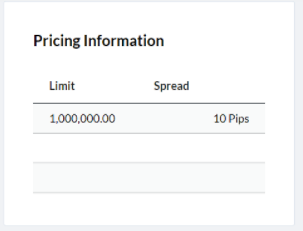
This corresponds with the only Spread Rule defined for USDCAD in the Spread Group PortalUserAccount (the client requesting) is assigned to.

Risk Metrics
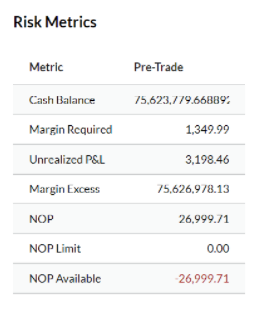
Beneath Pricing Information in the Dealer Intervention page is the Risk Metrics section, which displays the pre-trade.
-
Cash Balance: The net amount of all cash balances held on the account, converted to your base currency.
-
Margin Required: Margin Required is calculated whenever Positions, Cash Balances, or Rates change. Margin Required is calculated at the Account level and is a function of the rules configured for the assigned Margin Group.
-
Unrealized P&L: Unrealized profit or loss calculated from the mark-to-market valuations of all open positions.
-
Margin Excess: Equal to Cash Balance + Unrealized P&L + Credit Line - Margin Required.
-
NOP: Net Open Position (NOP) shows the account’s exposure to the market across all open positions, converted into base currency.
-
NOP Limit: Details the Net Open Position Limit assigned to the account.
-
NOP Available: Equal to NOP Limit - NOP Available.
How Prices Display in the Portal
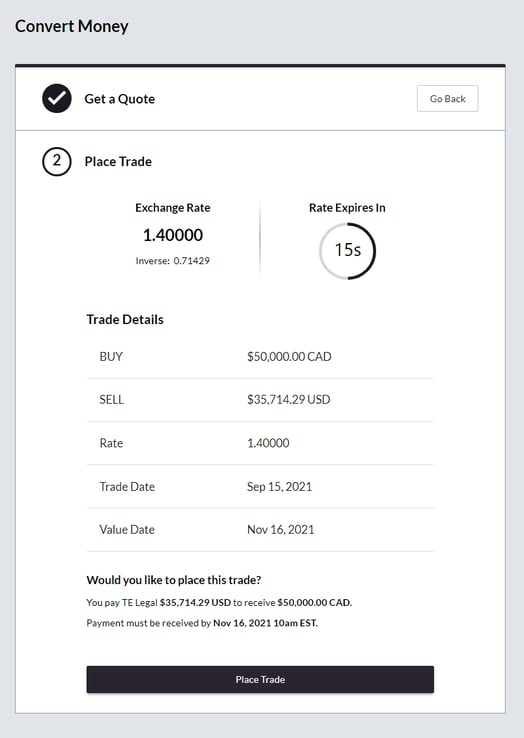
Below is an example of how the quote detailed in the Manual Pricing section displays to the user in the portal. This is a static quote (RFQ) with a countdown to expiry of the price quoted.
Executed Requests
If the client on the portal executes on the price quoted, the portal screen will update with the following:
-
The relevant ticket number and trade details.
-
A link to download the trade confirmation.
-
Sections to add funding and payment settlement instructions associated with the trade.
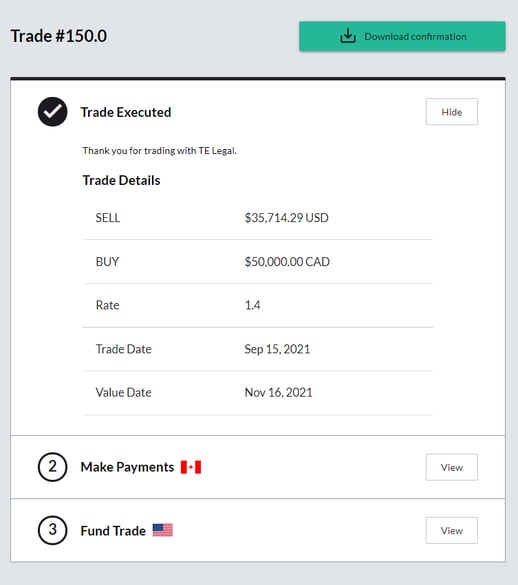
The Dealer Intervention page will also be updated with green text indicating ‘Request was filled’ along with the associated ticket numbers of any client and hedge trades as below.
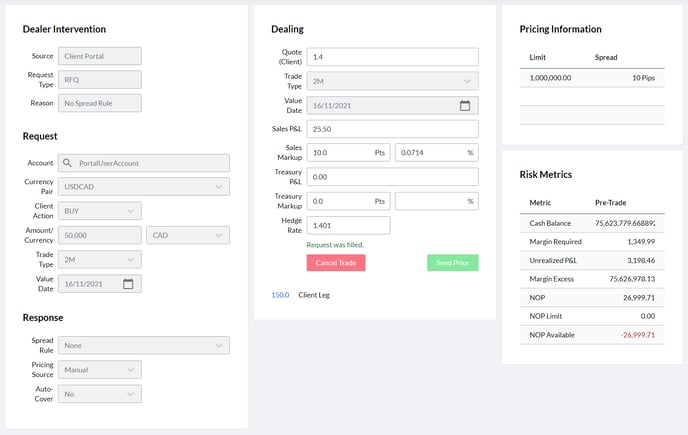
Error Messages
The status of a request can be seen by looking above the Cancel Trade button in the Dealer Intervention page. Here it will show what stage the request is at and if anything is potentially wrong.
Primary error messages to be aware of are below.
-
Unknown Error: Contact Kooltra, we will need to get all of the details around the request before contacting the LP to diagnose the issue.
-
Quote Request Error: Try Manual Flow: Contact your LP. The LP rejected this request, meaning they don't provide quotes for this pair and/or for this volume/tenor. Usually this message is supplemented with the LP's error message, most commonly 'Requested quantity is greater than defined price depth levels'. You will need to talk to your LP if this happens to enable some tenors/bump up volume limits.
-
Order Request Error: Contact your LP as it rejected the Order Request. Usually this message is supplemented with the LP’s own error message.