Contents
- How can I review Account KYC Information?
- How do I approve or reject a counterparty for trading?
- How can I check where an application is in the process?
Viewing Account KYC Information
In order to review a client’s KYC information, compliance users should follow the steps below:
-
Within Kooltra, go to Compliance > Counterparty KYC in the navigation panel on the left of the screen
-
Search for the account in question
-
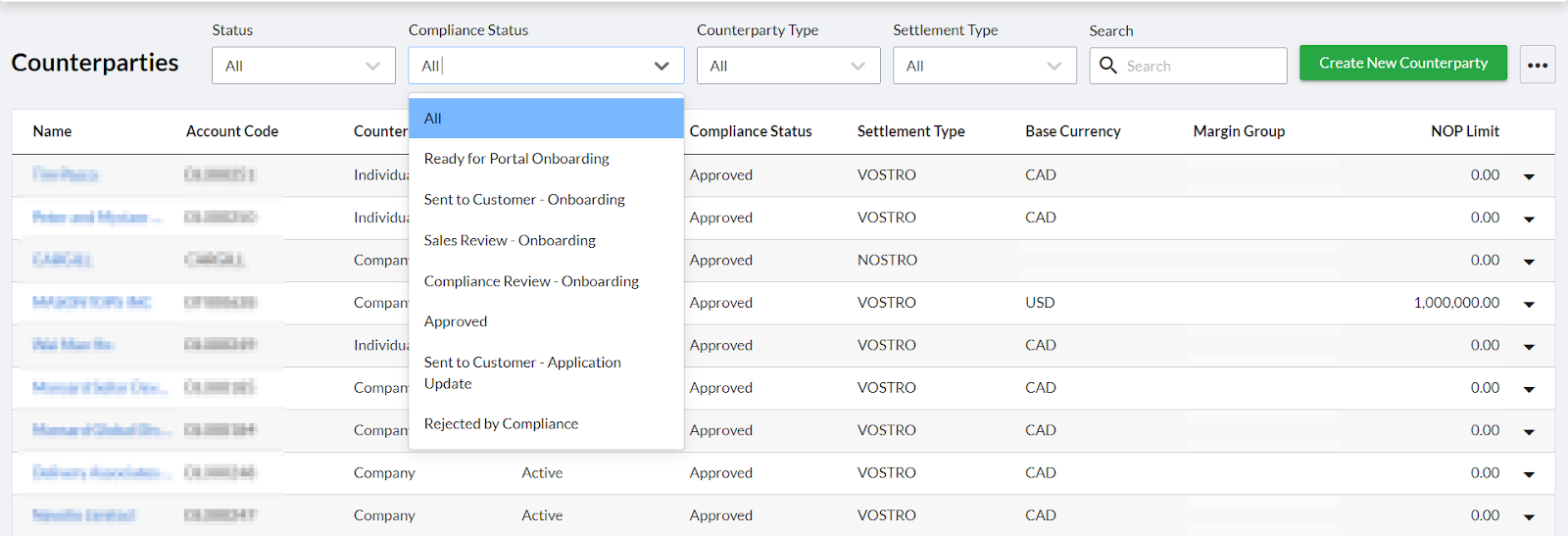
Alternatively, filter the table for the relevant Compliance Status, for example ‘Compliance Review - Onboarding’ (see the section below Identifying the Current Stage of an Application for details of all possible Compliance Statuses)
-
-
Click on the name of the counterparty
This will load the compliance page from which compliance can perform all necessary checks. Each of the relevant sections of the compliance page are detailed below:
Overview Tab
Provides all key details entered in the counterparty’s KYC profile. Details here can be reviewed / updated as required. Populating the ‘Next KYC Renewal’ will allow you to monitor when the client will need to provide up-to-date KYC information.
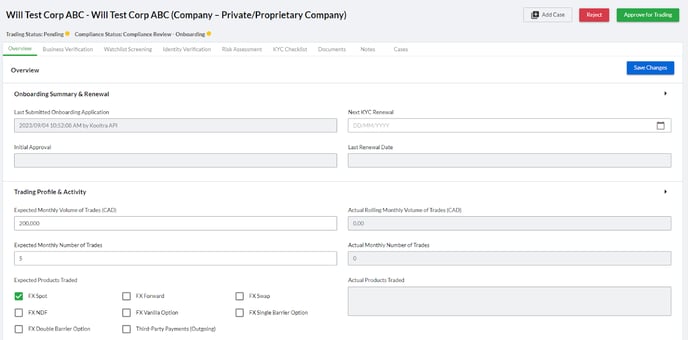
The Overview tab is divided into the following categories:
- Onboarding Summary & Renewal - shows key KYC dates including date of last submitted application, next KYC renewal date and initial approval date.
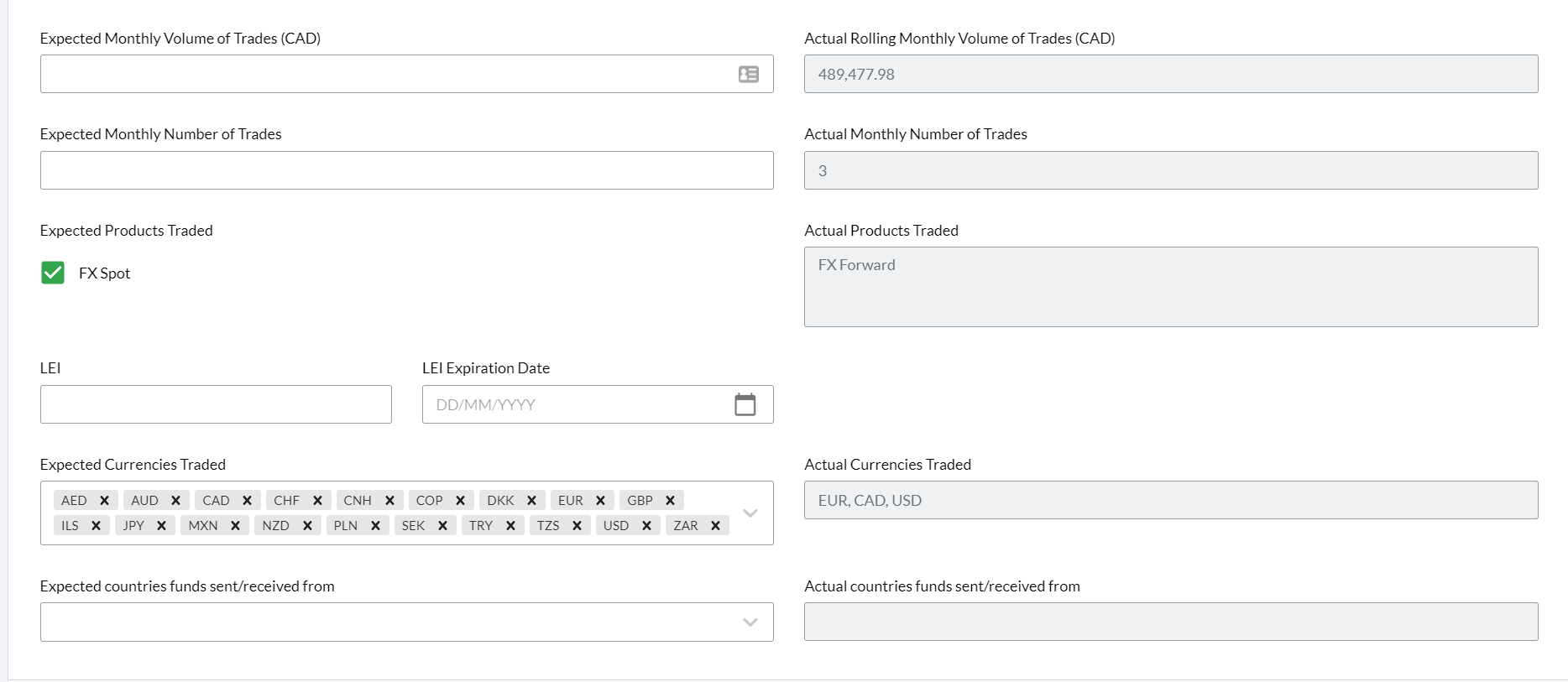
- Trading Profile & Activity - shows the trading information that was collected during onboarding. For active accounts, this section will also show actual trading activity. This allows users to easily compare expected behaviour to actual behaviour.
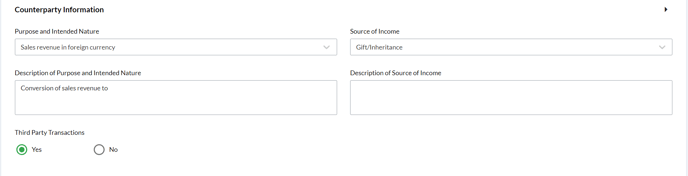
- Counterparty Information - shows purpose of relationship and source of wealth information.
- Beneficiaries - shows all of the beneficiaries (senders & recipients) that are registered by the counterparty
- Authorized Individuals - lists Individuals that are authorized to act on behalf of the account. Authorized individuals are stored as Contacts that are owned by the counterparty. For active accounts, compliance users can also use this section to update or add new Authorized Individuals.
- Settlement Profile - shows the authorized Funding and Settlement methods configured for the counterparty. Compliance can use this to control the settlement methods available for use when creating new Beneficiaries on the account. The available list of settlement methods is dictated by the available Entity settlement methods (x-System → Entity Settings).
Business Verification Tab
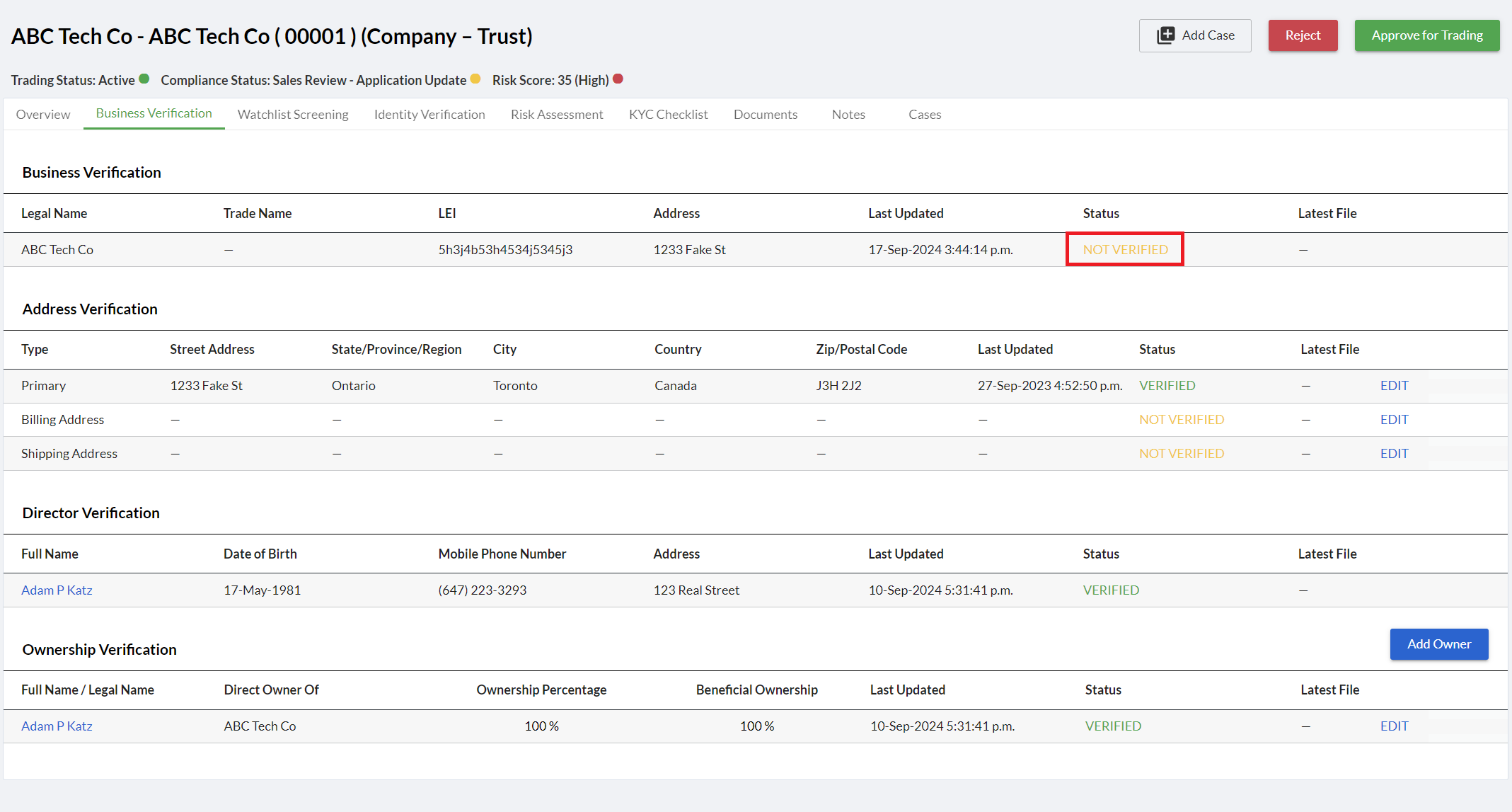
The Business Verification tab allows compliance users to verify the name, address, directorship and ownership of customer businesses and upload supporting documentation.
The business verification tab is only shown for counterparties of type 'Company'.
To update the verification status:
- Click on the status column next to the information you are verifying:
- Select the appropriate verification status:

- Use the Upload button to attach supporting documentation related to the verification:

- Click Save
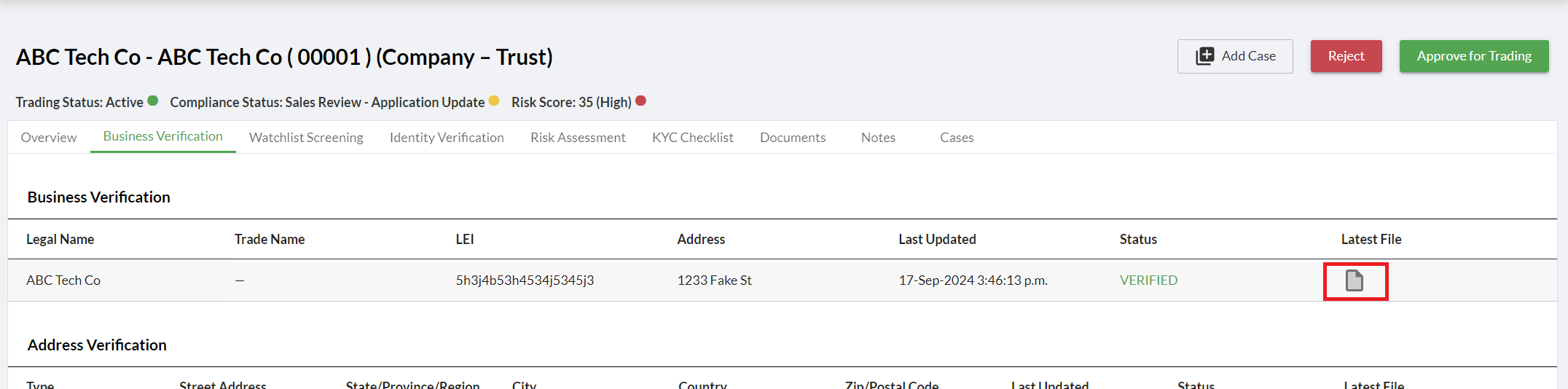
- The status of the information will change accordingly and a link to the uploaded file will also be visible under the 'Latest File” column.
Watchlist Screening Tab
The Watchlist Screening tab allows compliance users to screen entities and associated individuals against global sanctions lists and upload supporting documentation.
For company accounts, the Watchlist Screening page will display an entry for each name captured for the entity (i.e. legal name & trading name) as well as the names of any authorised individuals associated with the account.
For individual/joint accounts, the Watchlist Screening page will display the names of the associated individuals.
Sanctions screening can either be conducted manually, with the results captured on this page, or automatically via an integration with a third party:
- Manual Screening - in order to manually capture the results of sanctions screenings conducted outside of Kooltra:
- Click on the status column next to the item you performed the screening for:

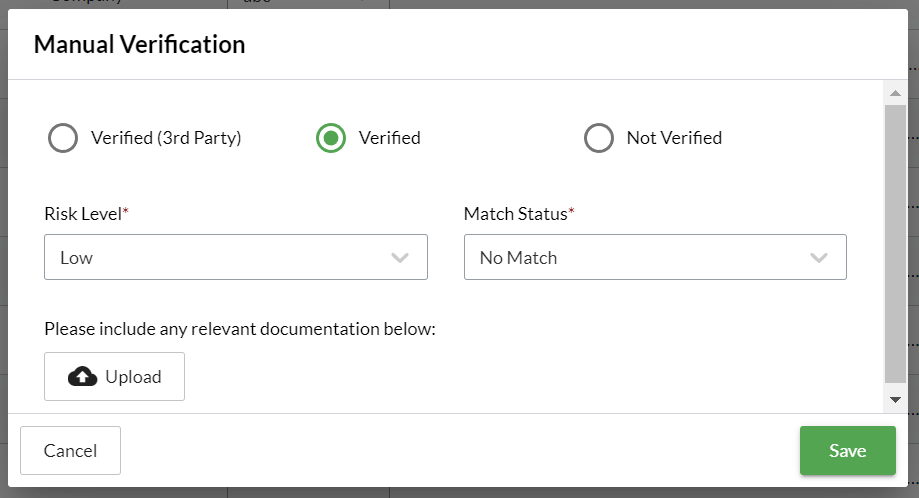
- Choose the verification status and specify the Risk Level and Match Status:
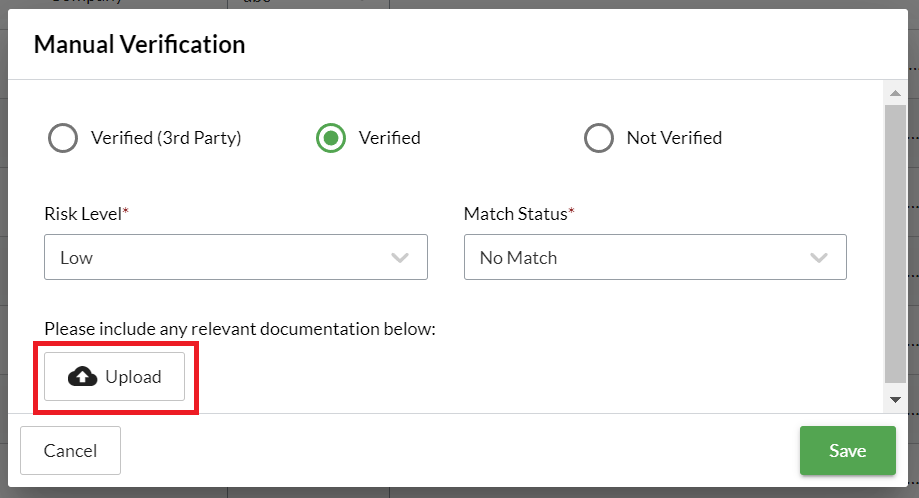
- Use the Upload button to attach supporting documentation (e.g. a search result certificate) related to the verification:
- Click Save
- The status will change accordingly and a link to the uploaded file will also be visible under the 'Latest File” column:

- Click on the status column next to the item you performed the screening for:
-
Screening via a third-party integration - Kooltra has a native integration with ComplyAdvantage to facilitate automated sanctions list screening.
Please contact sales@kooltra.com if you would like to discuss using the ComplyAdvantage integration or an alternative third-party sanctions screening provider.
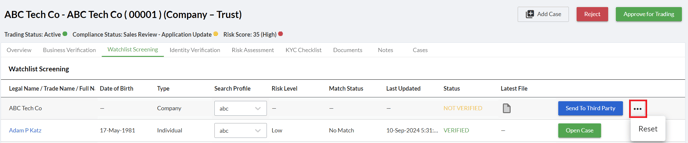
If you already have an integration between Kooltra and a third-party sanctions screening service configured and wish to perform a screening on a company or individual, follow the steps below:- Select the appropriate Search Profile from a list of sanctions screenings configured in your third-party system:

- Click the Send to Third Party button to perform a sanctions screening on the entity individual:

- Kooltra will update Verification Status, Risk Level and Match Status fields with the results returned by the provider. If a file is supplied in the response, this will also be added to the record. When a screen is successfully submitted, the Send to Third Party button will switch to “Open Case”. If the service provider returns a link to the search result, clicking on this button will take the user to this page.
- Select the appropriate Search Profile from a list of sanctions screenings configured in your third-party system:
Kooltra provides a webhook that can be used to update the records with any changes in match status. This can be configured on your service providers portal if supported. Please speak to Kooltra support for further information.
Identity Verification Tab
The Identity Verification tab allows for all account types and allows compliance officers to verify Entity and Individual Identification information.
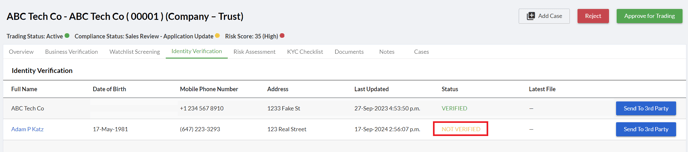
To update the verification status:
- Click on the status column next to the information you are verifying:
- Select the appropriate verification status:
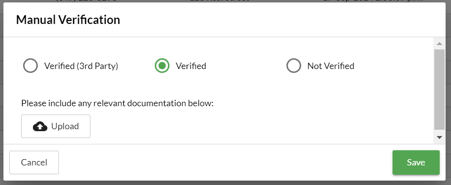
- Use the Upload button to attach supporting documentation related to the verification:
- Click Save
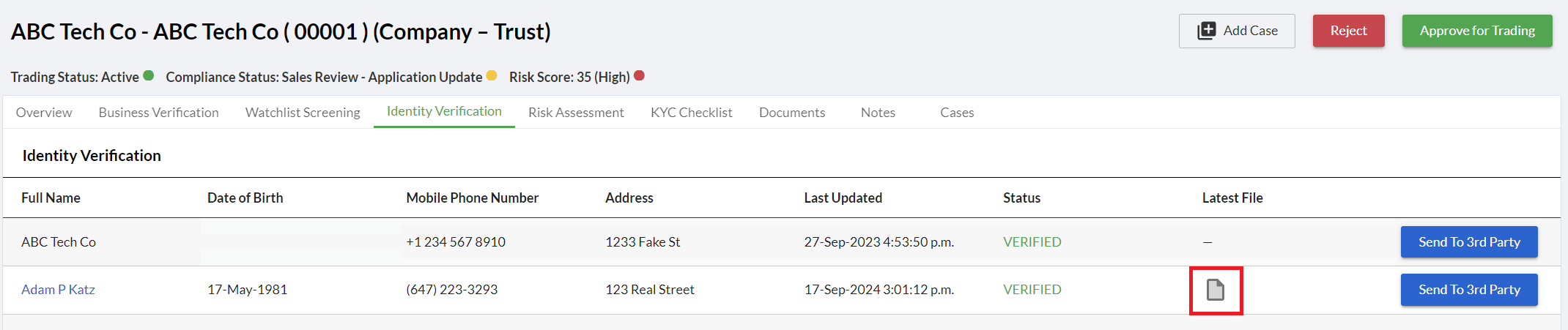
- The status of the information will change accordingly and a link to the uploaded file will also be visible under the 'Latest File” column.
If you would like to integrate Kooltra with a third-party identity verification service, please email sales@kooltra.com with details.
By integrating Kooltra with a third-party identity verification service, users can use the 'Send to 3rd Party' button to automatically conduct identity verifications.
Risk Assessment Tab
Kooltra allows compliance teams to build custom forms that can be used to perform risk assessments on customer accounts that will be used for ongoing KYC and transaction monitoring.
Once configured, compliance users are able to view historical risk assessments, or generate new risk assessments from this tab.
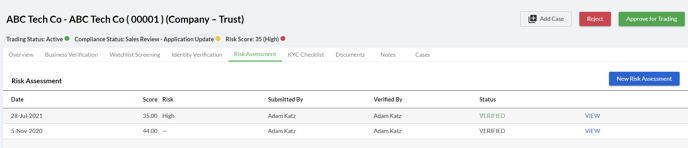
Please reach out to support@kooltra.com if you would like to discuss configuring a custom Risk Assessment.
KYC Checklist Tab
Compliance team can utilise custom checklists to aid with the KYC review of accounts. Checklists reduce the chance of error and helps to ensure consistency and completeness in the review process.

KYC Checklists can be customised based on:
-
Account Type (Individual vs Company)
-
Entity Classification (individual/Joint/ Public company etc).
Checklist items can also be flagged as mandatory. If a mandatory item on the checklist is not completed, Kooltra will prevent the account from being activated:

The documents tab allows you to review any documentation provided as part of the application, and upload any additional documentation as required.
Notes Tab
Enter any notes about the account. Notes added can be made visible to ‘Compliance Only’ or ‘All Users’ as required. Notes added for 'All Users' are visible on the Counterparty Summary page.
How do I approve or reject a counterparty for trading?
Once compliance checks have been completed, an account can be rejected or approved for trading using the buttons provided in the top-right of the compliance page:
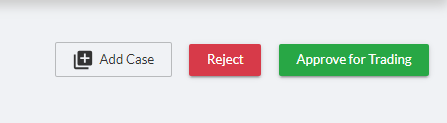
Approving a Counterparty
Once all compliance checks have been completed, an account can be approved for trading by clicking the ‘Approve for Trading’ button at the top-right of the compliance page. This will present a confirmation pop-up as below:
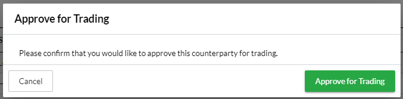
Once an account is approved for trading, the Status of the account will change to ‘Active’ and the ‘Compliance Status’ will change to ‘Approved’.
Rejecting a Counterparty
When rejecting a counterparty, compliance users will need to specify:
-
Type of rejection - either ‘More information required’ or ‘Counterparty to be added to Greylist’.
-
Reason for rejection - select the reason for rejecting the client out of the options listed. If no options describe the reason for rejection well, choose ‘Other’ and provide notes describing the reason below
-
Additional notes - any further details you wish to provide the sales team with as to why the account has been rejected for trading (either temporarily or permanently)
Below is an example of rejecting an account requesting more information:
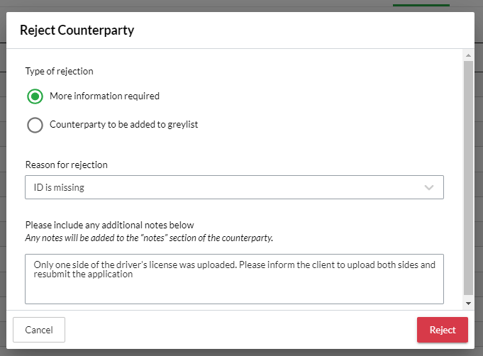
The Compliance Status is updated to ‘Rejected by Compliance’ on the account:

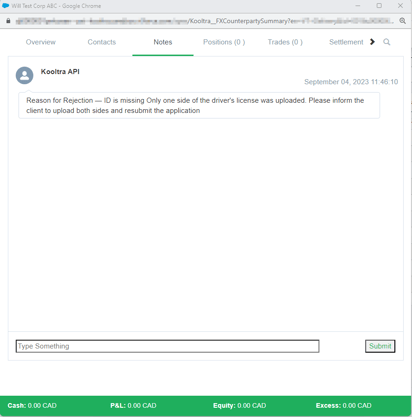
The ‘Notes’ tab of the Counterparty Summary page shows any notes added by compliance:
How can I check where an application is in the process?
The current status of a client’s onboarding application can be seen via the ‘Compliance Status’ field on the account in Kooltra:

Each of these statuses corresponds with a moment in the onboarding / KYC renewal process and is used to determine which department is responsible for the next action. Possible statuses are:
-
Ready for Portal Onboarding - Sales have clicked the "Send Application To Customer" button on the onboarding form. This lets the system know the client is ready for onboarding and a portal user should be created
-
Sent to Customer - Onboarding - the system has successfully created a portal user for the primary contact on the account and has emailed them with login instructions.
-
Sales Review - Onboarding - the client on the portal has submitted an onboarding application and it is awaiting review from Sales
-
Compliance Review - Onboarding - sales has submitted the onboarding application to compliance and it is awaiting compliance review
-
Approved - compliance has approved the onboarding application and the client can begin trading
-
Sales Review - Application Update - the existing client has submitted an application update on the portal and it is awaiting sales review
-
Compliance Review - Application Update - sales has submitted an application update for an existing client to compliance for review
-
Sales Review - Application Renewal - the existing client has submitted an application renewal within 30 days of their KYC renewal date
-
Compliance Review - Application Renewal - sales has submitted an application renewal for an existing client to compliance for review
-
Rejected by Compliance - compliance has rejected the application / update as they need more information. Sales should go to the Notes section of the Counterparty Summary page for details as to the reason for rejection, e.g:
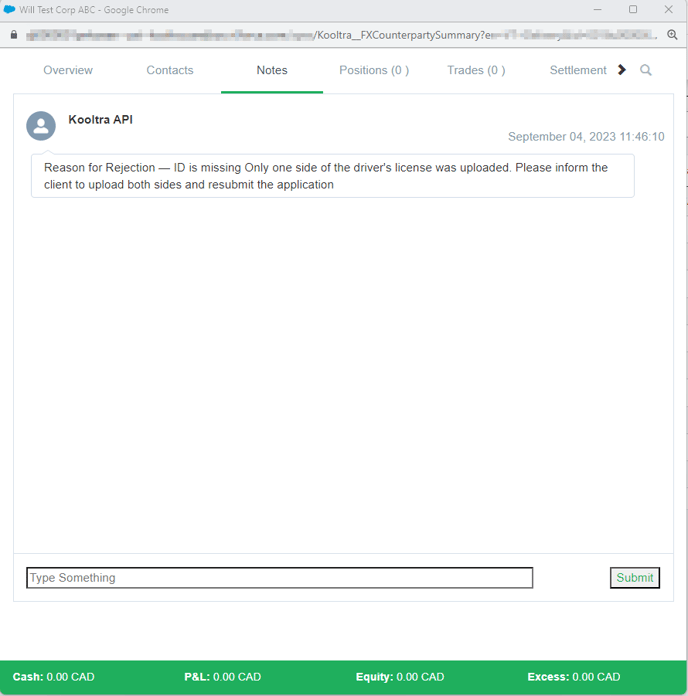
- Greylist - compliance has rejected the application / update and the account has been added to the greylist. Sales should go to the Notes section of the Counterparty Summary page for details as to why the account has been added to the greylist.
Using the ‘Compliance Status’ filter at the top of the Counterparties and Counterparty KYC pages allows users to quickly identify any accounts that require action from their team: