
Ticket pages show the trade ID along with relevant trade details. If your user profile and the trade status permit, you may have the option to update the details or cancel the trade.
Amending a Trade
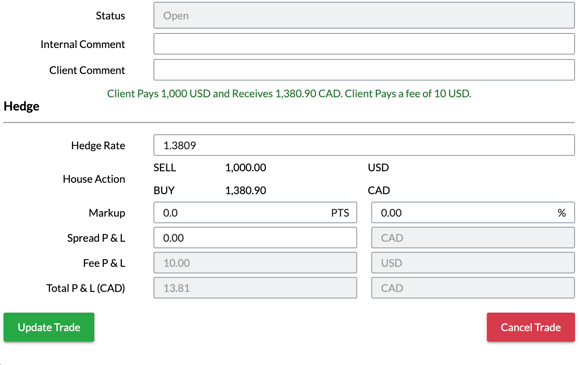
To amend a trade, ensure that it is in an open status. Use the global search bar in the top right corner of the screen to search for the trade ID you want to amend. This will open a window displaying the ticket details.
The following fields can be modified within the trade ticket:
- Counterparty
- Trade type
- Book
- Currency pair
- Dealt amount
- Rate
- Fee
- Trade date
- Value date
- Hedge rate
- Markup
- Spread
Once the fields have been modified, click the "Update" button at the bottom left of the page to save the changes to your trade.
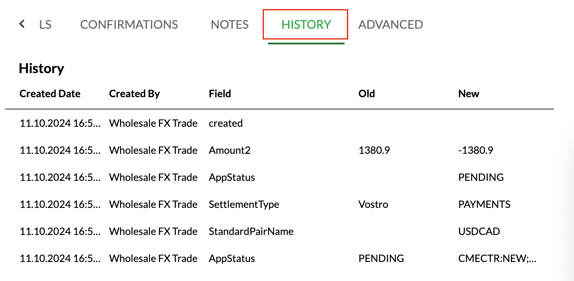
To view the trade history, navigate to the top of the trade ticket page, where you will find a menu. Use the arrow to access the "History" tab, where you'll find an audit log of all amendments made to the trade.
Cancelling a Trade
To cancel a trade in Kooltra, open the trade ticket by using the global search bar in the top right corner of the screen to search for the trade ID you want to cancel.
Once the trade ticket is open, click the "Cancel" button located at the bottom right corner of the screen. If settlement details were previously added to the trade, canceling it will automatically void the associated cashflows.
If the trade has already been settled or the value date has passed, you will need to contact Kooltra Support for assistance with cancellation. For settled or closed trades, adjustments to the associated vostro and nostro accounts will also be required.
Confirmations
If your client is subscribed to receive trade confirmations, they will receive an email containing a PDF document detailing the trade once you modify or cancel it. To learn more about confirmation emails and how to configure them in your Kooltra instance, see the article Understanding Confirmations.